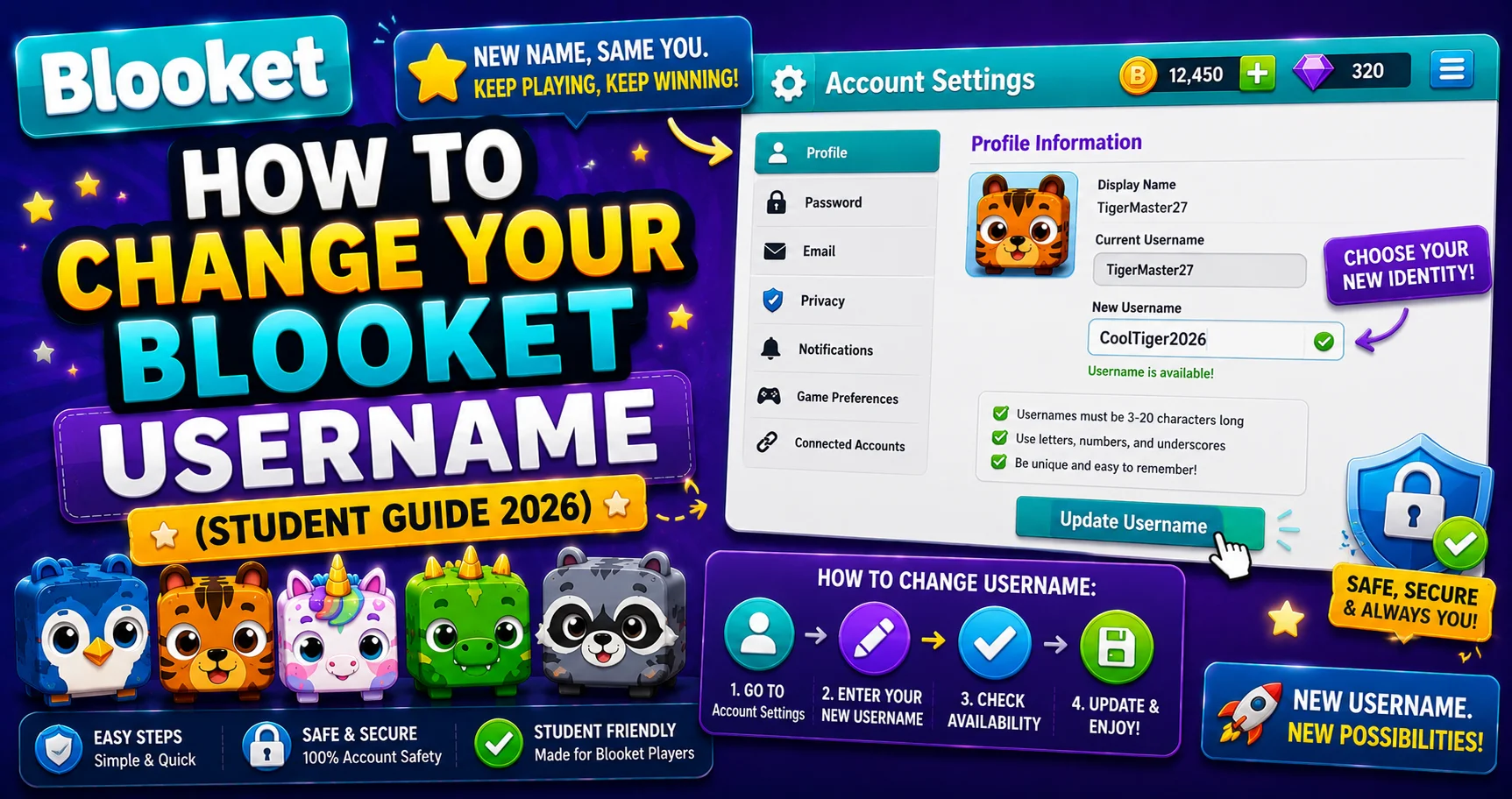
How to Change Your Blooket Username: Step-by-Step Guide for Students
Last verified: August 20, 2026
Quick Answer: To change your Blooket username, go to Settings, select Change Name under Edit Info, type your new name, and confirm. The change takes effect immediately and can be done as many times as you want.
How to Change Blooket Username
Your Blooket username is the name that appears next to your Blook on every game leaderboard, on your public profile page, and in the Discover library if you’ve published question sets. Changing it takes about 30 seconds. This guide explains how to change your Blooket username in 3 steps and more about this.
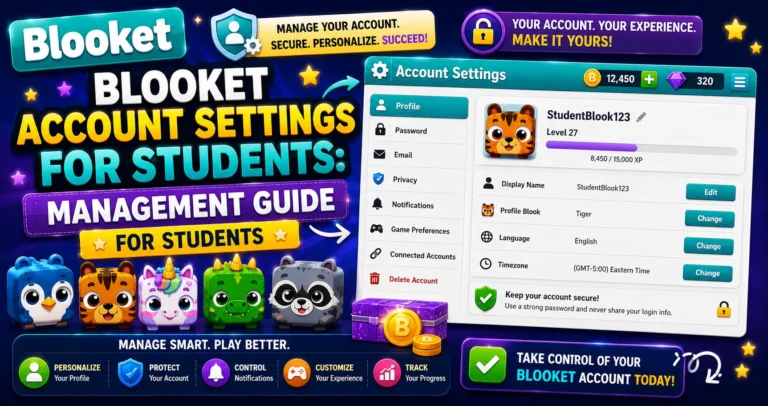
Account Setting Guide → Blooket Account Settings for Students
When Students Change Their Username
→ Your original choice was unprofessional or inappropriate. First-time signups sometimes result in usernames that seem funny at the time but don’t belong in a classroom setting. Your teacher sees your username in every game report.
→ Your name has changed. A nickname update, a preference for a different name, or simply wanting something cleaner.
→ You want your leaderboard name to match your real name. Teachers often need to match leaderboard names to their class roster for reporting. Using your real name (or first name plus last initial) makes this easy.
Steps to Change Blooket Username
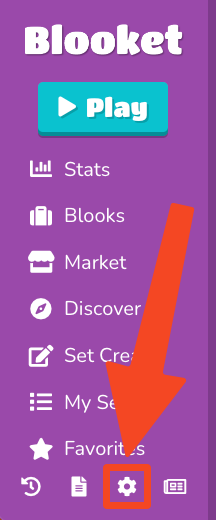
→ Step 1: Navigate to the “Settings” tab.
Click your profile icon in the top-right corner of any Blooket page and select Settings. Or go directly to dashboard.blooket.com/settings.
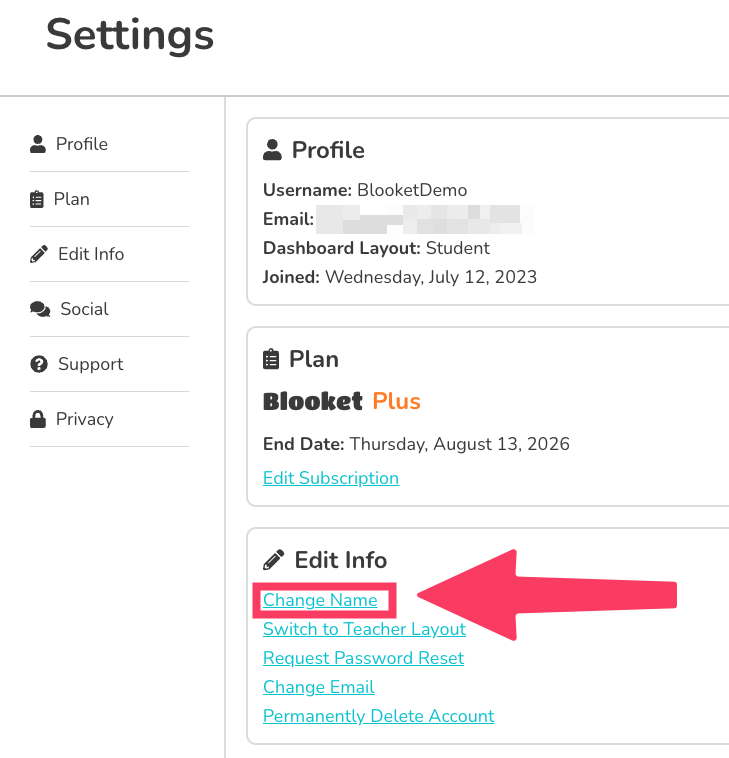
→ Step 2: Under “Edit Info,” select “Change Name.”
On the Settings page, find the Edit Info section. Click “Change Name.”
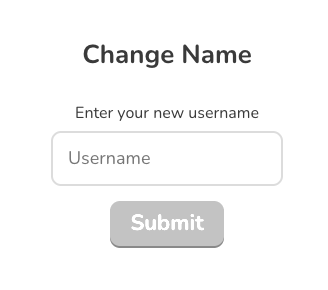
→ Step 3: Enter your new name, and you are all set.
Type your new username in the field that appears and confirm. Your username updates immediately.
Source: verified from Blooket’s official documentation on changing your username.
Username Rules
- Your username is publicly visible. It appears on leaderboards and your Stats page.
- Choose something school-appropriate. Teachers and classmates see it.
- Usernames are case-sensitive when logging in (if you log in with a username rather than email).
- There is no documented limit on how many times you can change your username.
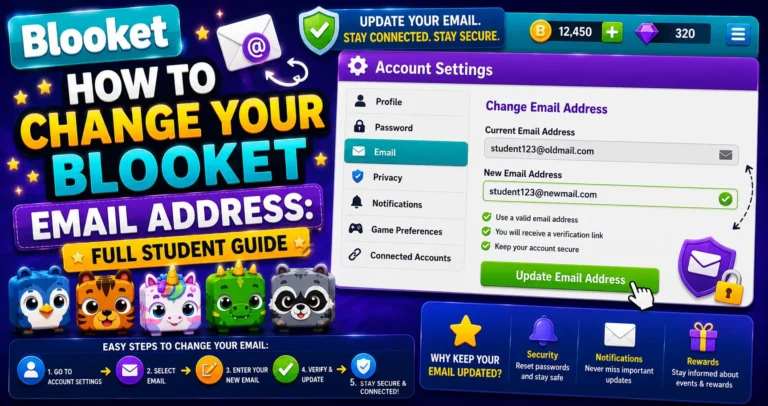
Step-by-Step Guide → How to Change Your Blooket Email Address
What Changes and What Stays the Same?
Changes immediately after updating:
- Your display name on all future game leaderboards.
- Your Stats page display name.
- Your name on any question sets you’ve published to Discover.
Does NOT change:
- Your email address or password.
- Your Blook collection, tokens, or XP.
- Historical game reports (old reports still show the username you had at the time).
- Any question sets you’ve already shared via the link.
Where to Go Next
- Want to know more about the platform? See our full Blooket guide
- Curious about what your teacher sees? Visit the Blooket For Teachers
- Want the full student guides overview? See the Blooket For Students
Have another question? Please check the Frequently Asked Questions or Blooket Help Center.
Frequently Asked Questions
How many times can I change my Blooket username?
There’s no documented limit. You can change it as often as you like from the Settings page.
Will changing my username affect my Blooks, tokens, or XP?
No. Changing your username only affects your display name. Your Blook collection, tokens, and XP remain exactly as they were.
Do old game reports update to show my new username?
No. Historical game reports keep the username you had at the time you played, so your teacher’s old records stay accurate.
Is my username case-sensitive?
Yes, when logging in with a username rather than an email address. Keep this in mind if you ever have trouble logging in after a username change.
Should I use my real name as my Blooket username?
It depends on your teacher’s preference. Many teachers ask students to use their real name or first name plus last initial to make leaderboard reports easier to match to a class roster.
Will my published question sets still work if I change my username?
Yes. Question sets you’ve already shared via a link continue to work. Only your displayed name on those sets updates to reflect the change.
How long does a username change take to appear?
It’s instant. As soon as you confirm your new name, it updates immediately across your Stats page and all future game leaderboards.