Blooket Account Settings for Students: Complete Management Guide
Last verified: August 20, 2026
Quick Answer: Blooket account settings control your username, email, password, and account type. Access them by clicking your profile icon, then Settings, or going directly to dashboard.blooket.com/settings. Most changes take effect instantly and are reversible; account deletion is the one permanent exception.
New to Blooket? → Quick Start Guide for Students
Blooket Account Settings for Students
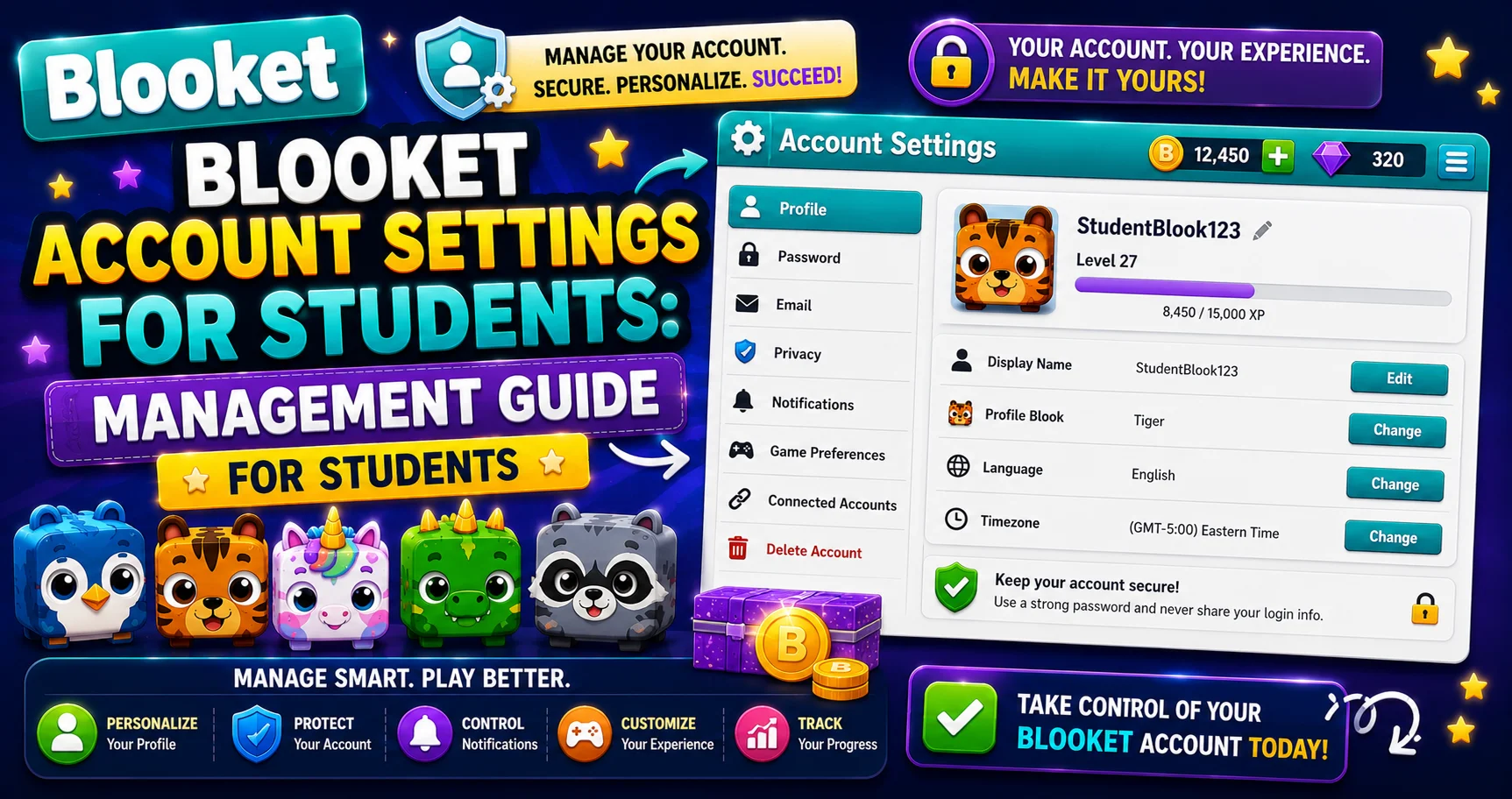
Your Blooket account settings are where you control the core details of your account: your username, email, password, and account type. Most students visit Settings rarely, but when you need it quickly, you can access your student dashboard after signing in to your Blooket account. This detailed guide explains Blooket account settings for students with clear steps and direct links to each account setting.
Complete Details Regarding → Blooket for Students
How to Access Blooket Account Settings
→ Settings is always one click away: Click your profile icon in the top-right corner of any Blooket page, then select Settings from the dropdown. Alternatively, go directly to dashboard.blooket.com/settings.
→ The Settings page includes the Edit Info section (for username, email, and password changes) and additional options to switch account types and delete the account.
Important difference: Settings controls your account data. Your profile appearance (Blook, banner, title) is managed separately from the Stats page, not Settings.
Source: verified from Blooket’s official Account Settings documentation.
Account Settings Quick Reference
| Task | Location | Urgency | Reversible? |
| Change username | Settings, Edit Info, Change Name | Low | Yes |
| Change email | Settings, Edit Info, Change Email | Medium | Yes |
| Add a password (Google accounts) | Settings, Edit Info, Request Password Reset | Medium | Yes |
| Recover forgotten password | Login page, Forgot Password | High | N/A |
| Change existing password | Settings, Edit Info, Request Password Reset | Medium | Yes |
| Switch to Teacher account | Settings, Switch to Teacher Account | Medium | Yes |
| Switch back to Student | Settings, Switch to Student Account | Medium | Yes |
| Learn about Plus features | Settings, Plus info / Upgrade option | Low | N/A |
| Delete account | Settings, Delete Account | Medium | No, permanent |
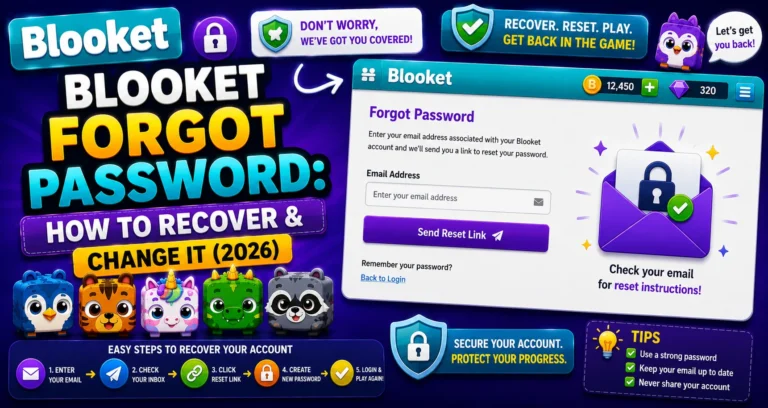
Step-by-Step Guide For → How to Recover & Change Your Blooket Password
The Most Critical Setting: Your Email Address
The email address linked to your Blooket account serves as the recovery key for everything else. If you forget your password, lose access to your Google account, or need support, your email is how Blooket identifies and helps you.
⚠️The school email risk: Many students sign up for Blooket using their school email address. This works perfectly while you’re at that school, but school email accounts are deactivated when students graduate, transfer, or leave. If your Blooket account is tied to a deactivated school email, you may permanently lose access to your Blooks collection, game history, and account.
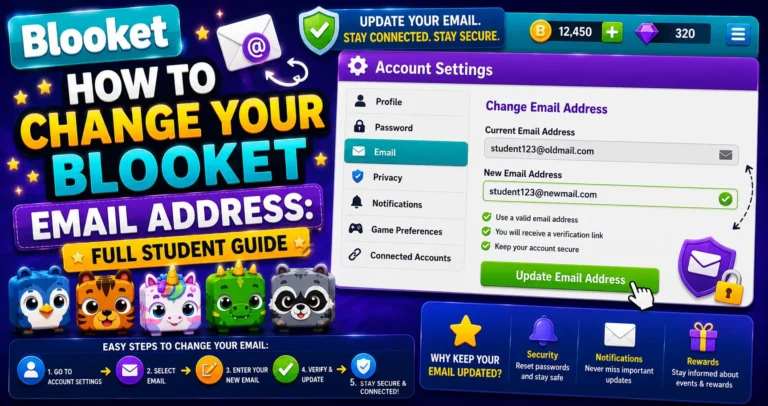
What to do → If your registered Blooket email is a school address, change it to a personal email (Gmail, Outlook, etc.) that you’ll keep long-term.
Step-by-Step Guide → How to Change Your Blooket Email Address
Google SSO Accounts vs Email/Password Accounts
How you originally signed up for Blooket determines which settings options apply to you.
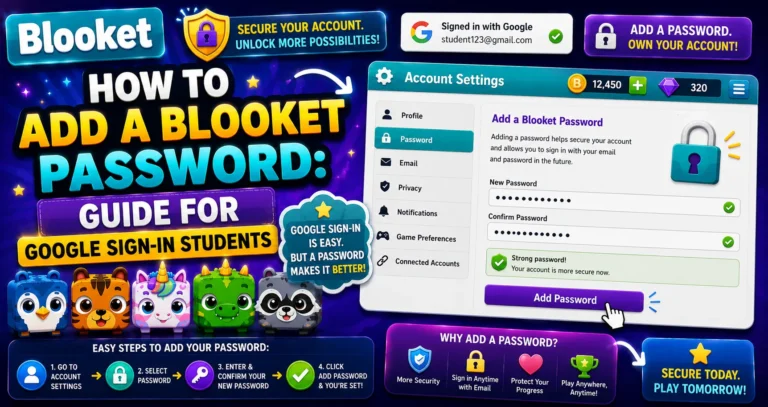
- If you signed up with Google (“Continue with Google”), your account authenticates using your Google account. You may not have a Blooket-specific password yet. To add one, use the Add a Password process.
- If you signed up with an email, your account uses an email/password pair. All Settings options work in standard self-service mode.
Add a Password Backup → How to Add a Blooket Password
Username: Your Public Identity
Your username appears on every game leaderboard, on your public Stats page, and in Discover when you publish question sets. Keep it appropriate; your teacher and classmates see it.
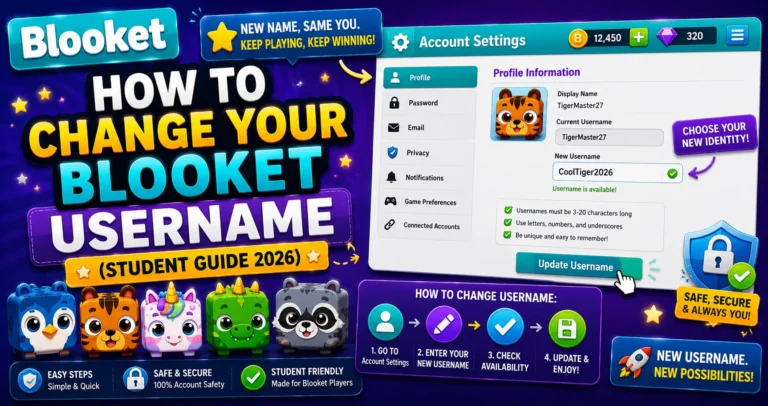
Changing your username takes 30 seconds from Settings → Edit Info → Change Name.
Change Your Username → How to Change Your Blooket Username
Switching Account Types
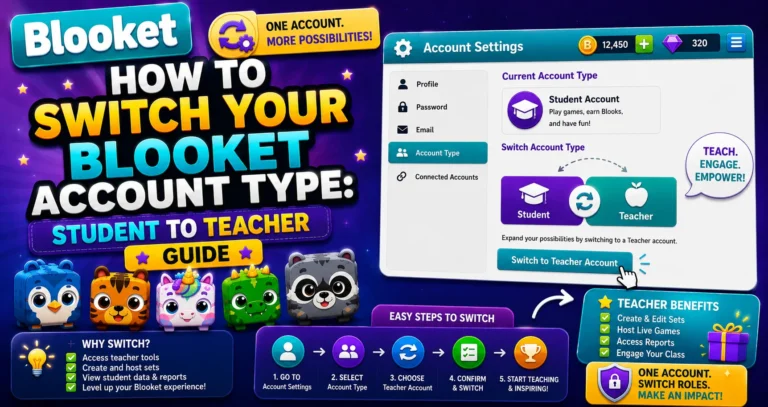
You can switch between a Student account and a Teacher account from Settings. The switch takes effect immediately and is fully reversible. Switching doesn’t delete any of your data; your Blooks, question sets, and game history all stay intact.
Students switch to Teacher accounts when they want to host games themselves (for study groups, tutoring, or personal projects).
Switch Your Account → How to Switch Your Blooket Account Type — Student to Teacher
Blooket Plus: What it Unlocks
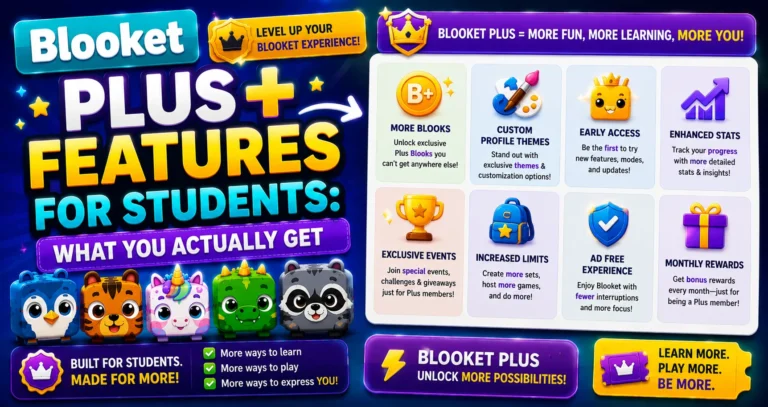
Blooket is completely free to use. Plus is an optional upgrade that unlocks additional features, including exclusive game modes, folders, larger live games (up to 300 players), enhanced reports, audio questions, longer homework deadlines, and bonus tokens for every game session.
Students don’t usually purchase Plus themselves; Plus benefits come to you when your teacher has a Plus subscription. Understanding what Plus includes helps you know what’s available in your teacher’s hosted games.
Complete Feature List → Blooket Plus Features for Students
Account Deletion!
Before deleting, consider: you may not need to delete your account. You can simply stop using it. If you’re concerned about a school email being deactivated, changing your email is a better option than deleting it.
⚠️ Permanent action: Deleting your Blooket account removes all your data, Blooks, tokens, XP, question sets, game history, permanently. It cannot be undone.
Account Deletion Guide → How to Delete Your Blooket Account
Blooket Support
For any account issue that isn’t resolved by the guides in this section, contact Blooket support directly at contact-us@blooket.com. Include your username and the email address associated with your account for faster resolution.
Where to Go Next
- Want to know more about the platform? See our full Blooket overview
- Curious about what your teacher sees? Visit the Blooket For Teachers
- Want the full student guides overview? See the Blooket For Students
Have another question? Please check the Frequently Asked Questions or Blooket Help Center.
Frequently Asked Questions
How do I access my Blooket account settings?
Click your profile icon in the top-right corner of any Blooket page, then select Settings, or go directly to dashboard.blooket.com/settings.
Why should I avoid using my school email for Blooket?
School email accounts are typically deactivated when students graduate, transfer, or leave. If that email is your only recovery method, you risk permanently losing access to your Blooks, game history, and account.
Is switching between Student and Teacher account types permanent?
No. The switch takes effect immediately and is fully reversible, and none of your data (Blooks, question sets, game history) is deleted in the process.
Do I need to pay for Blooket Plus myself?
No. Most students access Plus benefits through their teacher’s subscription during hosted games, rather than purchasing it individually.
Can I undo deleting my Blooket account?
No. Account deletion is permanent and removes all your data, including Blooks, tokens, XP, question sets, and game history. Consider simply not using the account instead, if your only concern is inactivity.
What should I do if I signed up with Google and don’t have a password?
Use the Add a Password process in Settings to create a Blooket-specific password. This gives you a backup login method that works even if your Google account becomes inaccessible.
Who do I contact if my account issue isn’t covered by these guides?
Email Blooket support directly at contact-us@blooket.com, including your username and account email for faster resolution.