How to Recover And Change Your Blooket Password: Guide for Students
Last verified: August 21, 2026
Quick Answer: To recover a forgotten Blooket password, use Forgot Password on the login page. To change a password you already know, use Request Password Reset from Settings. Both paths send a numeric code to your email; keep the Blooket window open while retrieving it.
How to Recover and Change Blooket Password
Being locked out of your Blooket account, especially right before a class game, is stressful. To reset your Blooket password, follow all the steps below.
This guide explains all the steps for how to recover and change your Blooket password. There are two scenarios: you’re signed out (can’t log in at all) or you’re already signed in and want to change your password. Find your scenario and follow those steps.
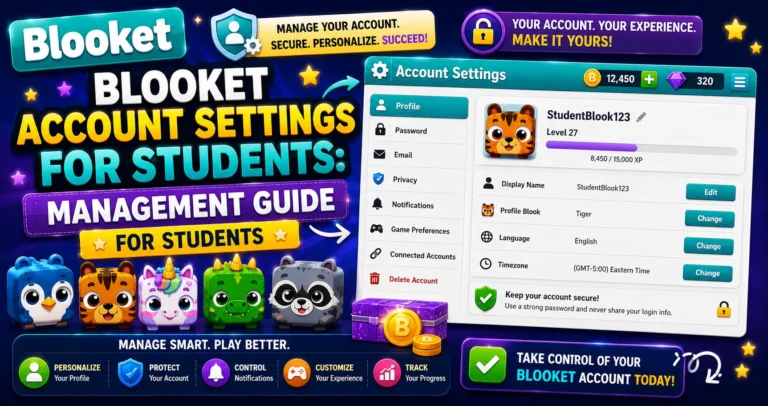
Complete Overview → Blooket Account Settings: Guide for Students
Scenario A: You’re Signed Out (Can’t Log In)
Use this path when you’ve forgotten your password and can’t log in to your account.
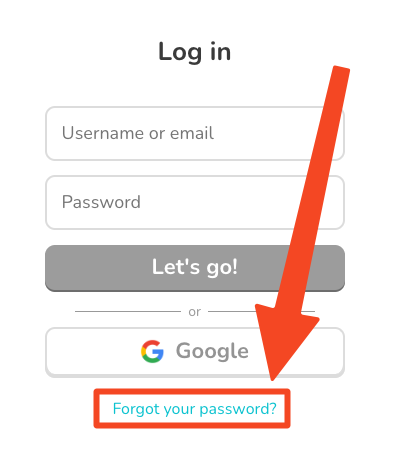
→ Step 1: Navigate to the login page (id.blooket.com/login) and select “Forgot Password.”
The “Forgot Password” link appears below the password entry field on the login page.
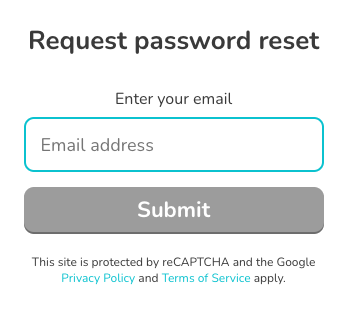
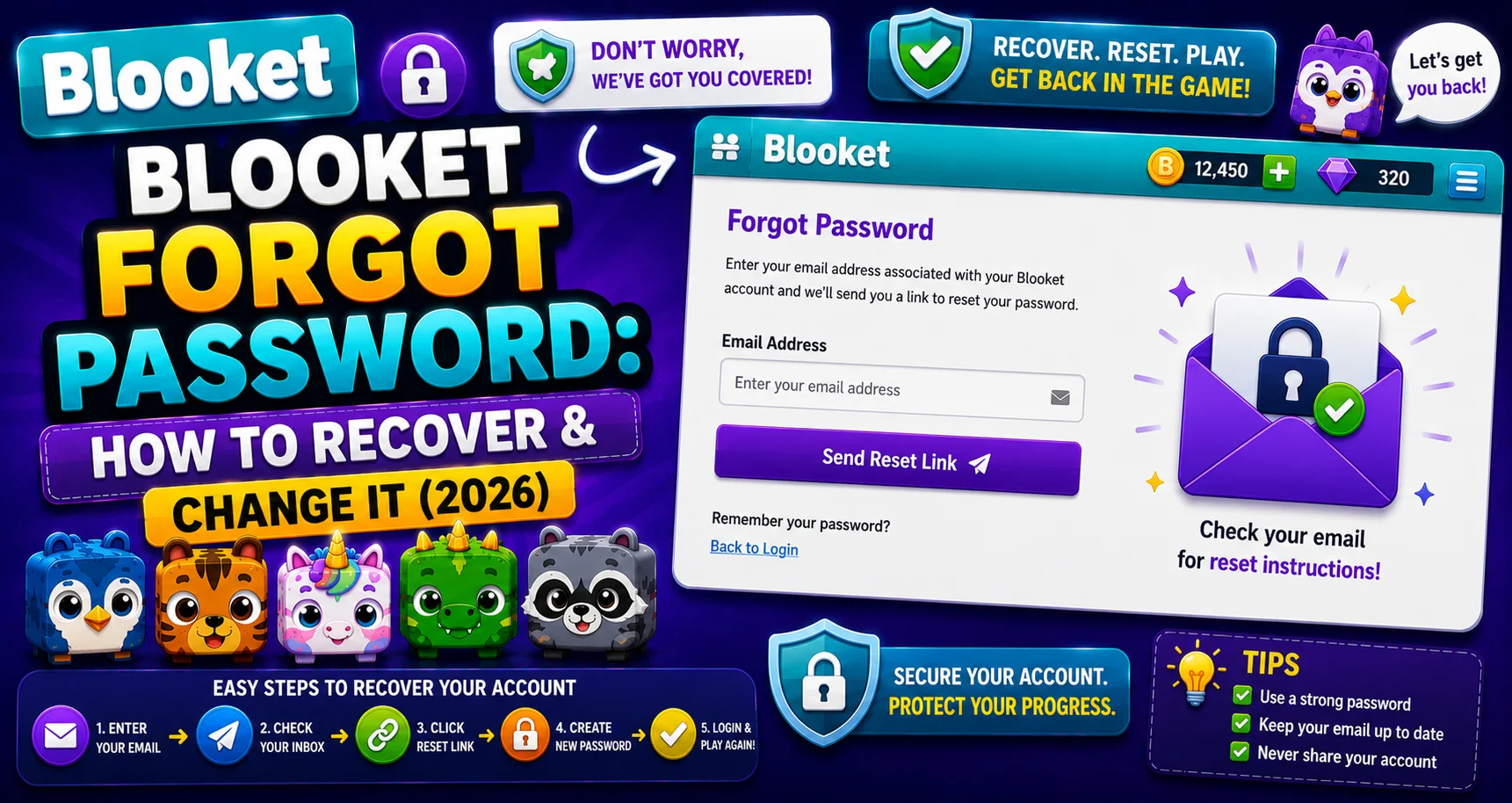
→ Step 2: Enter your email address on the Forgot Password Page (dashboard.blooket.com/forgot).
Enter the email address registered to your Blooket account. If you’re unsure which email you used, try every email address you own: school email, personal email, parent’s email if you signed up with help.
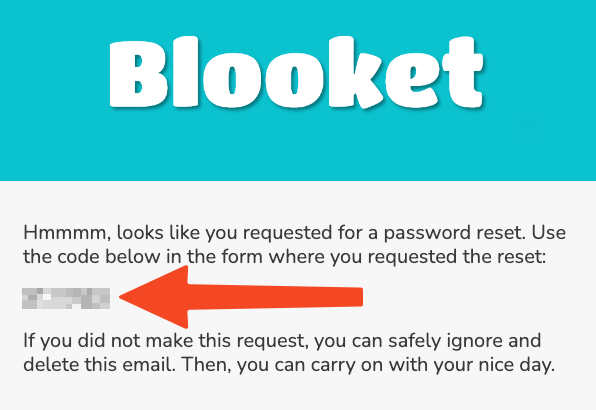
→ Step 3: Leave the window open and check your email. Copy the reset code (a string of numbers).
Blooket sends a numeric reset code to your inbox. Check your spam or junk folder if it doesn’t arrive within 3 minutes.
⚠️ Do not close the Blooket tab. The reset code is linked to the active browser session. If you close the tab or navigate away, the code becomes invalid, and you’ll need to restart from Step 1.
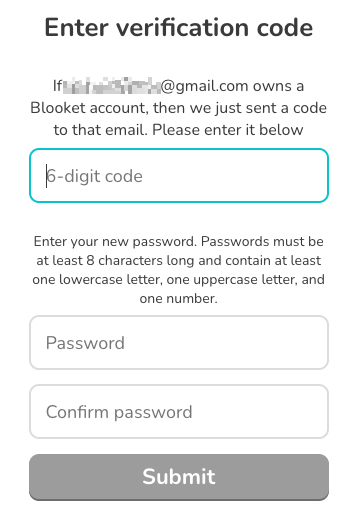
→ Step 4: Return to the open Blooket window and enter your code and new password in the appropriate fields.
Type the reset code in the code field. Create a new password that meets the strength requirements (8+ characters, including a capital letter, a lowercase letter, a number, and a special character). Submit to complete the reset.
Your account is now accessible with the new password.
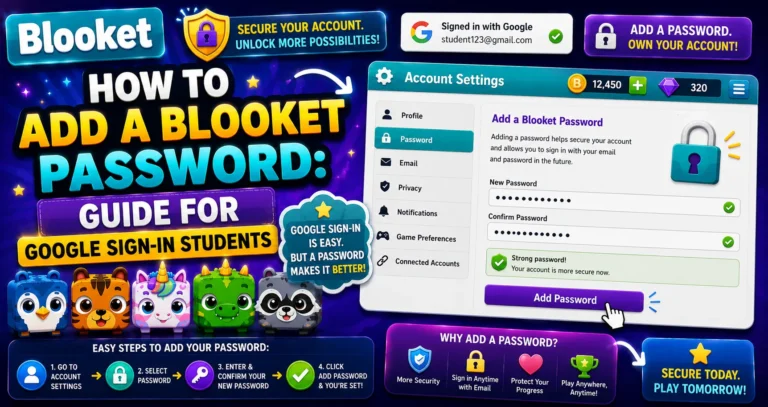
Don’t Have a Password → How to Add a Blooket Password
Scenario B: You’re Already Logged in
(Changing Your Password)
Use this path when you’re logged into your account and want to update your password proactively.
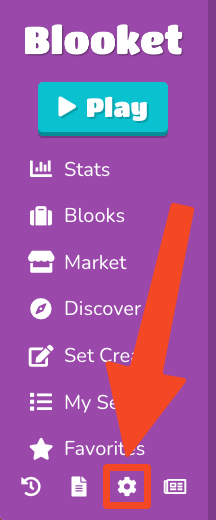
→ Step 1: Navigate to the “Settings” tab.
Click your profile icon, then Settings (or go to dashboard.blooket.com/settings).
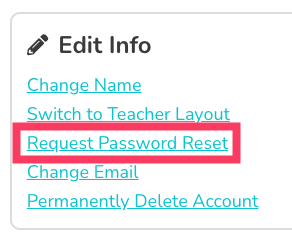
→ Step 2: Under Edit Info, select “Request Password Reset.”
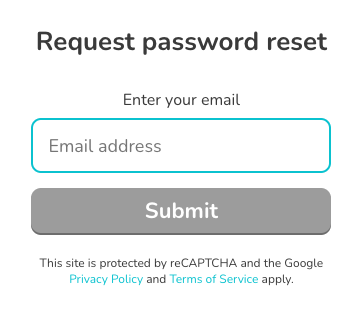
→ Step 3: Enter your email address on the Forgot Password Page (id.blooket.com/forgot).
→ Step 4: Leave the window open and check your email. Copy the reset code (a string of numbers).
Check your inbox and spam folder. Leave the Blooket window open; do not navigate away before entering the code.
→ Step 5: Return to the open Blooket window and enter your code and new password in the appropriate fields.
Enter the reset code and your new password. Submit to save.
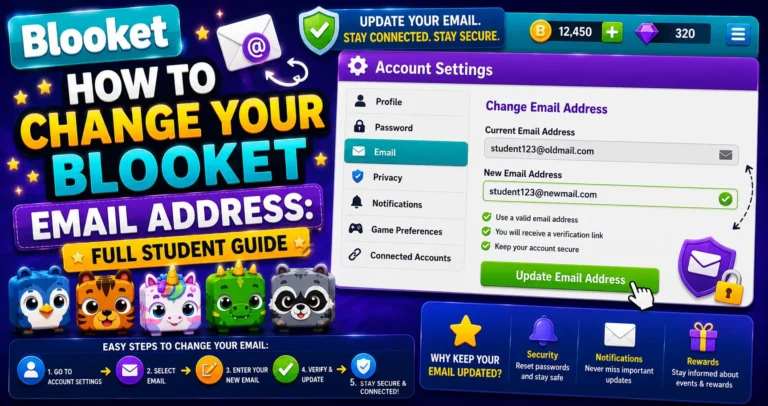
Complete Email Setup → How to Change Blooket Email Address
Troubleshooting Failed Recovery
Code not arriving:
- Check spam or junk folder.
- If using a school email that may be filtering automated emails, try adding the Blooket domain to your safe senders.
- Wait 5 minutes; email delivery can be delayed.
- Re-submit the Forgot Password request to receive a fresh code.
“No account found” for your email:
- Try every email address you’ve ever used: school email, personal email, a parent’s email.
- If you signed up with Google (Continue with Google), the Forgot Password flow may not apply; try clicking “Continue with Google” on the login page instead.
Reset code expired:
- The code has a limited time window; return to Step 1 and request a fresh code.
Source: Verified from Blooket’s official documentation on recovering and changing your password.
Still can’t get back in?
Contact Blooket support at contact-us@blooket.com. Include your Blooket username and the email address you believe is registered. The support team can assist with account recovery that isn’t possible through the self-service flow.
If you are still unable to recover your account, please get in touch with support at: contact-us@blooket.com.
Where to Go Next
- Want to know more about the platform? See our Blooket overview
- Curious about what your teacher sees? Visit the Blooket For Teachers
- Want the full student guides overview? See the Blooket For Students
Have another question? Please check the Frequently Asked Questions or Blooket Help Center.
Frequently Asked Questions
What’s the difference between recovering and changing my password?
Recovering applies when you’re signed out and can’t log in at all; you use Forgot Password on the login page. Changing applies when you’re already logged in and want to proactively update your password; use Request Password Reset in Settings.
What happens if I close the Blooket tab while waiting for my reset code?
The code becomes invalid immediately, since it’s tied to that specific active browser session. You’ll need to restart the entire process from Step 1 to get a fresh code.
I’m not sure which email I used to sign up. What should I try?
Try every email address you’ve ever used, including school email, personal email, and a parent’s email if they helped you sign up originally.
What if the Forgot Password flow says no account was found?
Double-check you’re trying every email you might have used. If you originally signed up with Continue with Google, the standard Forgot Password flow may not apply; try signing in with Google directly instead.
How long is a reset code valid for?
It has a limited time window. If it expires before you use it, return to Step 1 of your scenario and request a fresh code.
What should I do if the reset code email never arrives?
Check your spam or junk folder first, then wait about 5 minutes in case of delivery delay. If it still doesn’t arrive, re-submit the Forgot Password request for a new code.
What information should I include when contacting support for account recovery?
Your Blooket username and the email address you believe is registered to your account so that the support team can locate and assist with your specific account.