How to Add Images, Audio, and Equations to Blooket Questions?
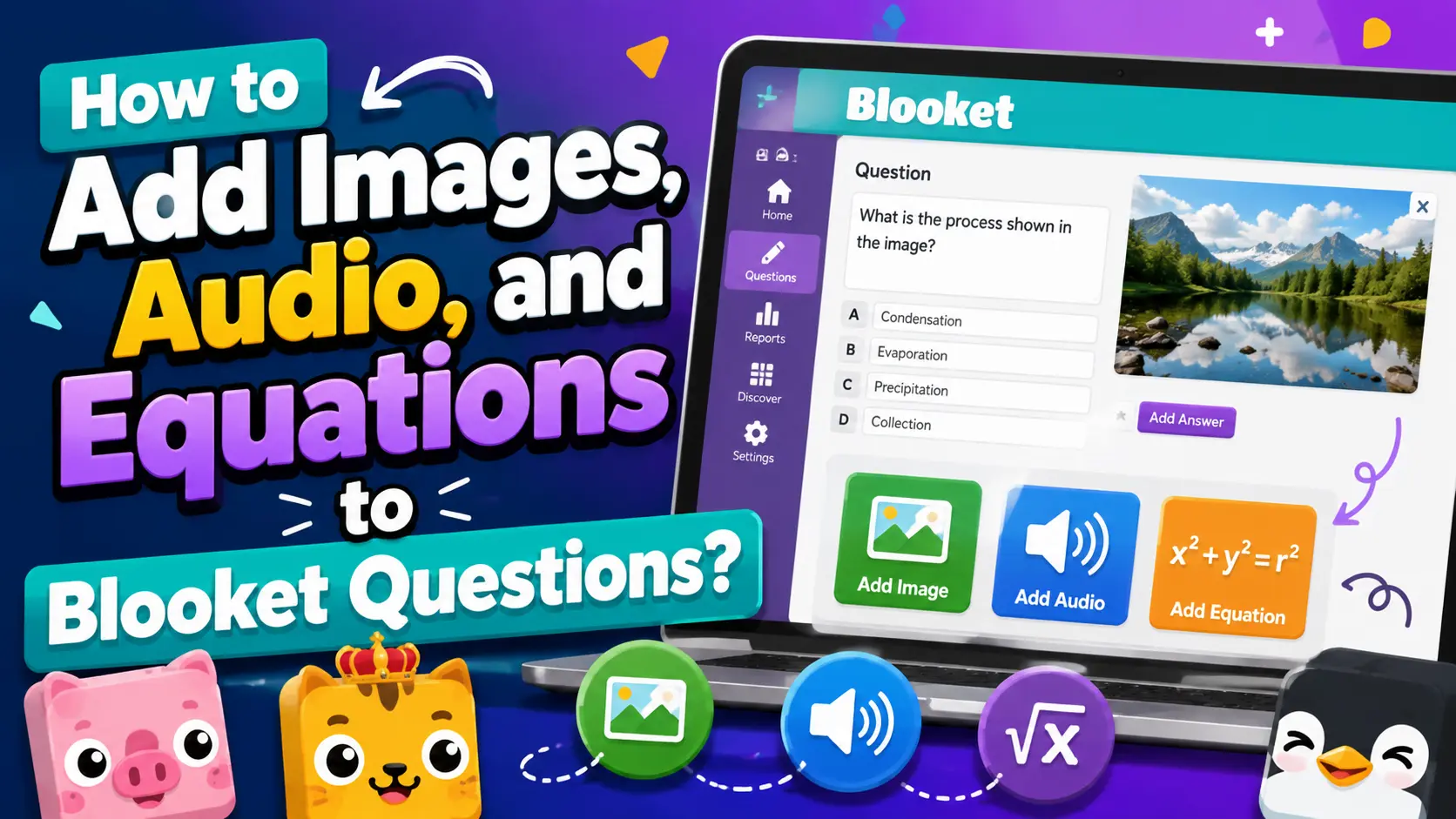
Plain-text questions work well for many subjects, but adding images, equations, and audio to your Blooket question sets can significantly increase engagement, improve accessibility, and make certain subjects much easier to teach. This guide explains every media type with blooket image questions, blooket audio questions, blooket equation editor, blooket LaTeX questions, blooket question media available in the question editor, and how to add each one.
Why Add Media to Questions?
- Images are essential for visual subjects — anatomy diagrams, map identification, art history, geometry figures, chemistry diagrams, and any content where seeing the concept is part of understanding it. They also make text-heavy reviews more interesting and reduce reading load for younger students.
- Equations let you write precise math without workarounds. Without the equation editor, a fraction like ¾ would have to be written as “3/4” in plain text, and more complex expressions become unreadable. The LaTeX editor in Blooket produces clean, properly formatted math at any level of complexity.
- Audio opens the platform for language learning, pronunciation practice, and accessibility. Students who benefit from hearing content read aloud perform better when audio is available. It’s also the only way to make listening comprehension questions in Blooket.
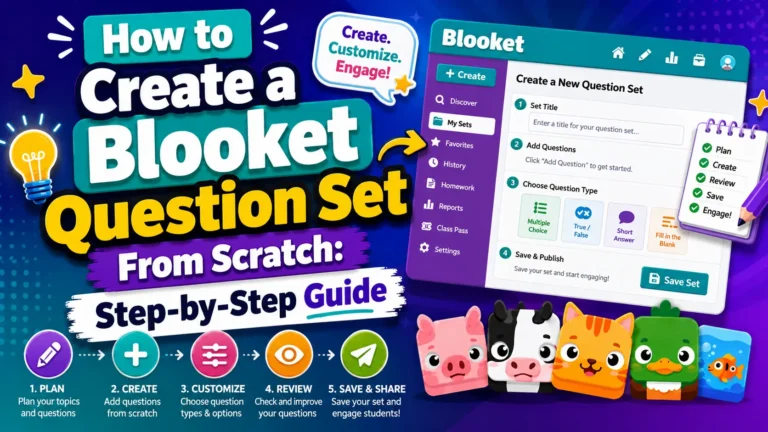
Step-by-Step Guide → How to Create a Blooket Question Set?
Adding Images to Questions
Images can be added to:
- The question prompt itself
- Any individual answer option in a Multiple Choice question
To add an image to a question prompt:
- Open the question editor (either when adding a new question or editing an existing one)
- Look for the image icon (picture frame symbol) on the left side of the question editor panel
- Click it to open the image picker. You have three options:
- Gallery — Browse Blooket’s built-in image library organized by category
- Upload — Upload an image from your device files
- URL — Paste a direct URL to an image hosted online
- Select or confirm your image. It will appear as a preview in the question editor.
- Save the question normally.
To add an image to an answer option:
- In the Multiple Choice question editor, look for a small image icon next to each answer text field
- Click it to open the image picker for that specific answer
- Choose from the gallery, upload, or URL
- The image appears alongside the answer text for students
Image tips: Use clear, high-contrast images that are easy to read on small screens. Students often play on Chromebooks or phones, where small details get lost. Avoid images that require zooming to understand.
Adding Equations (LaTeX Editor)
The equation editor uses LaTeX formatting — a standard typesetting system for mathematics — to display properly formatted equations, fractions, symbols, and expressions.
To add an equation to a question:
- In the question editor, click the equation icon (usually represented by sigma Σ or a math symbol) in the toolbar
- The equation editor panel opens with an input field and a preview
- Type your LaTeX code in the input field. The preview updates in real time.
- Common LaTeX patterns:
- Fractions: \frac{3}{4} renders as ¾
- Exponents: x^{2} renders as x²
- Square roots: \sqrt{9} renders as √9
- Multiplication: 3 \times 4 renders as 3 × 4
- Greek letters: \pi renders as π, \theta renders as θ
- When the preview looks correct, confirm that it should be inserted into the question.
Equations can be added to both the question prompt and individual answer options, allowing fully formatted math problems with formatted answer choices.
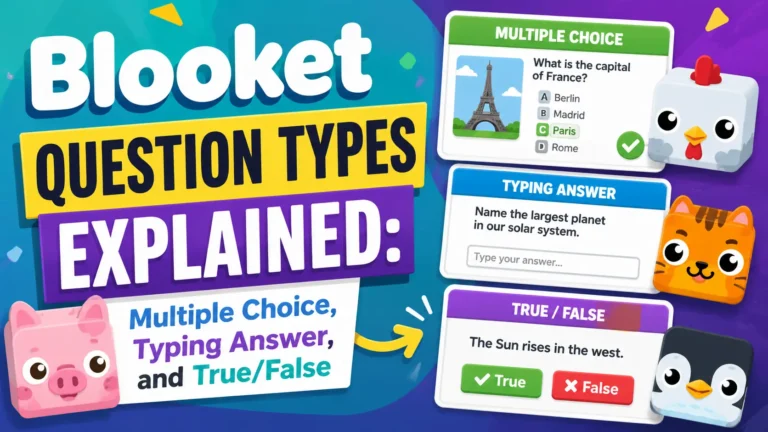
Full Guide About → Blooket Question Types Explained
Adding Audio to Questions (Blooket Plus)
Audio questions require a Blooket Plus subscription. This feature is not available on free (Starter) accounts.
With Plus, you can add audio to the question prompt of any Multiple Choice or Typing Answer question. Students hear the audio clip play when they reach that question during gameplay.
To add audio to a question:
- In the question editor, click the audio icon (microphone or speaker symbol)
- Choose your method:
- Record — Use your device’s microphone to record directly in Blooket. Ideal for pronouncing words, reading passages, or recording instructions.
- Upload — Upload an audio file (MP3 or similar) from your device. Ideal for professionally recorded audio, music clips, or language lab recordings.
- Confirm your recording or upload. A playback control appears in the question editor so you can verify how it sounds.
- Save the question.
Best uses for audio questions:
- World Languages — Record target language pronunciation and have students identify the word, translate it, or determine correct grammar
- English Language Learners — Read questions aloud to reduce reading barriers for ELL students.
- Phonics and Literacy — Play a sound or word and have students identify the correct spelling or related image
- Music — Play a short clip and ask students to identify the instrument, composer, time signature, or genre
- Accessibility — Support students with reading difficulties by pairing text questions with audio narration
For More Details → Blooket Plus Features Guide
Combining Media Types
All three media types can be combined within a single question. For example:
- A science question with an anatomy diagram image + a text question prompt + a LaTeX chemical formula in an answer option.
- A language question with an audio clip playing the target phrase + a text question asking for the translation.
There’s no restriction on using multiple media types together, though keeping questions readable and clean is a good design principle.
Media in Imported Sets
When you import from Quizlet, any images included in the Quizlet set are automatically imported into Blooket, where supported. Audio and equation formatting from Quizlet are generally not preserved — you’ll need to add those manually after import.
When importing from a CSV spreadsheet, media cannot be added directly from the spreadsheet. After importing, open the set in the editor and add images and equations to individual questions as needed.