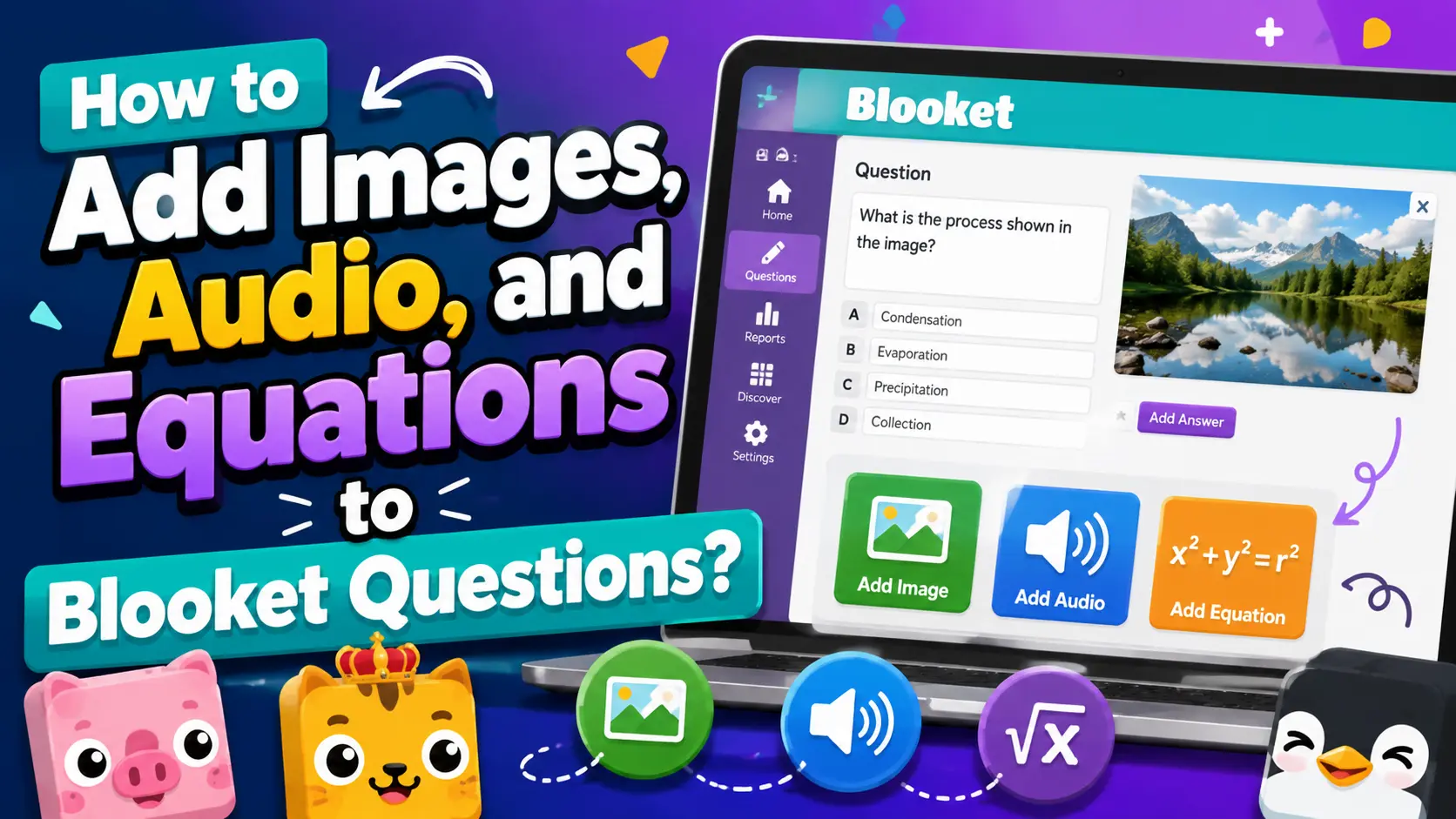
How to Add Images, Audio, and Equations to Blooket Questions?
Last verified: August 8, 2026
Quick Answer: In the question editor, click the image icon to add pictures (gallery, upload, or URL) to a question or answer option, the equation icon to write formatted math using LaTeX, or the audio icon to record or upload sound clips. Images and equations are free on any plan; audio questions require Blooket Plus.
How to Add Images, Audio, and Equations to Blooket Questions?
Plain-text questions work well for many subjects, but adding images, equations, and audio to your Blooket question sets can significantly increase engagement, improve accessibility, and make certain subjects much easier to teach. This guide covers all three media types the question editor supports, and exactly how to add each one.
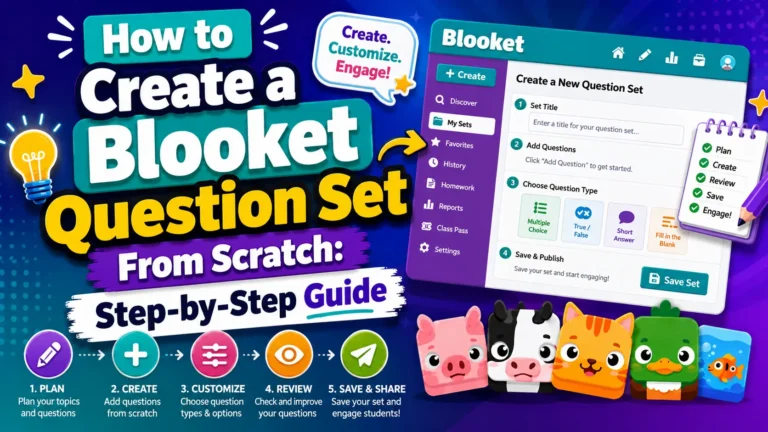
Step-by-Step in Detail → How to Create a Blooket Question Set
Why Add Media to Questions?
- Images are essential for visual subjects, anatomy diagrams, map identification, art history, geometry figures, chemistry diagrams, and any content where seeing the concept is part of understanding it. They also make text-heavy reviews more interesting and reduce reading load for younger students.
- Equations let you write precise math without workarounds. Without the equation editor, a fraction like 3/4 would have to be written as “3/4” in plain text, and more complex expressions become unreadable. The LaTeX editor in Blooket produces clean, properly formatted math at any level of complexity.
- Audio opens the platform for language learning, pronunciation practice, and accessibility. Students who benefit from hearing content read aloud perform better when audio is available. It’s also the only way to make listening comprehension questions in Blooket.
Adding Images to Questions
Images can be added to the question prompt itself, or any individual answer option in a Multiple Choice question.
To add an image to a question prompt:
- Open the question editor (either when adding a new question or editing an existing one).
- Look for the image icon (picture frame symbol) on the left side of the question editor panel.
- Click it to open the image picker. You have three options:
- Gallery — (Blooket’s built-in image library organized by category)
- Upload — (An image from your device files)
- URL — (Paste a direct link to an image hosted online)
- Select or confirm your image. It will appear as a preview in the question editor.
- Save the question normally.
To add an image to an answer option:
- In the Multiple Choice question editor, look for a small image icon next to each answer text field.
- Click it to open the image picker for that specific answer.
- Choose from the gallery, upload, or URL.
- The image appears alongside the answer text for students.
Image tips: Use clear, high-contrast images that are easy to read on small screens. Students often play on Chromebooks or phones, where small details get lost. Avoid images that require zooming to understand.
Adding Equations (LaTeX Editor)
The equation editor uses LaTeX formatting, a standard typesetting system for mathematics, to display properly formatted equations, fractions, symbols, and expressions.
To add an equation to a question:
- In the question editor, click the equation icon (usually represented by sigma or a math symbol) in the toolbar.
- The equation editor panel opens with an input field and a preview.
- Type your LaTeX code in the input field. The preview updates in real time.
- When the preview looks correct, confirm that it should be inserted into the question.
Common LaTeX patterns:
- Fractions: \frac{3}{4} renders as three-fourths
- Exponents: x^{2} renders as x squared
- Square roots: \sqrt{9} renders as the square root of 9
- Multiplication: 3 \times 4 renders as 3 times 4
- Greek letters: \pi renders as pi, \theta renders as theta
Equations can be added to both the question prompt and individual answer options, allowing fully formatted math problems with formatted answer choices.
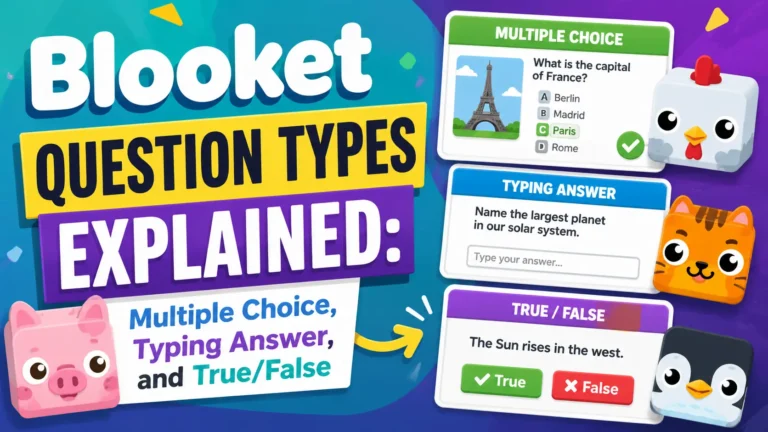
Full Guide About Question Formats → Blooket Question Types Explained
Adding Audio to Questions (Blooket Plus)
Audio questions require a Blooket Plus subscription. This feature is not available on free (Starter) accounts.
With Plus, you can add audio to the question prompt of any Multiple Choice or Typing Answer question. Students hear the audio clip play when they reach that question during gameplay.
To add audio to a question:
- In the question editor, click the audio icon (microphone or speaker symbol).
- Choose your method:
- Record — (Use your device’s microphone directly in Blooket, ideal for pronouncing words, reading passages, or recording instructions)
- Upload — (an audio file, MP3 or similar, from your device, ideal for professionally recorded audio, music clips, or language lab recordings)
- Confirm your recording or upload. A playback control appears in the question editor so you can verify how it sounds.
- Save the question.
Best uses for audio questions:
- World Languages — Record target language pronunciation and have students identify the word, translate it, or determine correct grammar
- English Language Learners — Read questions aloud to reduce reading barriers for ELL students
- Phonics and Literacy — Play a sound or word and have students identify the correct spelling or related image
- Music — Play a short clip and ask students to identify the instrument, composer, time signature, or genre
- Accessibility — Support students with reading difficulties by pairing text questions with audio narration
For more on what else Plus unlocks → See our Free vs. Plus comparison
Source: verified from Blooket’s official “How to Create a Blooket Question Set” documentation, which confirms audio is a Blooket Plus-only feature.
Combining Media Types
All three media types can be combined within a single question. For example:
- A science question with an anatomy diagram image, a text question prompt, and a LaTeX chemical formula in an answer option.
- A language question with an audio clip playing the target phrase and a text question asking for the translation.
There’s no restriction on using multiple media types together, though keeping questions readable and clean is a good design principle.
Media in Imported Sets
When you import from Quizlet, any images included in the Quizlet set are automatically imported into Blooket, where supported. Audio and equation formatting from Quizlet are generally not preserved; you’ll need to add those manually after import.
When importing from a CSV spreadsheet, media cannot be added directly from the spreadsheet. After importing, open the set in the editor and add images and equations to individual questions as needed.
Where to Go Next
- Want to know more about the platform? See the Blooket overview
- Want the full teacher toolkit overview? Visit the For Teachers hub
- Building sets for students to use directly? See the For Students hub
Have a different question? Check our Frequently Asked Questions or see Blooket Help Center
Frequently Asked Questions
Do I need Blooket Plus to add images or equations?
No. Images and equations are available to all users on any plan. Only audio questions require Blooket Plus.
Can I add an image to an answer option, not just the question?
Yes, but only on Multiple Choice questions. Typing Answer questions support images and equations in the question prompt only.
What format does the equation editor use?
LaTeX, a standard math typesetting system. Common patterns include fraction syntax, exponent syntax, square root syntax, and symbols for Greek letters like pi and theta.
Can I upload my own audio file, or do I have to record live?
Both options are available. You can record directly using your device’s microphone, or upload an existing audio file (MP3 or similar).
Does media transfer over when I import from Quizlet or a spreadsheet?
Images from Quizlet import automatically where supported. Audio and equations generally don’t transfer from Quizlet and must be added manually afterward. CSV/spreadsheet imports don’t carry media at all; add it in the editor after importing.
Can I combine images, audio, and equations on the same question?
Yes. There’s no restriction on combining all three media types in a single question, though keeping the question visually clean and readable is good practice.
Are audio questions useful for anything besides language learning?
Yes. Beyond World Languages, they work well for phonics/literacy practice, music identification, accessibility support for students with reading difficulties, and reading questions aloud for English Language Learners.