How to Import Questions from Quizlet into Blooket: (Step-by-Step)
Last verified: August 9, 2026
Quick Answer: Start a new set in Blooket, select Quizlet Import, then export your Quizlet set as tab-separated text (default settings, no changes needed), paste it into Blooket, check the orientation, flip it if needed, and click Add Questions. The whole Quizlet import process takes about 5 minutes.
How to Import Quizlet into Blooket?
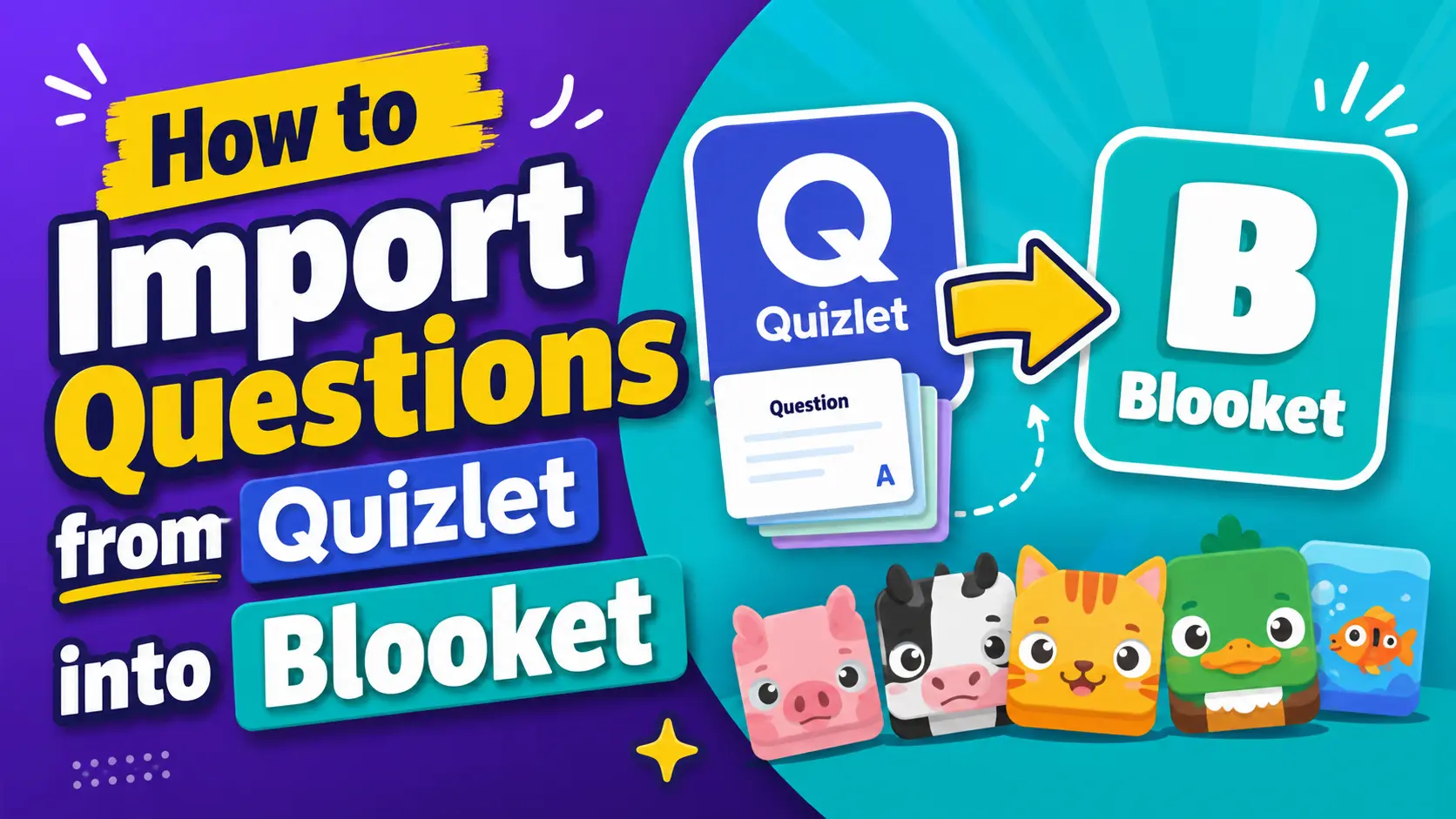
If you have spent time building question sets in Quizlet, you do not need to rebuild them from scratch in Blooket. Blooket’s Quizlet import feature converts your existing Quizlet flashcard sets into Blooket question sets in about 5 minutes. This guide covers the full process, from exporting your Quizlet set to cleaning up the imported questions afterward.
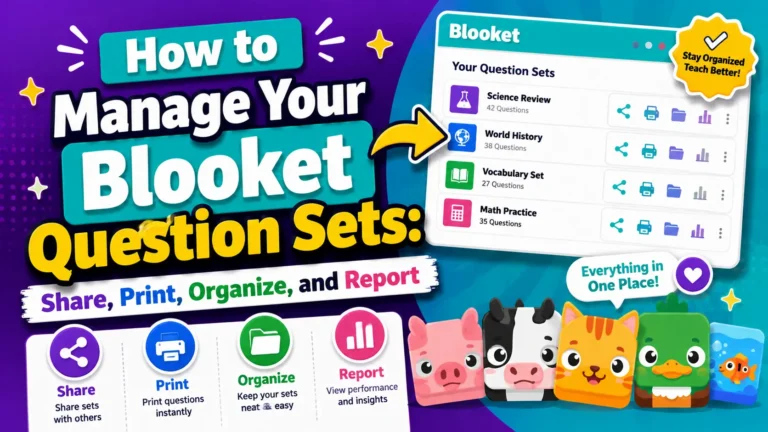
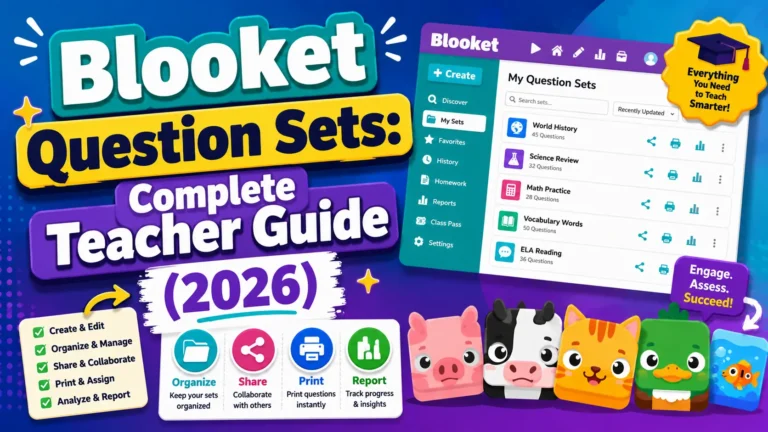
Full Guide About → Blooket Question Sets Guide for Teachers
How Quizlet Import Works
Blooket reads Quizlet’s export format, a tab-separated text file where tabs separate terms and definitions and each card is on its own line. Blooket takes this text and converts it into a Multiple Choice question set, using the terms and definitions as the question and answer pairs and auto-generating likely distractors from other terms in the set.
The import creates Multiple Choice questions by default. After importing, you can manually change individual questions to Typing Answer if needed.
Prefer bulk data instead? → How to Import Questions from a Spreadsheet into Blooket
Before you start, you need:
- A Blooket teacher account (logged in)
- A Quizlet account (free or paid)
- Access to the Quizlet set you want to import (either yours or a public one you have copied)
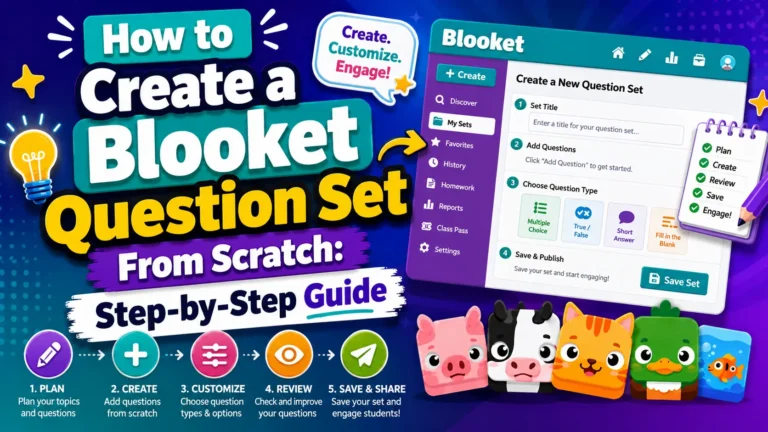
Question Sets Tutorial → How to Create a Blooket Question Set
Step 1: Start a New Set in Blooket
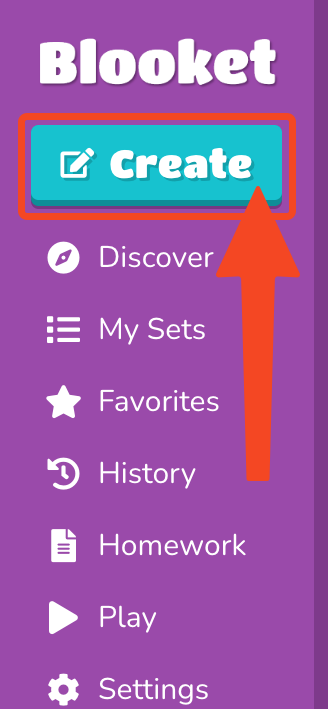
- From your Blooket dashboard, click the Create button.
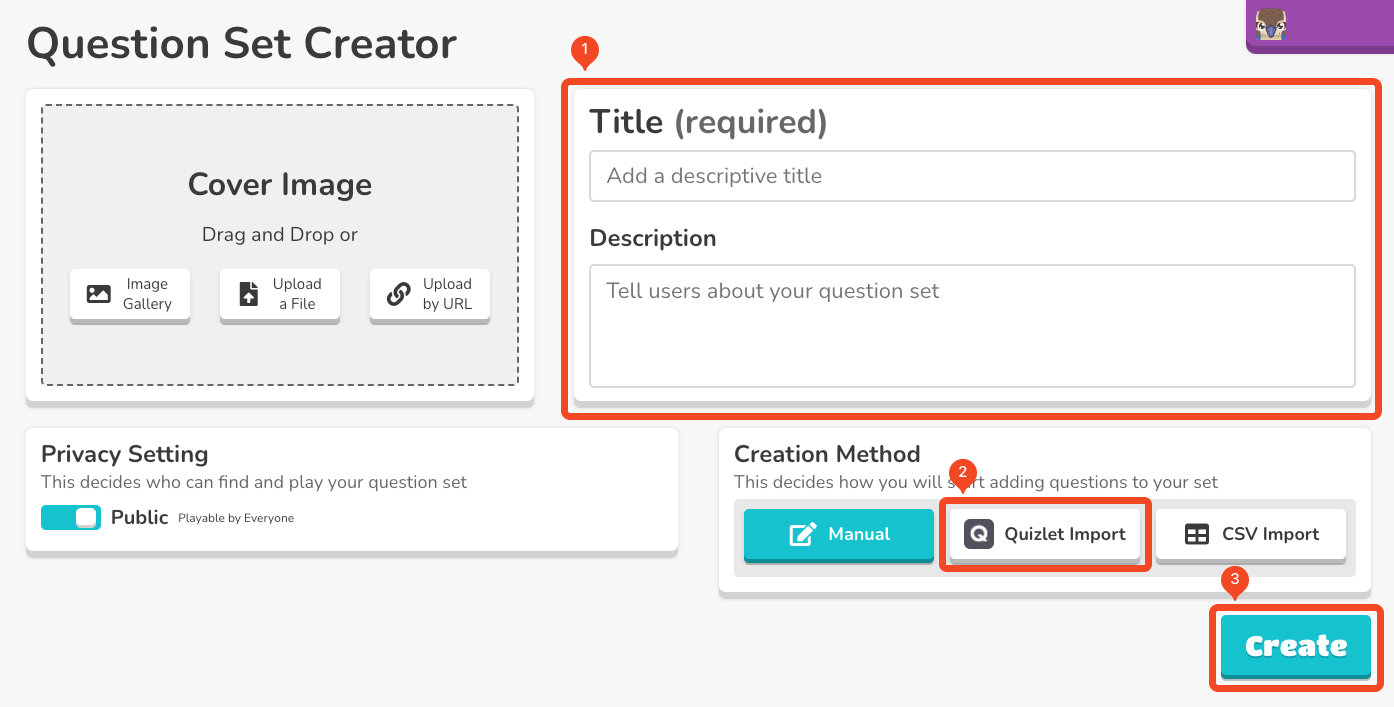
- Add a title and description for your new set.
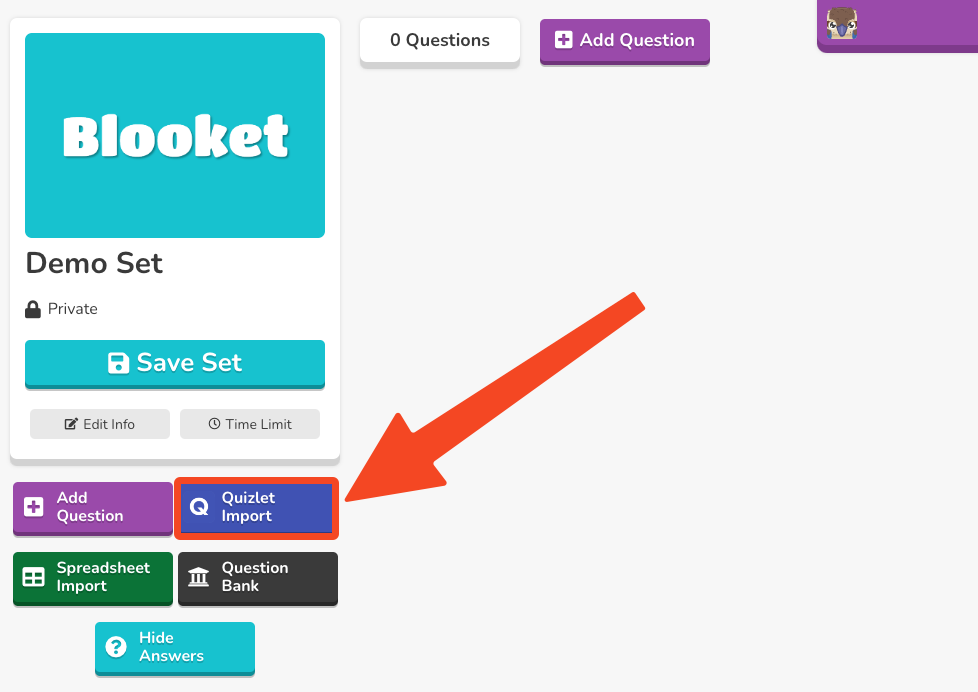
- From the creation method options, select Quizlet Import.
- Click Create Your Set.
You can also import into an existing set by opening any set in edit mode and selecting the Quizlet Import option from the Set Edit page.
Step 2: Select Your Quizlet Set
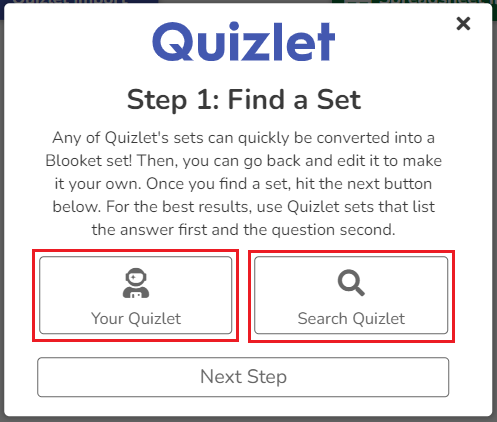
Blooket will prompt you to find the Quizlet set you want to import. You have two options:
- Your Quizlet: Opens a new tab and logs you into your Quizlet account so you can select from your own sets.
- Search Quizlet: Lets you search the Quizlet public library directly from within Blooket.
Select one of these options. If not already logged into Quizlet, do so when prompted. Find and click on the set you want to import. When you have found it, click Next Step in the original Blooket tab.
Step 3: Export from Quizlet
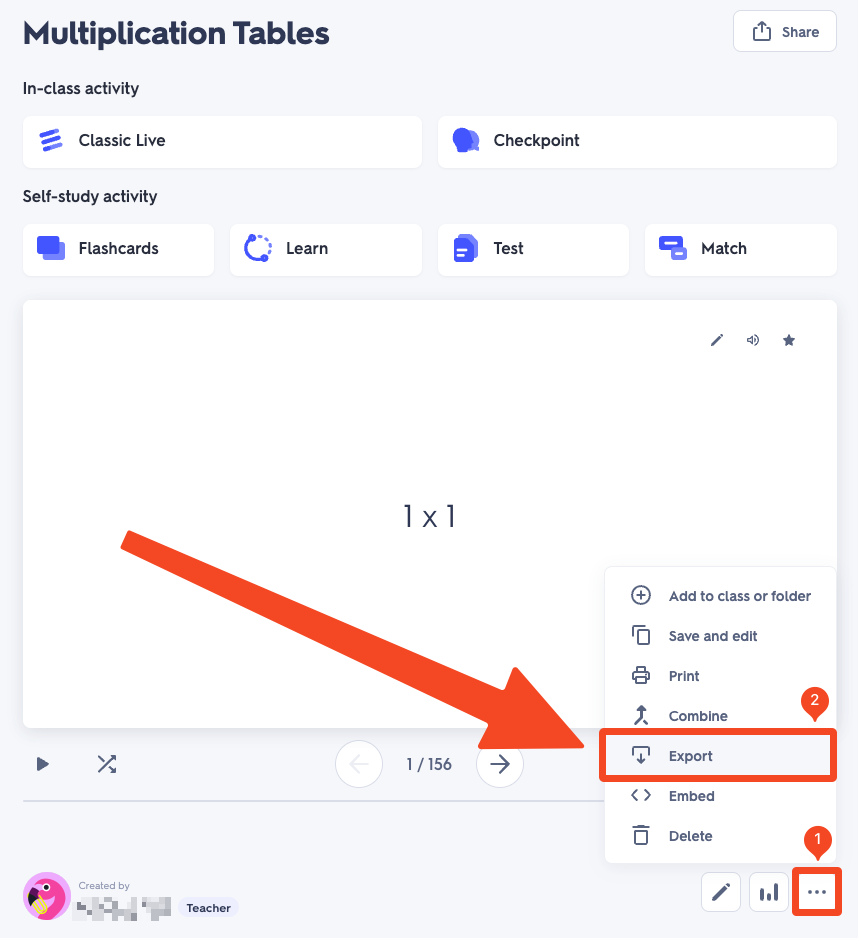
Switch to your Quizlet tab with the set you selected. Follow these steps to export it:
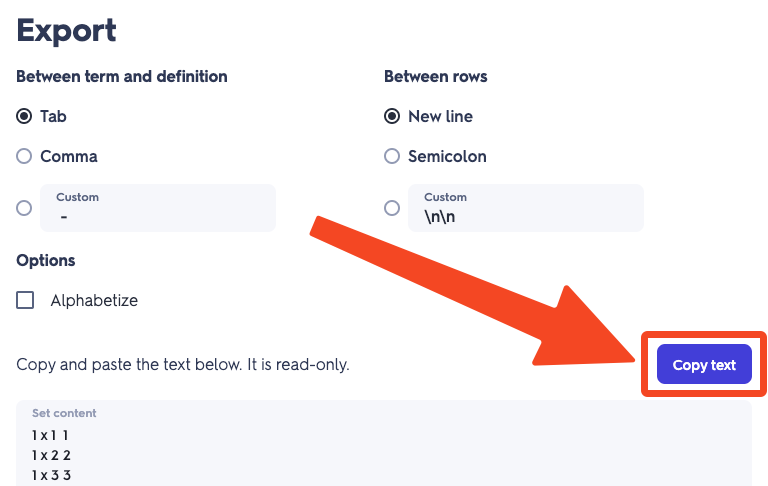
- Click the three-dot menu to the right of the set owner’s name.
- Select Export.
- In the Export menu, verify the settings: Between term and definition should be Tab, and Between rows should be New line. These are the default settings; do not change them.
- Click Copy text (this copies the formatted set to your clipboard).
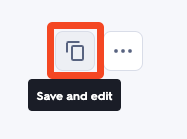
If you do not see an Export option, the set may require Quizlet Plus features to export. Your options are:
- Select Save and edit from the three-dot menu to copy the set to your own Quizlet account, which you can then export.
- If Save and edit is also unavailable, the set uses Quizlet Plus features that require a Quizlet Plus subscription to copy.
Step 4: Paste into Blooket and Configure
- Switch back to the Blooket tab.
- Paste the copied text into the text field provided.
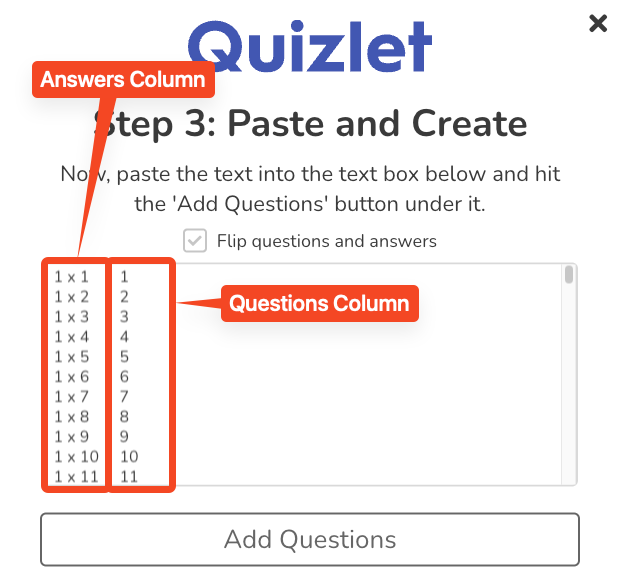
Once pasted, Blooket displays a preview. You will see:
- Left column — that becomes the answer choices shown to students.
- Right column — that becomes the question prompts.
Check whether this orientation makes sense for your content. In most vocabulary sets, Quizlet terms are on the left and definitions are on the right, which means in Blooket, definitions become the questions and terms become the correct answers. This is usually the wrong way around.
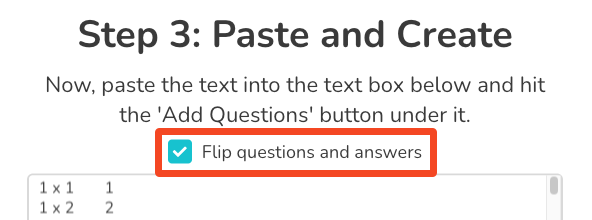
If you need to flip the orientation, check the Flip questions and answers option. This swaps which column becomes the question and which becomes the answer, often the correct choice when the Quizlet set uses term-on-left, definition-on-right formatting and you want students to see the definition and type or choose the term.
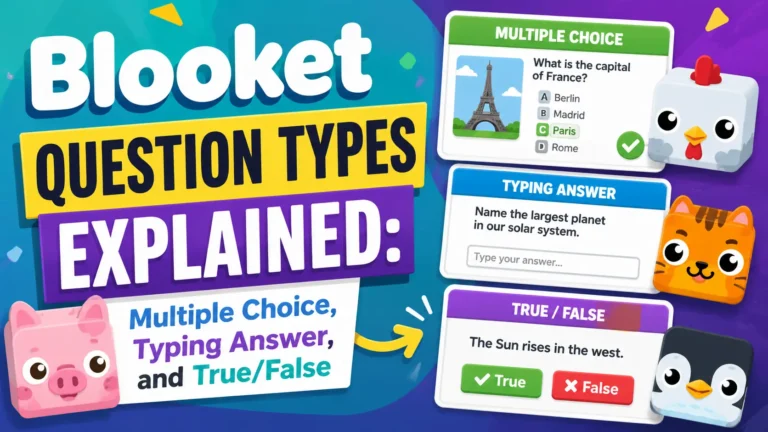
Question Types Guide → Blooket Question Types Explained
Source: verified from Blooket’s official “How to Import Questions from Quizlet into Blooket” documentation.
Step 5: Add Questions and Save
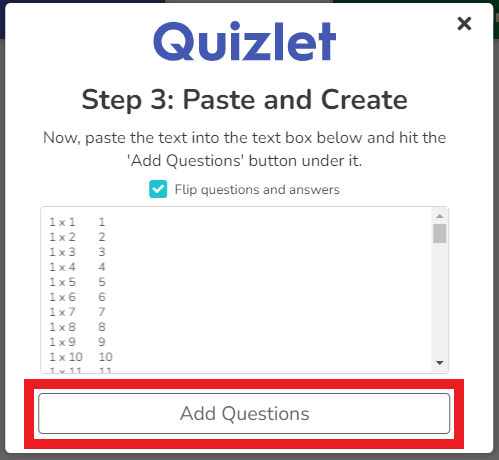
Click Add Questions. Blooket processes the text and creates a question for each row. Each question gets the correct answer from your Quizlet set, plus automatically generated distractors pulled from other terms in the set. Review the preview and click Save Set when ready.
Post-Import Cleanup (Important)
Always review imported questions before using the set with students. Common issues to fix:
- Distractors need review. Blooket automatically generates incorrect answers from other terms in the set. Sometimes these are too similar to the correct answer, too obviously wrong, or grammatically inconsistent. Review and manually edit distractors that would confuse or mislead students.
- Question phrasing may be incomplete. Quizlet definitions often stand alone as answers but read oddly as question prompts (“The organelle responsible for producing energy” is a fine answer, but a confusing question). Edit question text to be a proper question, such as “Which organelle is responsible for producing energy?”
- Typing Answer conversion. If you want students to type responses rather than select, open individual questions and change the type from Multiple Choice to Typing Answer. Set your matching preference (Contains or Is Exactly) for each.
- Quizlet image import is supported, but not in all cases. Check image questions after import and re-add images that did not transfer.
Full Media Guide → How to Add Images, Audio, and Equations to Blooket Questions
Where to Go Next
- Want to learn more about the platform? See our full Blooket guide
- Want the full teacher toolkit overview? Visit the For Teachers hub
- Building sets for students to use directly? See the For Students hub
Have a different question? Check our Frequently Asked Questions or the Blooket Help Center
Frequently Asked Questions
How long does it take to import a Quizlet set into Blooket?
About 5 minutes for the import itself. Post-import cleanup (reviewing distractors and question phrasing) usually takes a bit longer depending on the set size.
What export settings should I use in Quizlet?
Leave the default settings: Tab between term and definition, and New line between rows. Changing these will break the import.
Why can’t I find the Export option on a Quizlet set?
The set may require Quizlet Plus to export. Try Save and edit to copy it to your own account first, which you can then export. If Save and edit is also unavailable, the original creator used Quizlet Plus features that require a subscription to copy.
What does the Flip questions and answers option do?
It swaps which Quizlet column becomes the Blooket question and which becomes the answer. Use it when your Quizlet set has terms on the left and definitions on the right, but you want students to see the definition and identify the term.
Does Quizlet import create Multiple Choice or Typing Answer questions?
Multiple Choice by default. You can manually convert individual questions to Typing Answer after import if you prefer students to type their responses.
Do I need to review questions after importing from Quizlet?
Yes. Always check the auto-generated distractors and question phrasing before using an imported set with students, since automated conversion sometimes produces confusing or inconsistent results.
Do images transfer over when importing from Quizlet?
Usually, but not always. Check image questions after import and manually re-add any images that did not carry over.