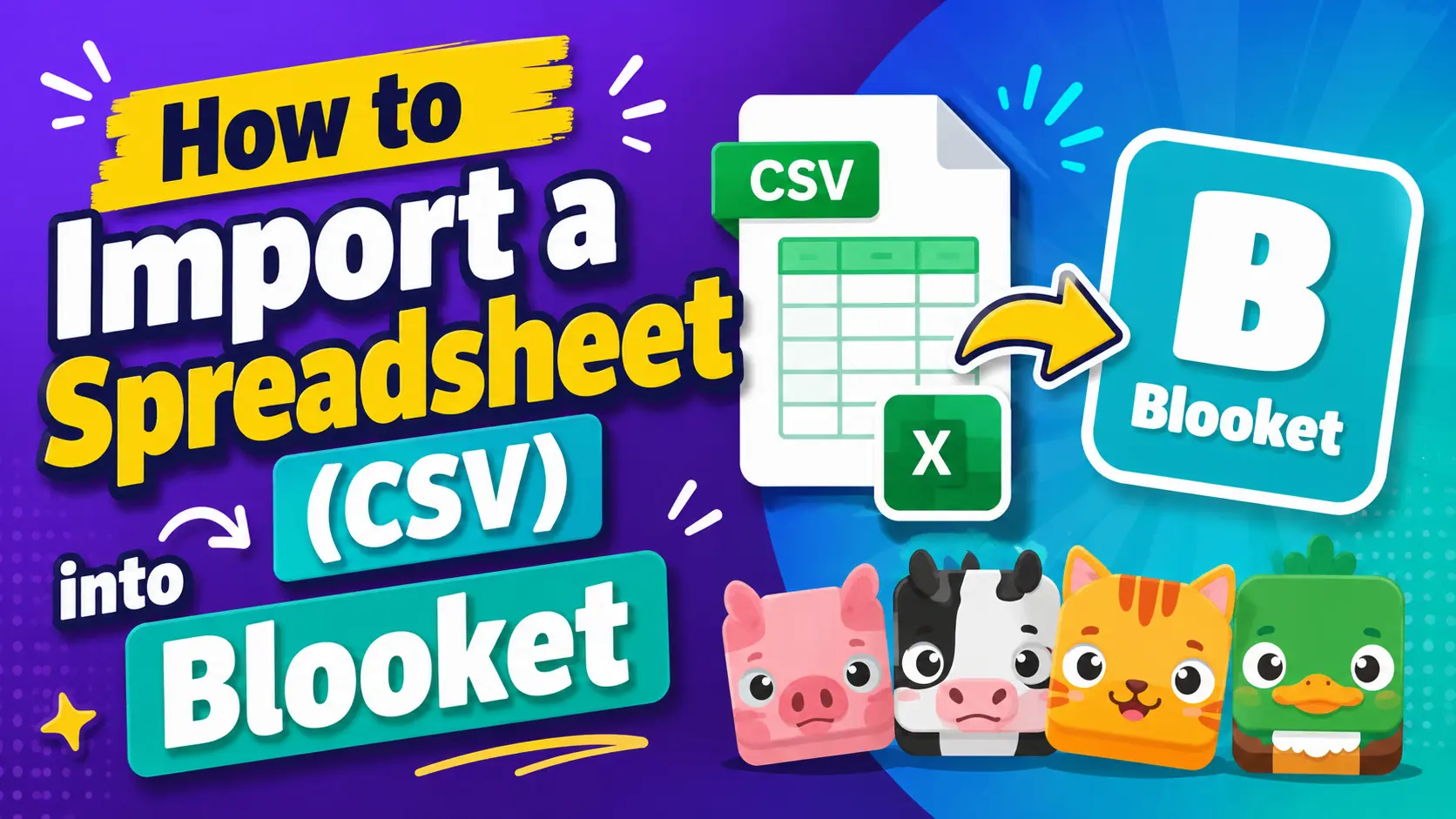
How to Import Questions from a Spreadsheet (CSV) into Blooket?
Last verified: August 9, 2026
Quick Answer: Select CSV Import when creating a set, copy or download Blooket’s official template, fill in the Question, Answer, and Correct Answer columns without editing the colored header cells, save as a CSV file, then upload it back to Blooket. A 50-question set can be ready in under 10 minutes this way.
How to Import a Spreadsheet into Blooket
Spreadsheet import is the most efficient way to build large Blooket question sets. Instead of adding questions one by one in the editor, you fill in a template in Google Sheets or Excel and upload the entire set at once. A 50-question review set that would take 30 minutes to build manually can be ready in under 10 minutes with a well-prepared spreadsheet.
Full Guide About → Blooket Question Sets Guide for Teachers
When to Use Spreadsheet Import?
Use CSV import when:
- You are building a large set (15+ questions) and do not want to enter each one manually.
- You have questions stored in a shared Google Sheet, a curriculum database, or any other tabular format.
- You are migrating questions from another platform that can export to CSV or a spreadsheet.
- Multiple teachers are collaborating on the same question set and sharing a Google Sheet.
For smaller sets or sets with lots of images or audio, building in the editor directly may be more convenient.
Step 1: Get the Blooket Template
Blooket provides a structured template that must be used for imports. Do not create your own spreadsheet format. The column headers and structure are specific and must be followed exactly.
To get the template for a new set:
- Click Create on your Blooket dashboard.
- Add a title and description.
- Select CSV Import as the creation method.
- Click Create Your Set.
- A pop-up appears with two options: Copy (opens the template in Google Sheets) or Download (downloads an Excel file).
To import into an existing set:
- Open the set in edit mode.
- Look for the Spreadsheet Import option in the Set Edit page.
- Follow the same Copy or Download steps.
Step-by-Step Guide → How to Import from Quizlet into Blooket
Step 2: Fill in the Template
The template has pre-colored columns. The key rule is simple: do not edit, move, or rename the colored (blue or gray) header cells. Only fill in the white content rows.
Here’s what each column means:
| Column | What to Enter |
| Question | The full question text |
| Answer 1 | First answer option |
| Answer 2 | Second answer option |
| Answer 3 | Third answer option (optional) |
| Answer 4 | Fourth answer option (optional) |
| Correct Answer(s) | The number of the correct answer’s position (1, 2, 3, or 4) |
| Time Limit | Seconds for this question (optional, leave blank for default) |
| J column | Type “typing” here to make a question a Typing Answer type |
→ Critical: The Correct Answer(s) column must contain only numbers (1, 2, 3, or 4), not the text of the answer. If “Photosynthesis” is the correct answer and it appears in the Answer 2 column, enter 2 in the Correct Answer(s) column, not “Photosynthesis.”
→ Typing Answer questions: Enter “typing” in the J column for any question you want as a Typing Answer type. Any responses in the answer columns will be imported as “Is Exactly” matching answers. You can change this to “Contains” after import in the editor.
→Blank answer columns: Leave Answer 3 and Answer 4 blank for True/False or 2-option questions. Blooket handles blank answer columns correctly.
Full Explanation About → Blooket Question Types Explained
Source: verified from Blooket’s official “How to Import Questions from a Spreadsheet into Blooket” documentation
Step 3: Download as CSV
When your spreadsheet is complete:
In Google Sheets:
- Click File → Download → Comma Separated Values (.csv)
- The file downloads to your device
In Excel:
- Click File → Save As
- Select CSV (Comma-delimited) as the file type
- Save
Step 4: Upload to Blooket
- Return to the Blooket tab where you set up your import.
- Click Upload CSV.
- Select the .csv file you just downloaded.
- Blooket processes the file and creates the question set.
If there are formatting errors, Blooket will flag them. Common issues:
- The Correct Answer(s) column contains text instead of a number
- A blue or gray header cell was accidentally edited
- A question row is missing a question title or has no answers marked correct
Fix the spreadsheet and re-upload if this happens.
Step 5: Edit and Finalize
After import, you are taken to the Set Edit page, where you can review every imported question and make final adjustments:
- Add images or equations to individual questions
- Change Typing Answer matching from “Is Exactly” to “Contains” where appropriate
- Adjust time limits
- Fix any questions where the formatting did not import cleanly
- Add additional questions manually if needed
- Click Save Set when finished.
Create Question Sets → How to Create a Blooket Question Set
Pro Tips
→ Use Google Sheets for collaboration. Multiple teachers can fill in the same shared template simultaneously, making co-authoring a large review set much faster than having one person build it alone.
→ Pre-organize by difficulty. Put easier questions first, harder ones later. While Shuffle Questions in game settings randomizes the order for students, having a logical sequence in your spreadsheet makes editing easier.
→ Build a master question spreadsheet. Some teachers maintain a permanent Google Sheet for each course as a question bank, adding questions throughout the year. When they need a set for a specific assessment, they copy the relevant rows into a new Blooket template and upload.
Where to Go Next
- Want to learn more in detail about the platform? See the Blooket guide
- Want the full teacher toolkit overview? Visit the For Teachers hub
- Building sets for students to use directly? See the For Students hub
Have a different question? Check our Frequently Asked Questions or Blooket Help Center
Frequently Asked Questions
Can I use my own spreadsheet format instead of Blooket’s template?
No. Blooket requires its official template because the column headers and structure must match exactly for the import to work. Using a custom format will cause errors.
What should I enter in the Correct Answer(s) column?
Only a number (1, 2, 3, or 4) matching the position of the correct option, never the answer text itself. If there are multiple correct answers, separate the numbers with a comma.
How do I make a question a Typing Answer type in the spreadsheet?
Type “typing” in the J column for that row. The response you enter in the answer columns will import as an “Is Exactly” match, which you can change to “Contains” after import.
What happens if I accidentally edit a colored header cell?
The import may fail or produce formatting errors. Blooket will flag common issues like this so you can fix the spreadsheet and re-upload it.
Can I leave some answer columns blank?
Yes. Leave Answer 3 and Answer 4 blank for True/False or two-option questions. Blooket handles blank columns correctly as long as the required fields (Question, at least two answers, and Correct Answer) are filled in.
How large can a spreadsheet import be?
There is no strict limit mentioned in Blooket’s own guidance, but spreadsheet import is most useful for sets of 15 or more questions, since smaller sets are often just as fast to build directly in the editor.
Can multiple teachers work on the same import spreadsheet?
Yes. Since the template lives in Google Sheets, multiple teachers can edit the same shared copy at once before one person downloads and uploads the final CSV to Blooket.