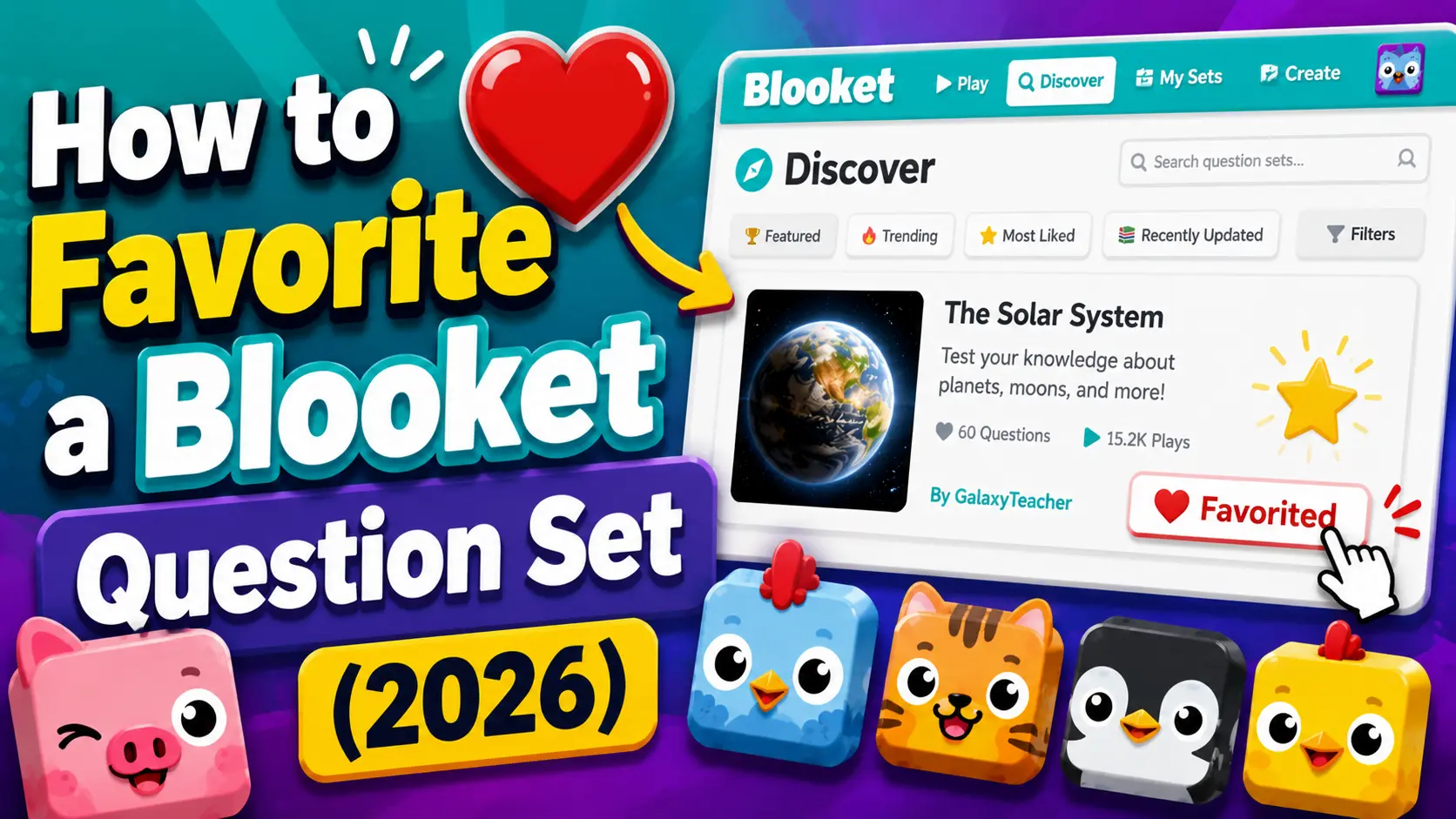
How to Favorite a Blooket Question Set (And Why It Matters)
The Favorite feature in Blooket is a simple but very useful tool for lesson planning. When you find a quality public set on the Discover page, favoriting it means you can return to it anytime from your sidebar — no re-searching required. See the video guide below to learn about how to favorite a blooket question set and more.
This guide explains the Blooket favorites tab, how to save a Blooket question set, blooket bookmark set, how to favorite a Blooket question set, where to find your favorites, and when favoriting is the right move versus copying.
All About → Blooket Question Sets Explained
How to Favorite a Blooket Question Set:
(Step-by-Step)
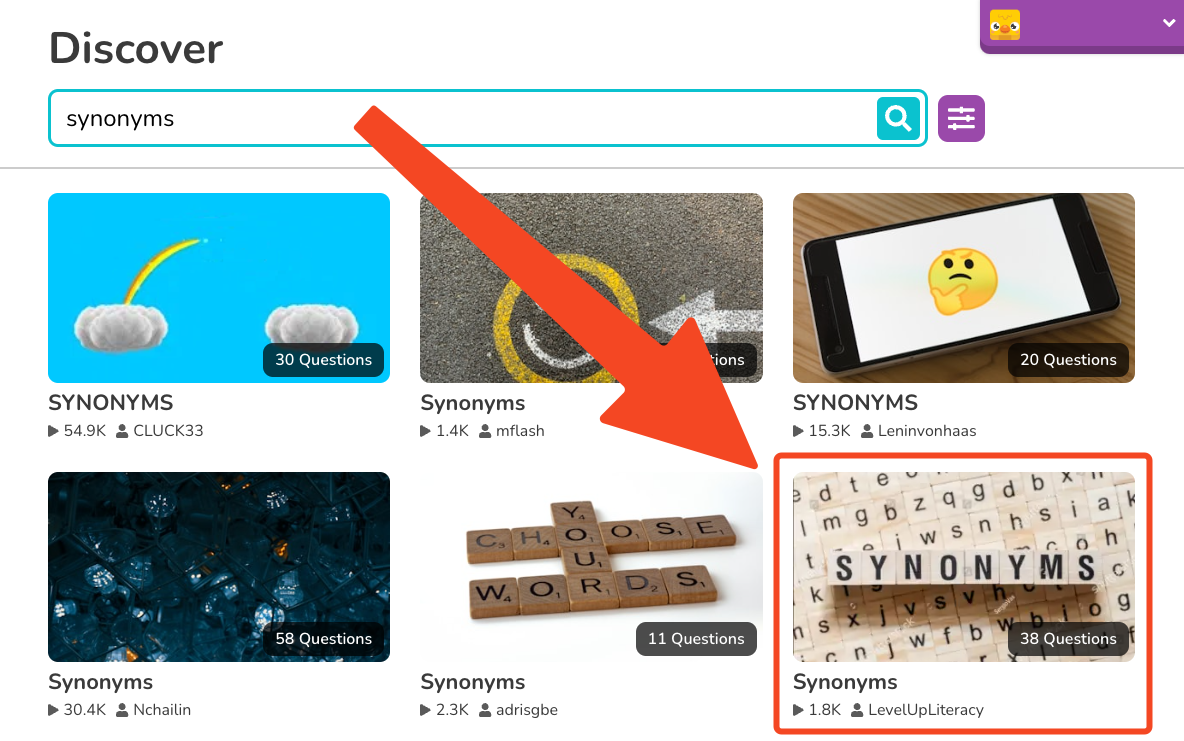
Favoriting a question set takes a single click:
- Open the set preview page — Find the set on the Discover page or via a shared link, then click its title to open the preview.
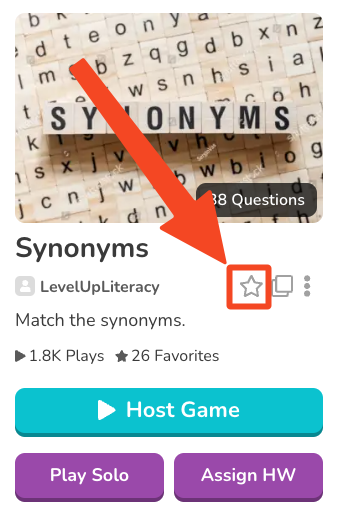
- Click the Favorite option — On the set preview page, you’ll see a Favorite button (often represented by a heart or star icon). Click it.
- The set is now saved — A confirmation will indicate the set has been added to your Favorites.
That’s it. The set is now bookmarked in your Favorites tab.
Find Question Sets → How to Find Blooket Question Sets on the Discover Page
How to View Your Favorited Sets?
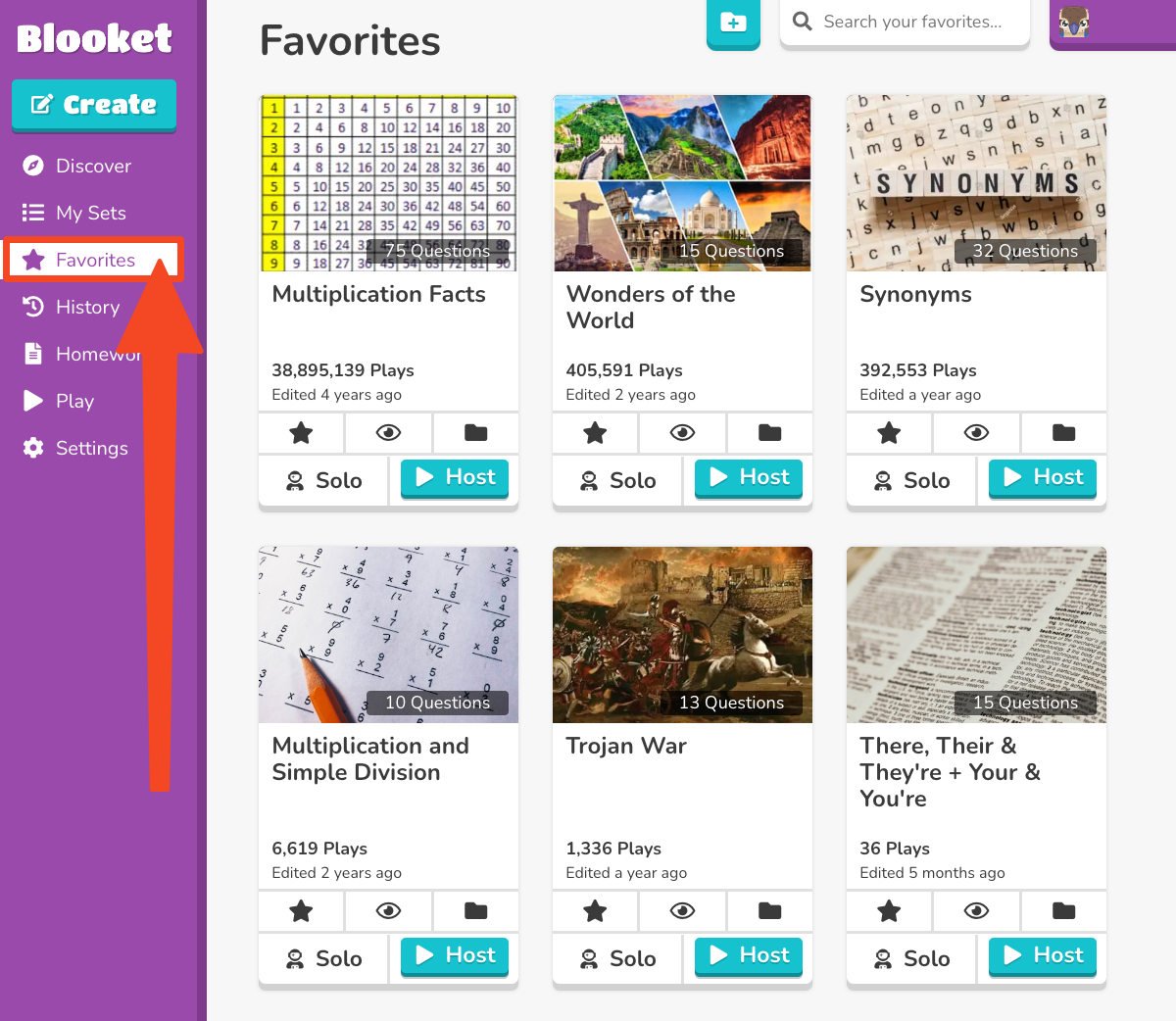
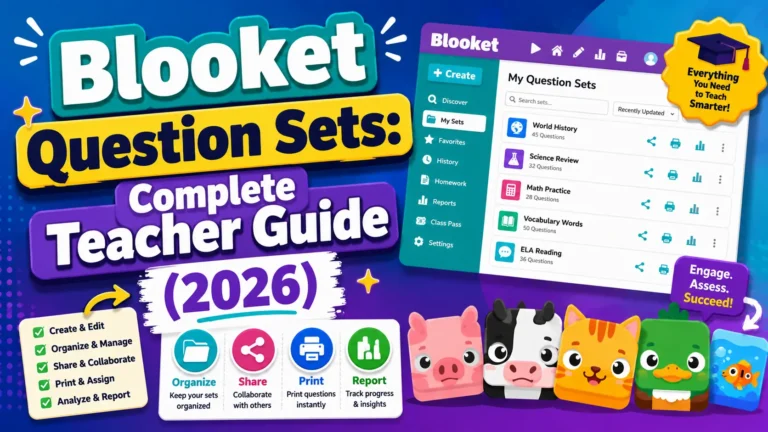
Your Favorites tab appears in the left sidebar of your dashboard, alongside My Sets and the Discover page link. Click Favorites to see all the sets you’ve marked.
From the Favorites tab, you can:
- Preview any favorited set
- Host a live game directly from the favorite
- Assign it as homework
- Play it solo
You can also access Favorites during the hosting process — when choosing a question set to host, your Favorites list is available alongside My Sets.
How to Remove a Favorite Question Set?
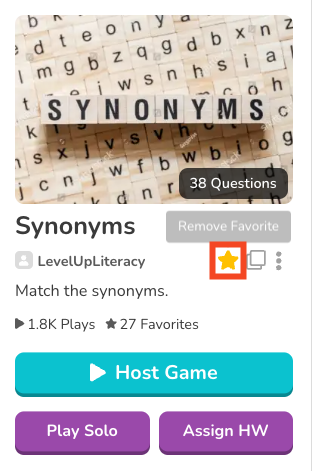 To unfavorite a set, return to the set’s preview page and click the Favorite button again. This toggles the favorite off and removes it from your Favorites tab.
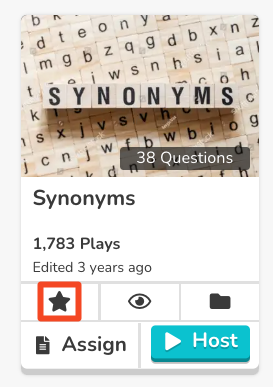
Removing a favorite does not delete the set — it only removes your bookmark. The original set remains in the Discover library unless the creator deletes it.
Favorite vs. Copy: Which Should You Use?
Both Favoriting and Copying let you save a set, but they serve different purposes:
| Features | Favorite | Copy (Plus) |
Saves to your library? | No — bookmark only | Yes — your own copy |
Can you edit it? | No | Yes |
Survives if the creator deletes? | No | Yes |
Blooket Plus required? | No | Yes |
Best for | Sets you use as-is and want fast access | Sets you want to customize |
- Favorite is right when you’ve found a quality set that works perfectly without modification, and you want to access it quickly.
- Copy is right when you want to edit the questions, add or remove content, or make the set yours permanently, regardless of what the original creator does.
If you’re frequently using a public set in your classroom, consider copying it even if you don’t plan to edit it immediately — creator deletions are rare but do happen.
How to copy → How to Copy a Public Question Set in Blooket
Tips for Organizing Your Favorites
Favorites aren’t folder-organized, so over time, a long favorites list can become unmanageable. Here are practical strategies:
- Favorites are only set you’ll use in the next month—unfavorite old sets to keep the list manageable.
- Copy frequently-used sets and organize copies into folders (Blooket Plus) rather than relying on Favorites for long-term access.
- Review your Favorites at the start of each unit to see if any saved sets align with upcoming content.
Long-term Organization → How to Organize with Folders