AI-Generated Question Sets in Blooket: How to Use the Khanmigo Generator
Last verified: August 9, 2026
Quick Answer: Go to khanmigo.ai, sign in with a free teacher account, open the Blooket Generator, enter a topic and grade level, then review, edit, and add the questions you want before clicking Export to Blooket. No Blooket Plus subscription is required to use Khanmigo.
Blooket AI Question Generator with Khanmigo
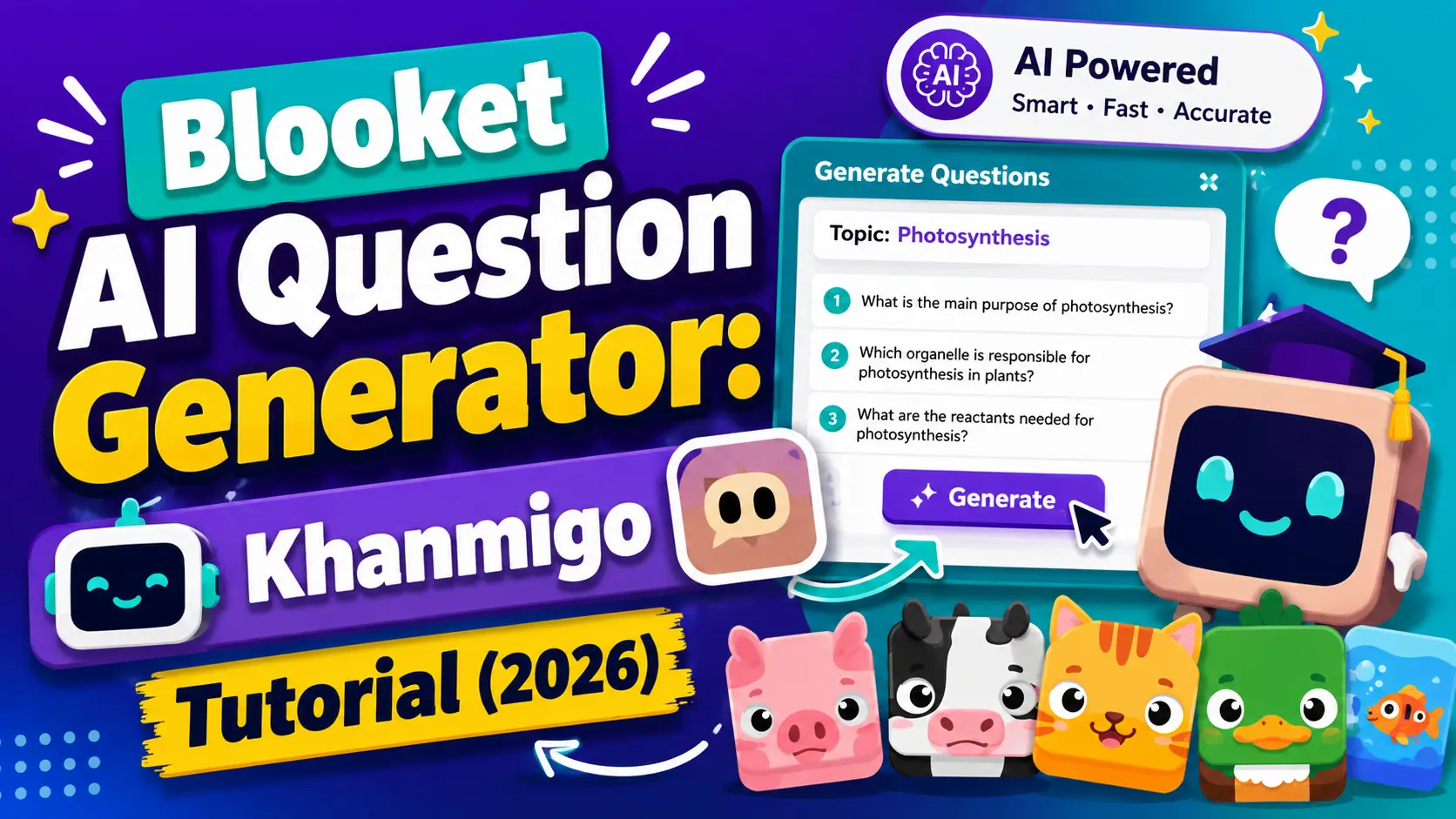
Blooket has partnered with Khanmigo, Khan Academy’s AI-powered teaching assistant, to offer a built-in question generator for Blooket sets. You give Khanmigo a topic and grade level, and it generates a complete set of multiple-choice questions in seconds. This guide explains how to access the generator, review and edit the AI-generated questions, and get the finished set into your Blooket account.
Full Explanation About → Blooket Question Sets Guide for Teachers
What is Khanmigo?
Khanmigo is an AI tutoring and teaching tool built by Khan Academy. Among its many tools for educators. It includes a Blooket Generator that creates question sets specifically formatted for import into Blooket.
Khanmigo is free for teachers through Khan Academy’s teacher account. You do not need a Blooket Plus subscription to use Khanmigo, just a free Khanmigo teacher account at khanmigo.ai and a Blooket account (free or Plus) to receive the exported set.
What does Blooket Plus unlock? See full Free vs. Plus comparison
When to Use AI Generation?
AI generation is best for:
- Fast first drafts. Get a starting set in under a minute, then refine.
- Standard curriculum topics. Common academic subjects where AI knowledge is reliable (math, biology, world history, grammar, and similar).
- Filling content gaps quickly. When you need a set for tomorrow and do not have time to build it manually.
- Teacher brainstorming. Use AI output as a list of topic angles you might not have thought of.
AI generation is less reliable for:
- Highly localized or proprietary content (your specific readings, custom assessments)
- Content requiring precision in specialized sub-fields
- Questions that depend on images or audio
Always review AI-generated questions before using them with students. Khanmigo can generate questions with subtle errors, misleading distractors, or phrasing that does not match your students’ vocabulary level.
Step 1: Access the Khanmigo Blooket Generator
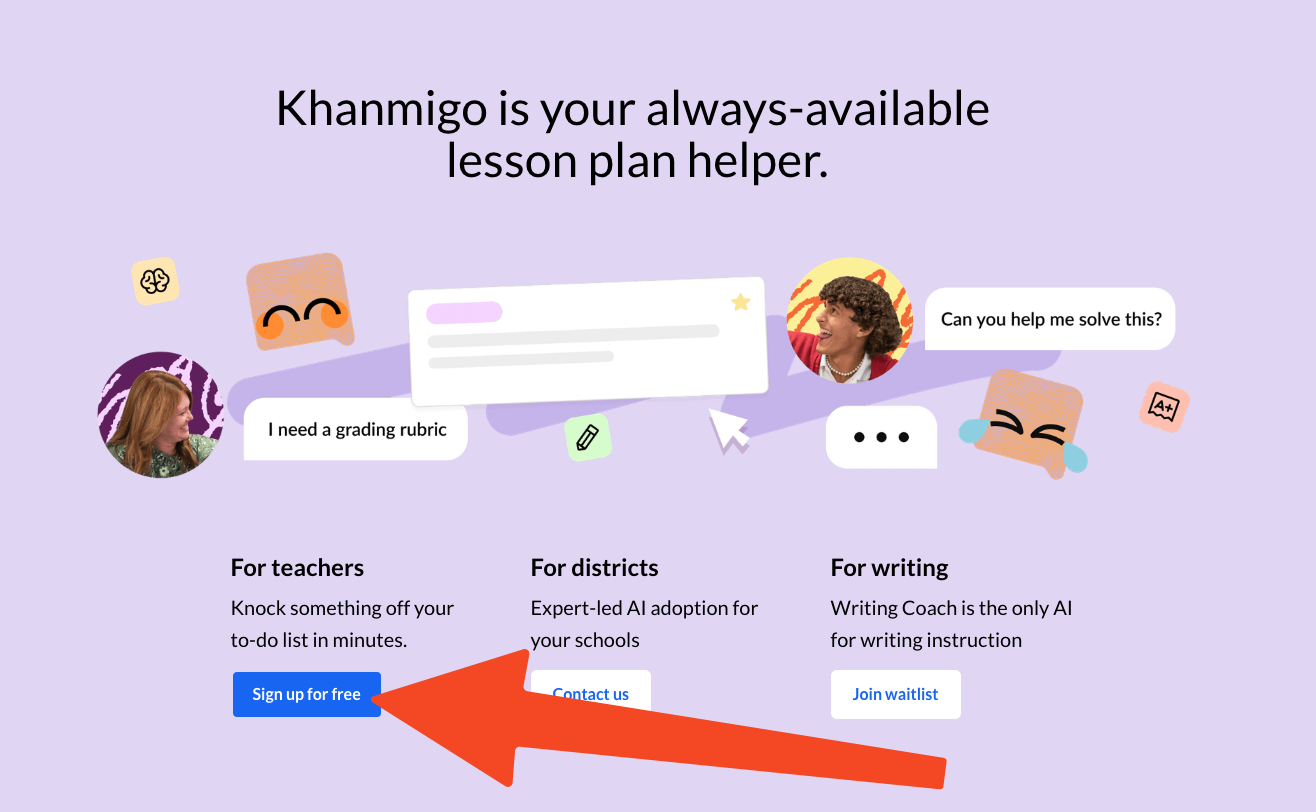
- Go to khanmigo.ai and sign in or create a free teacher account.
- Once logged in, find and select the Blooket Generator tool from the tools menu.
- The generator opens in your Khanmigo session.
Step 2: Enter Your Topic and Grade Level
The Khanmigo Blooket Generator asks for two inputs:
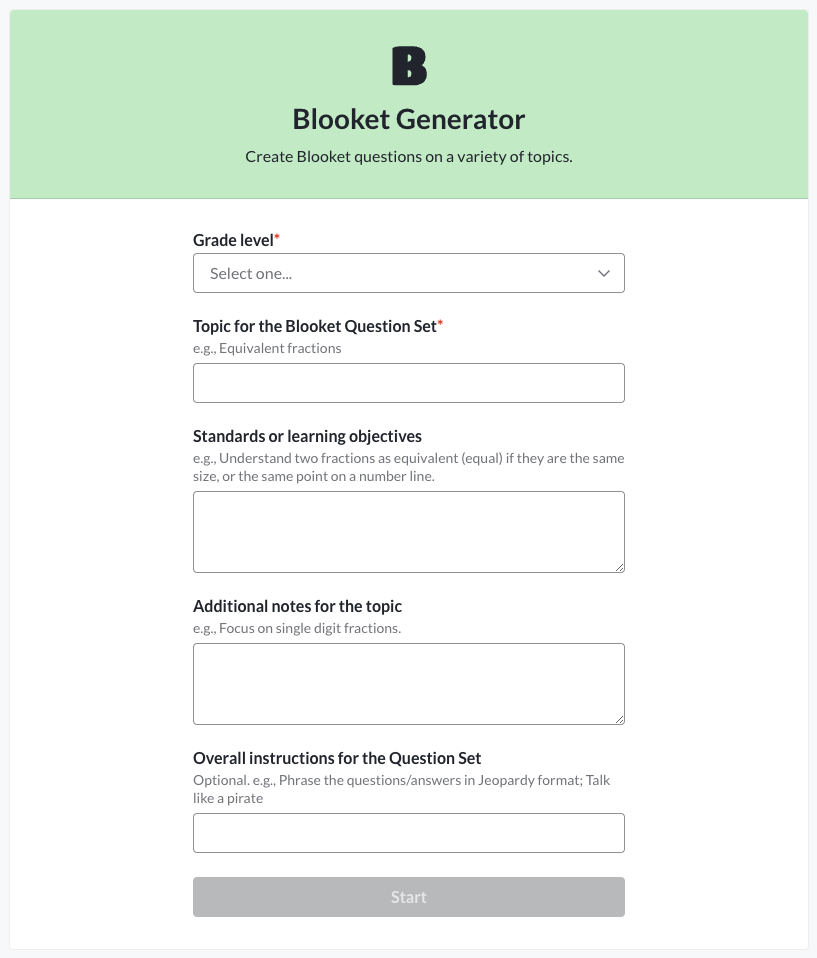
- Topic Level: What subject or concept do you want questions about? Be specific. “The water cycle: evaporation, condensation, precipitation” will produce better questions than “science.” Include standard names, key vocabulary terms, or concept descriptions.
- Grade level: This helps Khanmigo calibrate vocabulary, question complexity, and reading level.
Click Generate (or the equivalent button). Within a few seconds, a series of question cards will appear.
Question Sets Guide → How to Create a Blooket Question Set
Source: verified from Blooket’s official “AI-Generated Question Sets with Khanmigo” documentation
Step 3: Review and Edit Questions
Each generated question card displays the question text and multiple-choice answers, with the correct answer highlighted.
Your review process:
- Read each question carefully for accuracy.
- Check that the correct answer is actually correct.
- Evaluate whether the distractors (wrong answers) are reasonable but clearly wrong to a student who knows the material.
- Assess whether the reading level matches your students.
- Edit any question or answer by clicking directly on the text. Edits can be made before or after adding the question to your set.
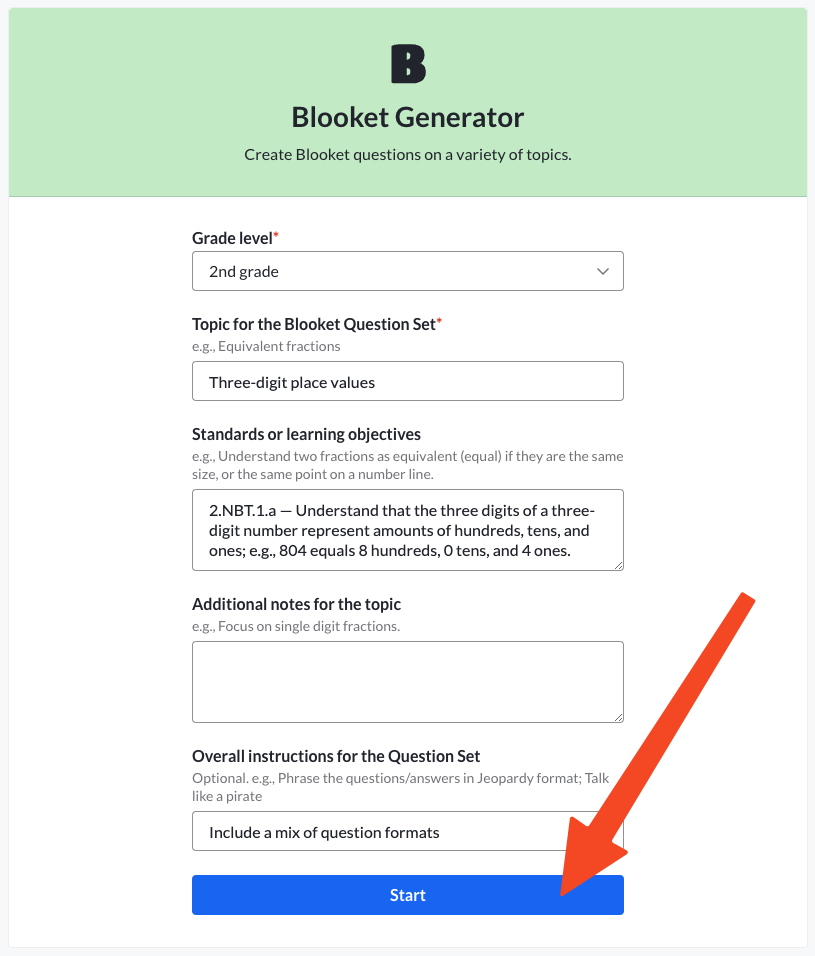
- To add a question to your set: Click the plus icon on the card. The question moves to your building set.
- To discard a question: Click the trash can icon. The question is removed. New questions continue to generate as you work. So you can be selective.
Build at your own pace; there is no time limit. Continue adding questions until you have the set you want.
Step 4: Export to Blooket
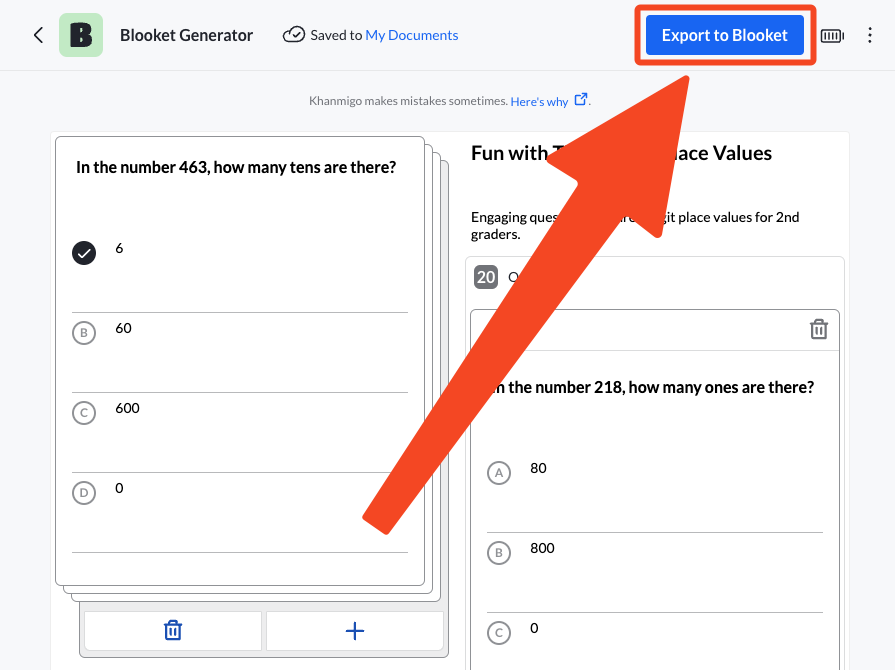
When satisfied with your set, click Export to Blooket. You will be taken to a Blooket page prompting you to sign in or create a Blooket account if you are not already logged in.
After authenticating, the question set is transferred to your Blooket account and appears in My Sets, ready to use.
Post-Export Editing
After the set arrives in Blooket, open it in the Set Edit page to:
- Rename the set with a more descriptive title
- Add images or equations to questions that would benefit from visuals
- Change question types to Typing Answer where precision matters
- Adjust time limits per question
- Remove or rewrite any questions that did not hold up on closer review
Adding More Questions to an AI-Generated Set
You cannot directly add more questions to an existing set through Khanmigo. The Khanmigo generator creates new sets. It does not append to sets already in Blooket.
To expand a Khanmigo-generated set, you have two options:
- Generate a second set on the same topic via Khanmigo and merge it with the first (Blooket Plus feature).
- Add questions manually in the Blooket set editor after export.
Merging Question Sets → How to Merge Blooket Question Sets
Tips for Better AI Generation
→ Be specific with your topic. “The causes of World War I: nationalism, imperialism, militarism, the alliance system” generates far more useful questions than “World War I.”
→ Generate more than you need. Generate 20 to 25 questions when you only want 15, then select the best ones. Being selective produces a better final set than accepting everything.
→ Vary your topics. Generate a set on the core concept, another on vocabulary, and another on application. Use the Merge feature to combine the best questions from each into a comprehensive set.
→ Regenerate on the same topic. If the first batch of questions does not satisfy you, discarding them and clicking Generate again produces a different set of questions on the same topic.
Where to Go Next
- Want to know more about the platform? See the Blooket guide
- Want the full teacher toolkit overview? Visit the For Teachers hub
- Building sets for students to use directly? See the For Students hub
Have a different question? Check our Frequently Asked Questions or full Blooket Help Center
Frequently Asked Questions
Do I need Blooket Plus to use the Khanmigo generator?
No. Khanmigo is a free Khan Academy tool. You only need a free Khanmigo teacher account and a Blooket account (free or Plus) to receive the exported set.
How specific should my topic prompt be?
Very specific. Instead of a broad subject like “science,” include the exact concept, key vocabulary, or standard name, such as “the water cycle: evaporation, condensation, precipitation.”
Can I add more questions to a set after exporting it from Khanmigo?
Not directly through Khanmigo. Generate a second set and merge it with the first (Blooket Plus feature), or add questions manually in the Blooket editor after export.
Should I use AI-generated questions without reviewing them first?
No. Always review each question for accuracy, check the correct answer, and evaluate the distractors and reading level before using the set with students.
What topics work best with AI generation?
Standard, well-documented curriculum topics like math, biology, world history, and grammar. Highly localized, proprietary, or image-dependent content is less reliable with AI generation.
Can I regenerate questions if I don’t like the first batch?
Yes. Discard the questions you do not want and click Generate again for a fresh set of questions on the same topic.
How many questions should I generate at once?
Generate more than you actually need; for example, 20 to 25 questions if you want a final set of 15, then keep only the strongest ones.