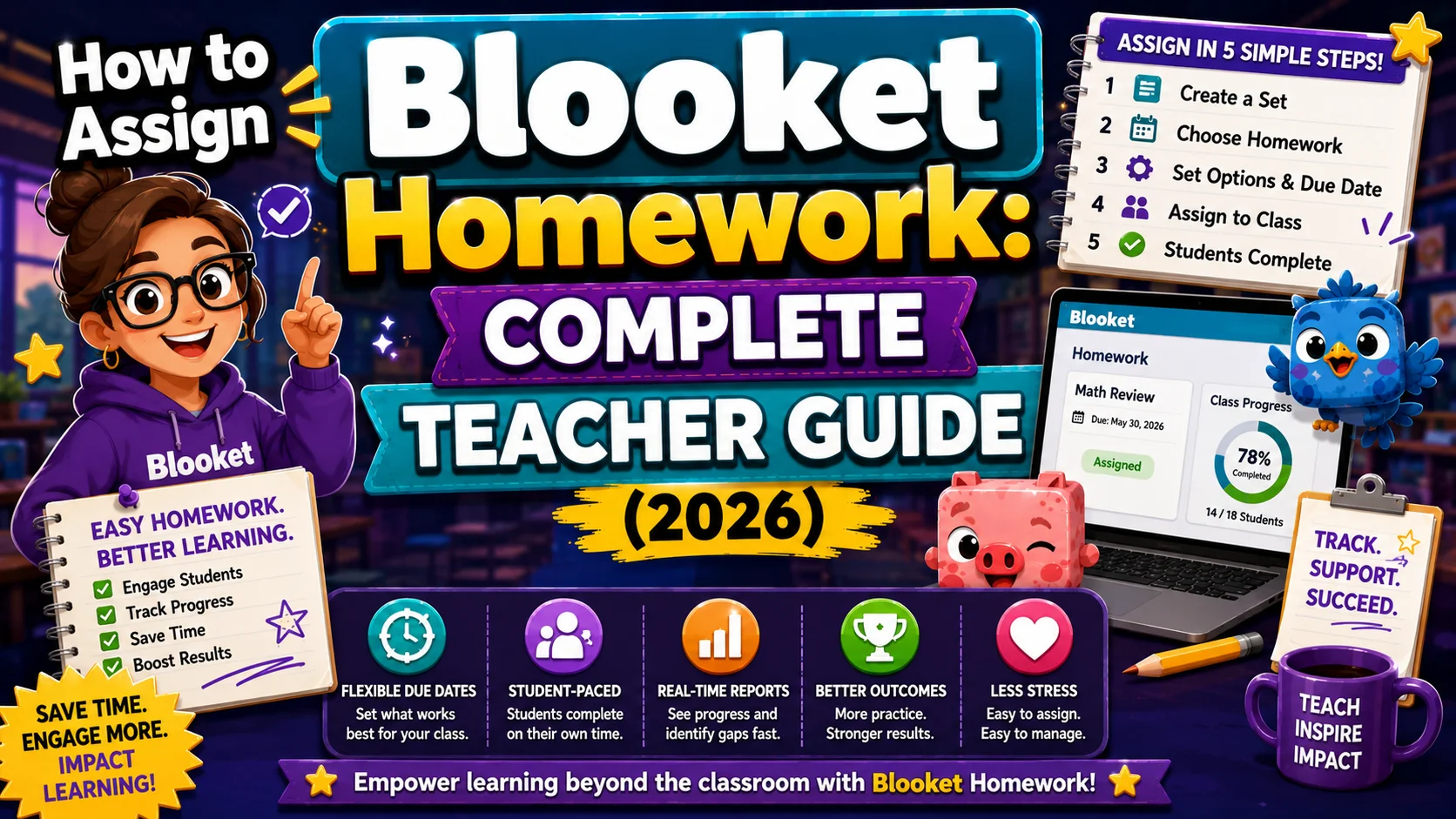
How to Assign Homework in Blooket: Complete Step-by-Step Guide
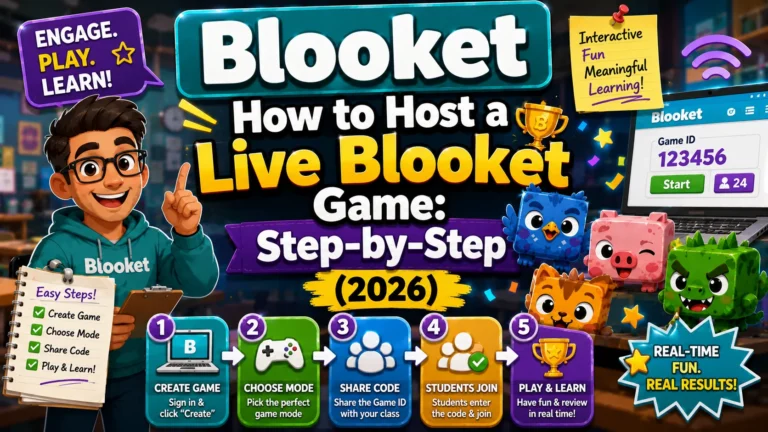
Blooket’s homework mode turns any question set into an asynchronous assignment that students complete independently on their own devices before a deadline you set. No live session is required; students access it via a link, play a solo game of their choice, and Blooket records their results automatically. Let’s learn more about how to assign blooket homework.
How to Assign Blooket Homework?
This guide explains in detail every step of how to assign Blooket homework, with precise explanations of settings, clear notes on what free and Plus Blooket accounts can and cannot do, and practical guidance for common classroom scenarios.
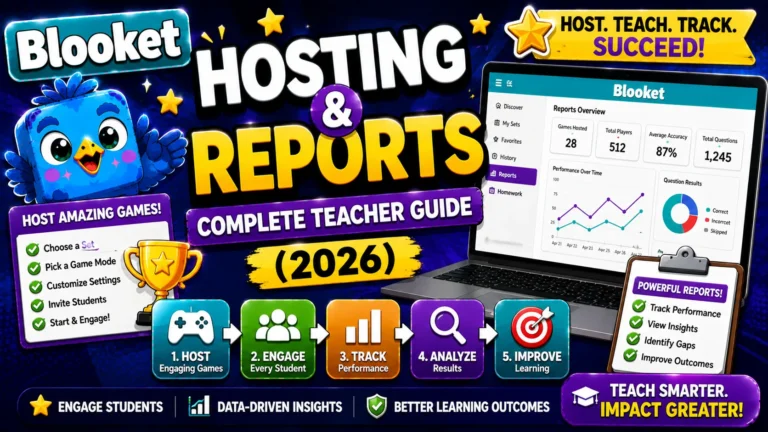
Full Guide About → Blooket Hosting & Reports
Homework Mode vs. Live Hosting: Key Differences
| Feature | Live Game | Homework Mode |
| Requires simultaneous login | Yes | No |
| Students choose a game mode | No (host decides) | Yes (from allowed options) |
| Deadline | None (real-time) | You set a due date |
| Completion requirement | Time-based | Correct Goal (number of right answers) |
| Reports | Immediately after the game | Viewable anytime before/after deadline |
| Student account required | No (guest play) | No (guest completion tracked) |
Before You Begin
You need:
- A Blooket teacher account
- A question set (from My Sets, Discover, or Curriculum)
- The assignment title, due date, and the Correct Goal you want to set
Students do not need Blooket accounts to complete homework. They access it via your link or QR code and play as guests. Their results are automatically tracked to your assignment.
Complete Guide About → Blooket Plus Features
Step 1: Find Your Question Set
Navigate to the set you want to assign:
- My Sets — For sets you’ve created or saved
- Discover — For public sets from the library
- Curriculum — For Blooket-verified grade/subject sets
Click the set to open its preview page, or locate it in My Sets.
Complete Guide → How to Find Blooket Question Sets
Step 2: Click Assign HW
On the set’s preview page, click Assign HW (the 3rd button alongside Host and Solo).
If you’re browsing My Sets, hover over the set card and look for the Assign HW option from the card’s action menu.
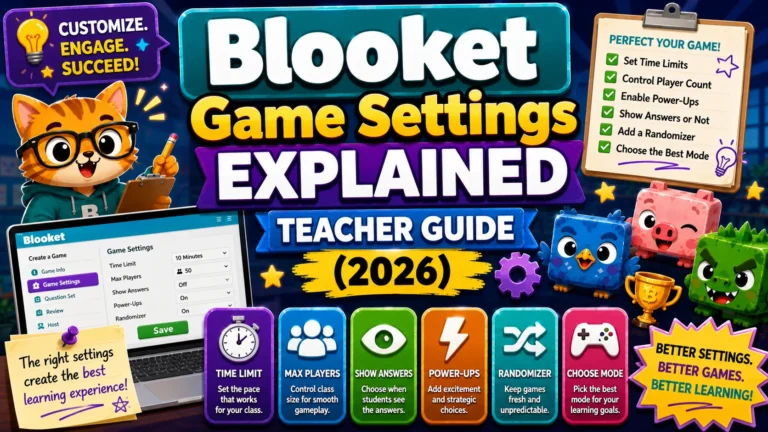
Step 3: Fill in Assignment Settings
Title (Required)
Give the assignment a name that students will see when they open it. Clear, descriptive titles prevent confusion:
- ✓ “Unit 3 Vocabulary Review — Due Friday.”
- ✓ “Chapter 7 Science Homework — Cells.”
- ✗ “HW” (too vague, especially if you run multiple concurrent assignments)
Due Date (Required)
Set the deadline — the date and time after which students can no longer access or submit the assignment.
Account limit — this is the most important free vs. Plus difference in homework:
| Account Type | Maximum Deadline Window |
| Free (Starter) | 14 days from today |
| Blooket Plus | 365 days from today |
This 14-day limit on free Blooket accounts is a difficult limitation. If you want to assign homework for a unit test happening in three weeks, you need Blooket Plus. If your test is within two weeks, the free limit covers you.
Practical impact: Most day-to-day homework assignments are due within 14 days, so free accounts handle the majority of classroom homework scenarios. The Plus 365-day limit primarily benefits teachers who want to set up recurring or long-term review assignments, or end-of-year exam prep sets months in advance.
Correct Goal (Required)
The Correct Goal is the number of correct answers a student must achieve before their assignment is marked complete. During play, students see a progress indicator that shows how many more correct answers they need.
Guidance by session intensity:
| Assignment Type | Correct Goal |
| Quick check-in | 5–10 |
| Standard practice | 15–25 |
| Pre-test intensive review | 30–50 |
| Long-term exam prep | 50+ |
Why Correct Goal is better than a time limit: A time-based requirement (play for 20 minutes) doesn’t measure learning. A Correct Goal measures actual correct responses. Students who answer carefully and accurately reach the goal faster. Students who rush and get many questions wrong need to answer more questions to hit the same target, which is precisely the right result.
Available Game Modes
This setting determines which solo game modes students can choose for the assignment. By default, multiple modes are available. Restricting to one mode creates a standardized experience. Offering multiple game modes can give students freedom and increase motivation.
Recommended approach: Leave all available modes open unless you have a specific reason to restrict (for example, you want all students in Study Mode for a focused, distraction-free practice session).
Learn More About → All Blooket Game Modes
Student Accounts
Controls whether the student account login/signup prompt appears when students access the homework link.
- Enabled (default): Students with accounts can log in to earn tokens and XP. Students without accounts can still complete the assignment as guests.
- Disabled: The account prompt is hidden. All students proceed as guests.
Step 4: Click Assign Now
Review your settings and click Assign Now. Blooket creates the assignment and generates:
- A unique Homework Link (a persistent URL active until the due date)
- A QR Code for the assignment
Step-by-Step Guide → How to Host a Live Blooket Game
Step 5: Share the Homework Link
Copy the Homework Link and share it through your preferred channel:
| Channel | Method |
| Google Classroom | Paste as an assignment or announcement |
| LMS (Canvas, Schoology, SeeSaw) | Paste in the assignment description |
| Send to students or parents | |
| Class website/page | Embed as a hyperlink |
| In-person | Display the QR code on the projector for students to scan |
Critical: The Homework Link is different from a Game ID. Game IDs are for live sessions only and expire when the session ends. The Homework Link remains available until the due date and can be accessed at any time students want to work on the assignment.
Step 6: Monitor Progress from the Homework Tab
Once the assignment is live, go to Homework in your dashboard sidebar. You’ll see:
- All active assignments are listed by title and due date.
- Number of students who have started vs. completed each assignment
- Real-time progress for ongoing submissions
Click any active assignment to see the full results view: each student’s name, accuracy, Correct Goal progress, and time played.
Management options from the Homework tab:
- Extend the due date — Add more time for students who need it
- Reopen a closed assignment — Let a student who missed the deadline submit late
- End the assignment early — Close before the due date if all students have completed
- Delete the assignment — Remove it entirely
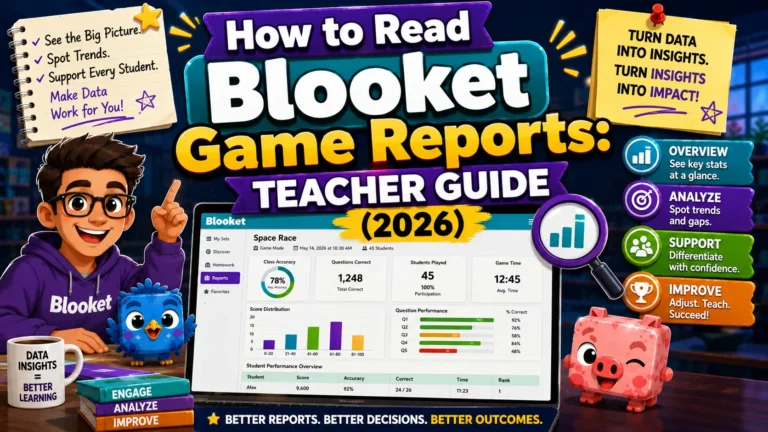
After the Deadline: Accessing the Full Report
After a homework assignment closes (deadline passes or you end it manually), the full report moves to your History tab. Access the same detailed report data as a live game: leaderboard, question accuracy, and (for Plus users) downloadable spreadsheet.
Full Report Guide → How to View Blooket Homework Results