How to Switch Your Blooket Account Type: Student to Teacher Guide
Last verified: August 21, 2026
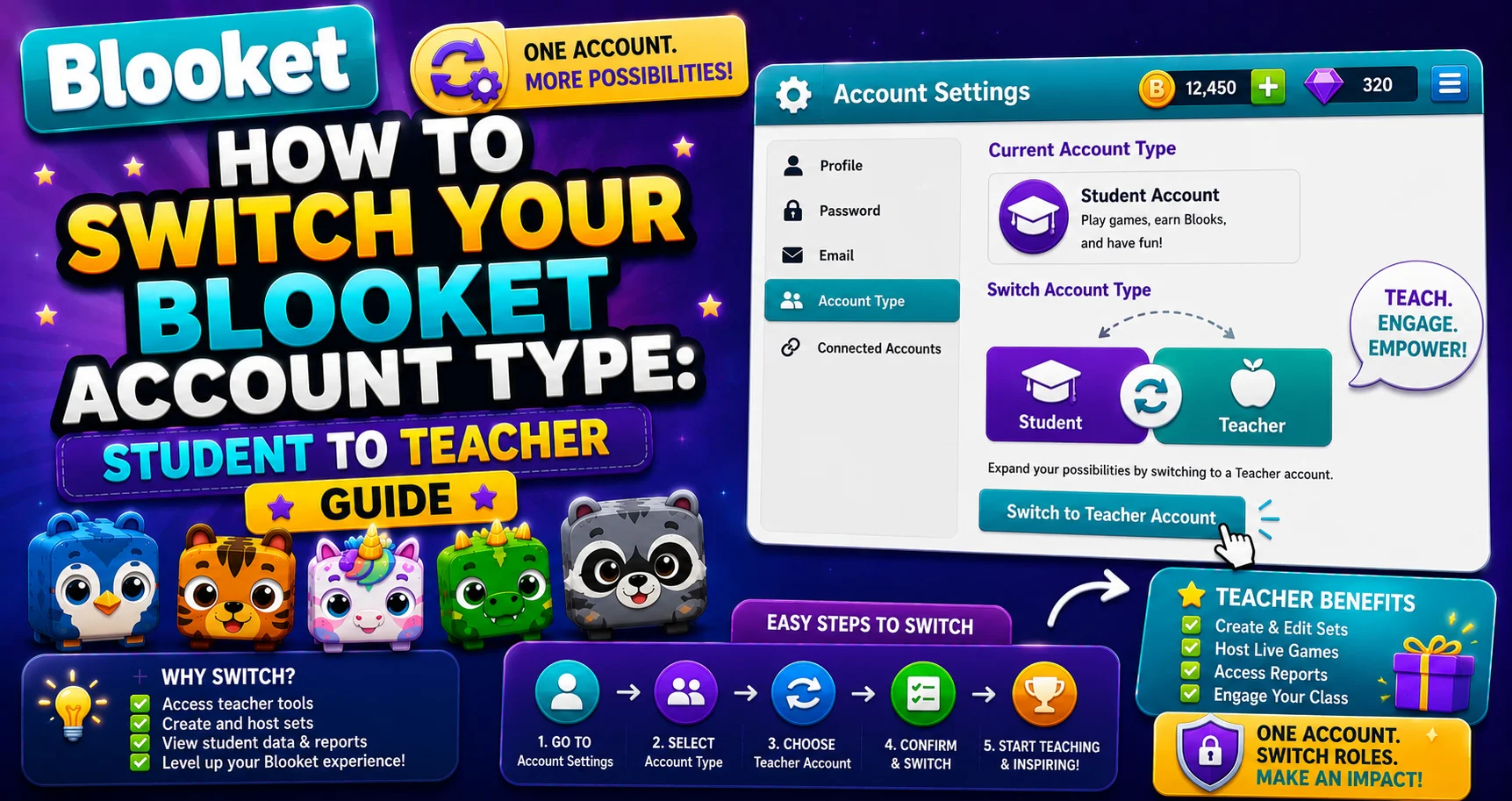
Quick Answer: To switch from a Student to a Teacher account, go to Settings and select “Switch to Teacher Account.” The change takes effect immediately, is fully reversible, and doesn’t affect your Blooks, tokens, question sets, or game history.
How to Switch Blooket Account Type
(Student to Teacher)
Blooket accounts are either Student or Teacher. The account type determines which dashboard features are available to you; specifically, Teacher accounts can host live games and assign homework.
This guide explains step-by-step how to switch Blooket account type from Student to Teacher. Switching accounts takes only two steps, and it’s completely reversible.
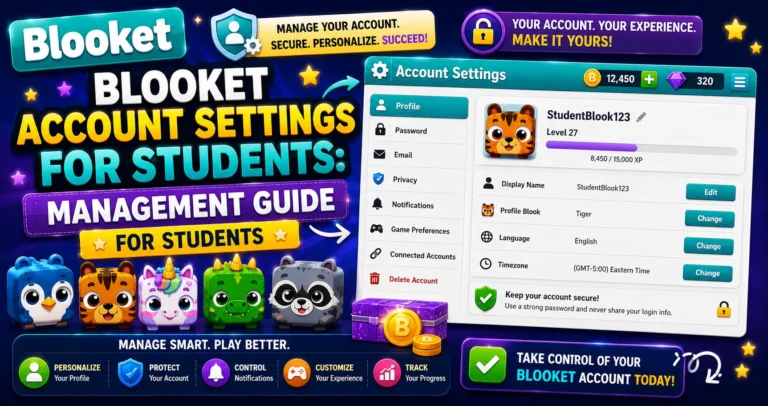
Account Settings Overview → Blooket Account Settings for Students
Why Students Switch to Teacher Accounts
→ You created a Student account but need Teacher features. This is the most common reason. During signup, students sometimes select Student by habit, only to later realize they want to host their own games.
→ You want to host study sessions or tutoring games. Teacher accounts give you the Host button; you can create game codes and invite friends or family to join your live sessions. Perfect for running study groups, tutoring younger siblings, or practicing content with classmates outside of class.
→ You’re exploring Blooket for educational or creative projects. Students building school projects, apps, or presentations about Blooket may need Teacher access to demonstrate hosting functionality.
Source: verified from Blooket’s official documentation on switching account type.
Step-by-Step: Switching from Student to Teacher
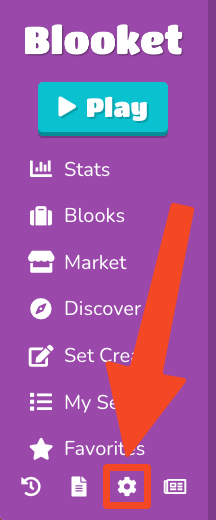
→ Step 1: Navigate to the Settings tab.
Click your profile icon, then Settings (or go to dashboard.blooket.com/settings).
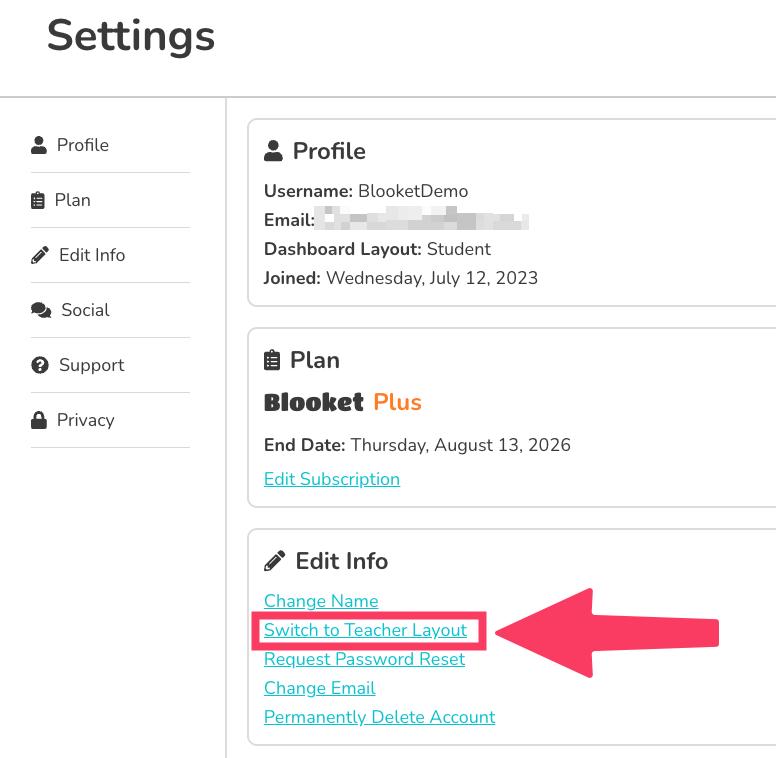
→ Step 2: Select “Switch to Teacher Account” or “Switch to Student Account.”
The option that appears depends on your current account type. If you’re currently a Student, you’ll see “Switch to Teacher Account.” Click it.
The switch takes effect immediately; your dashboard updates to the Teacher interface with access to Host, Homework assignment, and Reports.
Switching Back: Teacher to Student
The same two steps apply in reverse. If you switch to Teacher and want to return to Student:
Settings, then “Switch to Student Account.”
The switch is fully reversible. You can switch between Student and Teacher as many times as you want.
Switch Teacher to Student → How to Switch Blooket Account Type: (Teacher to Student)
What Changes When You Switch
Changes immediately:
- Your dashboard layout and available features.
- The “Host” button becomes visible (Teacher) or hidden (Student).
- Homework assignment features appear (Teacher) or disappear (Student).
Stays the same regardless of account type:
- Your Blook collection, tokens, and XP.
- Your question sets and My Sets library.
- Your game history and any saved reports.
- Your username, email, and password.
- Your Stats page and Blook Score.
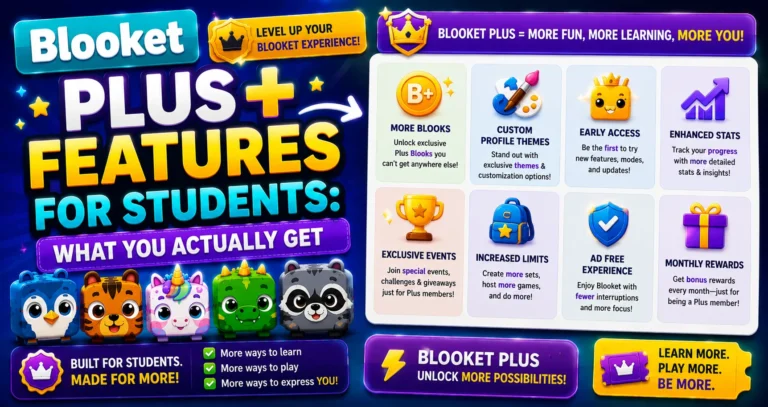
Learn More About → Blooket Plus Features for Students
Account Type vs Account Data
The account type is a dashboard-level setting; it controls which features you see, not which data you have access to. Switching from Student to Teacher does not delete your token balance, Blooks, or question sets. Switching back from Teacher to Student doesn’t delete anything either.
Think of it like choosing a different mode on the same account; all your progress and collection stay intact.
Want to Delete Account? → How to Delete Your Blooket Account
Where to Go Next
- Want to know more about the platform? See our complete Blooket guide
- Curious about what your teacher sees? Visit the Blooket For Teachers
- Want the full student guides overview? See the Blooket For Students
Have another question? Please check the Frequently Asked Questions or Blooket Help Center.
Frequently Asked Questions
Does switching to Teacher give me Blooket Plus?
No. Plus is a paid subscription separate from the account type. Switching to a Teacher account gives you access to the teacher interface (hosting, homework, basic reports) but doesn’t unlock Plus features like enhanced reports, 300-player games, or audio questions.
Can a Teacher account still join student games?
Yes. Teacher accounts can join any live game as a player by going to play.blooket.com and entering a Game ID, exactly like a student would.
How many times can I switch between Student and Teacher accounts?
As many times as you want. The switch is fully reversible with no limit, and none of your data is affected regardless of how often you switch.
Will switching account types delete my Blooks or tokens?
No. Your Blook collection, tokens, XP, question sets, and game history all stay intact no matter which account type you’re currently using.
How long does the switch take to apply?
It’s immediate. As soon as you click Switch to Teacher Account or Switch to Student Account, your dashboard updates right away with the new interface.
Do I need a separate email or login to switch account types?
No. Switching account type uses the same account, same username, email, and password. It’s a setting change, not a new account.
What’s the difference between the Student-to-Teacher guide and the Teacher-to-Student guide?
This article covers switching from Student to Teacher. A separate companion guide covers the reverse direction, switching from Teacher back to Student, since the starting screen and options differ slightly depending on your current account type.