How to Hide the Student Account Creation Notification in Blooket?
Last verified: September 1, 2026
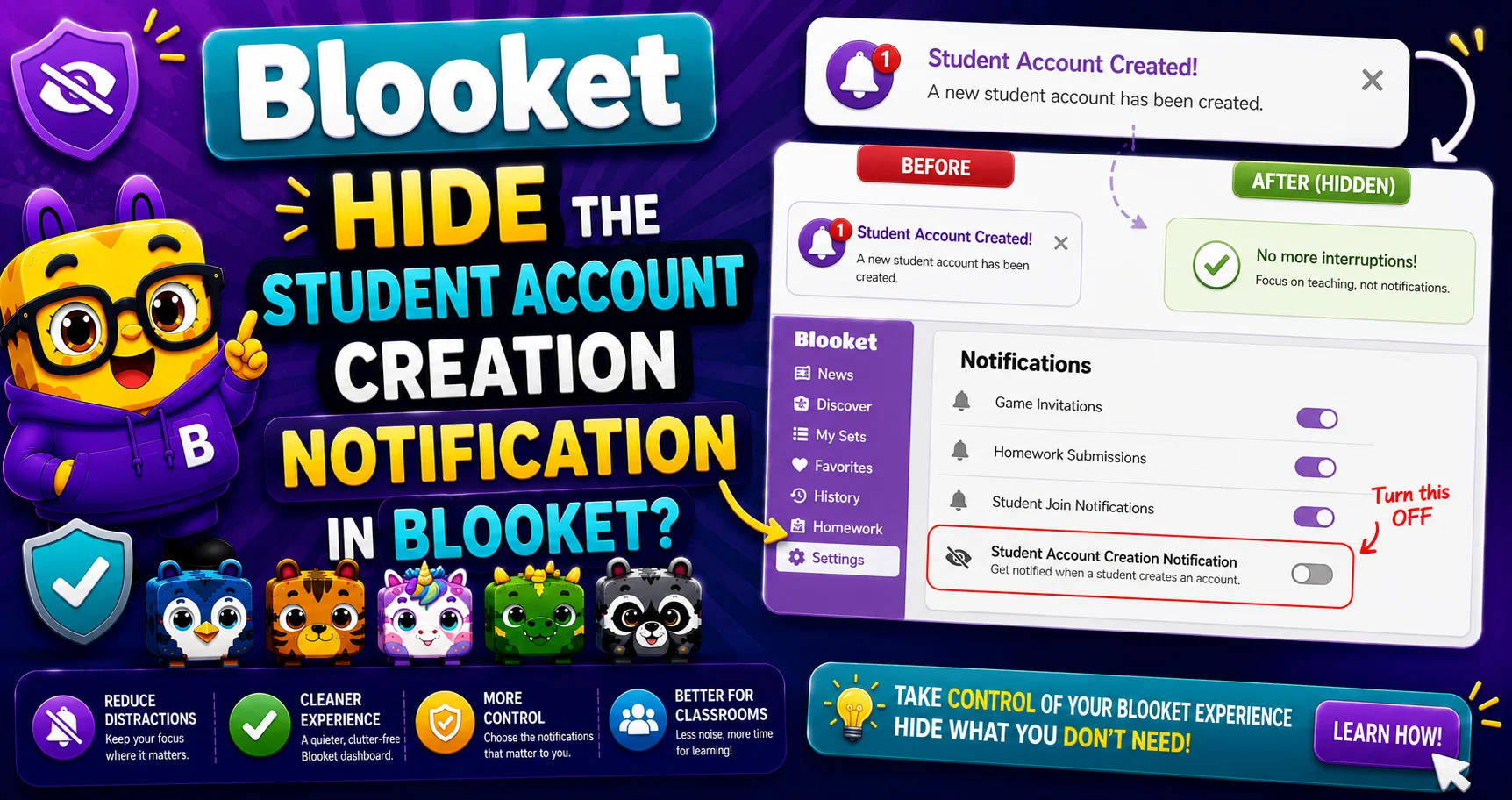
Quick Answer: To hide the post-game account creation prompt, uncheck “Allow Student Accounts” on the Host Settings page before clicking Host Now. This setting resets every session, so you’ll need to uncheck it each time you host.
Source: Verified from Blooket’s official documentation on hiding the account creation notification.
How to Hide Blooket Account Notification?
After finishing a game, students are asked to create accounts (if they don’t already have them) to track their stats and unlock new Blooks. Creating an account is totally optional, but some teachers may not want their students to see this notification. For more details, read this guide about how to hide the Blooket account notification.
Complete Explanation → Blooket Troubleshooting Guide
What is the Blooket Notification?
At the end of every live Blooket game, students who completed the session without a logged-in Blooket account see a post-game screen encouraging them to create a free account. The prompt explains that a student account lets them:
- Track their game stats over time.
- Unlock and keep new Blooks between sessions.
- Earn tokens to spend in the Market.
The prompt is shown after the game ends; it does not interrupt gameplay.
Creating an account is genuinely optional. Students can close the prompt and continue as guests with no consequence. The prompt is designed to give students the option, not to require them to sign up.
More About Student Accounts → Do Students Need a Blooket Account to Play?
Why Some Teachers Want to Hide It
→ Data privacy requirements. Schools with strict data policies may require parent consent before students create accounts on third-party platforms. Hiding the prompt prevents students from signing up without prior authorization.
→ Classroom management. Younger students may get distracted by the signup form rather than transitioning to the next activity.
→ Parent permission workflows. Some teachers prefer to obtain parental consent and guide students through account creation as a separate, deliberate step, not a spontaneous end-of-game prompt.
The Fix: Uncheck “Allow Student Accounts”
If you would like to hide this notification, next time you host a game, uncheck the “Allow Student Accounts” option on the Host Settings page before you select a game mode.
Where to find this setting:
- Click Host on any question set.
- Select your game mode.
- On the Host Settings page (the settings screen before clicking “Host Now”), scroll through the options.
- Find “Allow Student Accounts” and uncheck it.
- Click “Host Now”; the post-game account creation prompt will not appear for students in this session.
Important: This setting resets each session. “Allow Student Accounts” does not save permanently; you must uncheck it each time you host a new game. Add it to your pre-session hosting routine if you want the prompt hidden consistently.
Host Settings Explained → How Do I Host a Blooket Game
What Unchecking This Setting Does and Doesn’t Do
| Effect | With “Allow Student Accounts” Checked (Default) | With “Allow Student Accounts” Unchecked |
| Post-game account prompt | Appears | Hidden |
| Students already logged in | Unaffected; they play normally | Unaffected; they play normally |
| Students earning tokens (logged in) | Yes | Yes |
| Students earning tokens (guest) | No (no account to credit) | No |
| Game functionality | Normal | Normal |
Unchecking this setting does not prevent students who are already logged in from playing or earning tokens. It only hides the post-game prompt for guest (non-logged-in) students.
Contact Support Guide → How to Contact Blooket Support
Where to Go Next
- Want to know more about the platform? See our full Blooket overview
- Curious about what your teacher sees? Visit the Blooket For Teachers
- Want the full student guides overview? See the Blooket For Students
Have another question? Please check the Frequently Asked Questions or Blooket Help Center.
Frequently Asked Questions
Does hiding this notification prevent students from ever creating an account?
No. It only hides the automatic post-game prompt. Students can still create an account anytime on their own by visiting Blooket directly and signing up.
Will unchecking Allow Student Accounts affect students who already have accounts?
No. Students who are already logged in play normally and continue earning tokens exactly as before; this setting only affects the prompt shown to guest players.
Do I need to remember to uncheck this every single time I host?
Yes. The setting resets each session and does not save permanently, so it’s worth adding to your pre-session hosting checklist if you want it hidden consistently.
Why would a school require this setting to be off?
Schools with strict data privacy policies may require parental consent before students create accounts on any third-party platform, so hiding the prompt prevents unauthorized signups during class.
Does this setting change anything about how the actual game plays?
No. Game functionality stays completely normal for all students regardless of this setting; it only affects whether the post-game account creation prompt appears.
Can guest students still earn tokens if I hide the notification?
No. Guest students never earn tokens regardless of this setting, since there’s no account to credit; token earning has always required being logged in.
Where exactly is the Allow Student Accounts option located?
On the Host Settings page, which appears after selecting a game mode and before clicking Host Now. Scroll through the options to find it.