How Do i Host a Blooket Game: FAQ Answer for Quick Start
Last verified: August 23, 2026
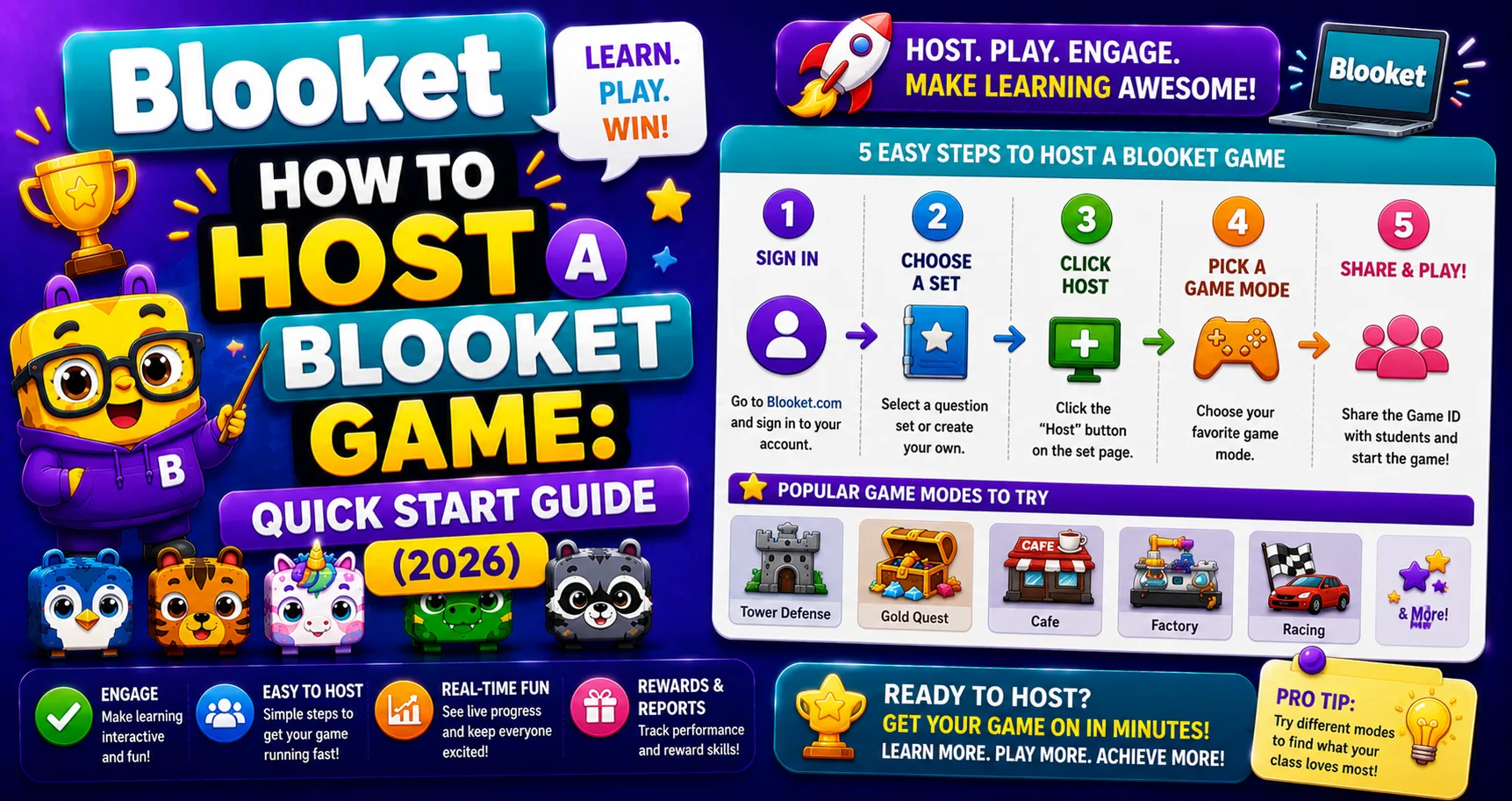
Quick Answer: To host a Blooket game, log in, find or create a question set, click Host, choose a game mode, then click Host Now to get a Game ID, QR Code, and Join Link. Share any of these with students, and click Start once they’re in the lobby.
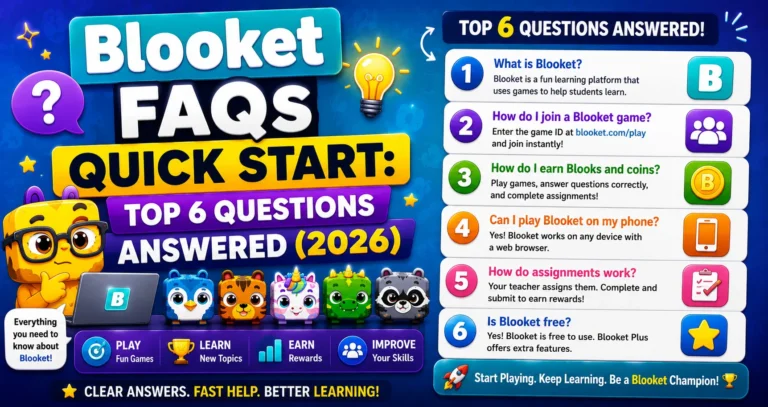
Complete Details → Blooket FAQs for Quick Start
How do I host a Blooket Game?
Hosting a Blooket game is very easy for teachers. Learn in this guide how do I host a Blooket game, along with complete teacher game-hosting details.
Teacher Hosting Guide → How to Host a Blooket Game
Trying to host a game right now? Here’s the fastest way from zero to a live game with your class.
The Quick Version (4 Steps)
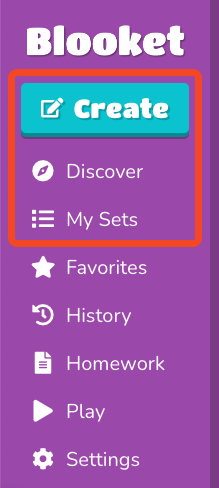
→ Step 1: Log in to blooket.com. From your dashboard, find a question set in one of three places:
- My Sets: question sets you’ve already created or saved.
- Discover: search the public library of 20+ million sets.
- Create: build a new set from scratch right now.
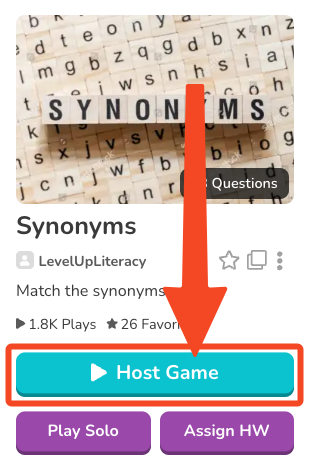
→ Step 2: Click on the question set to open its preview page. Then click the Host button.
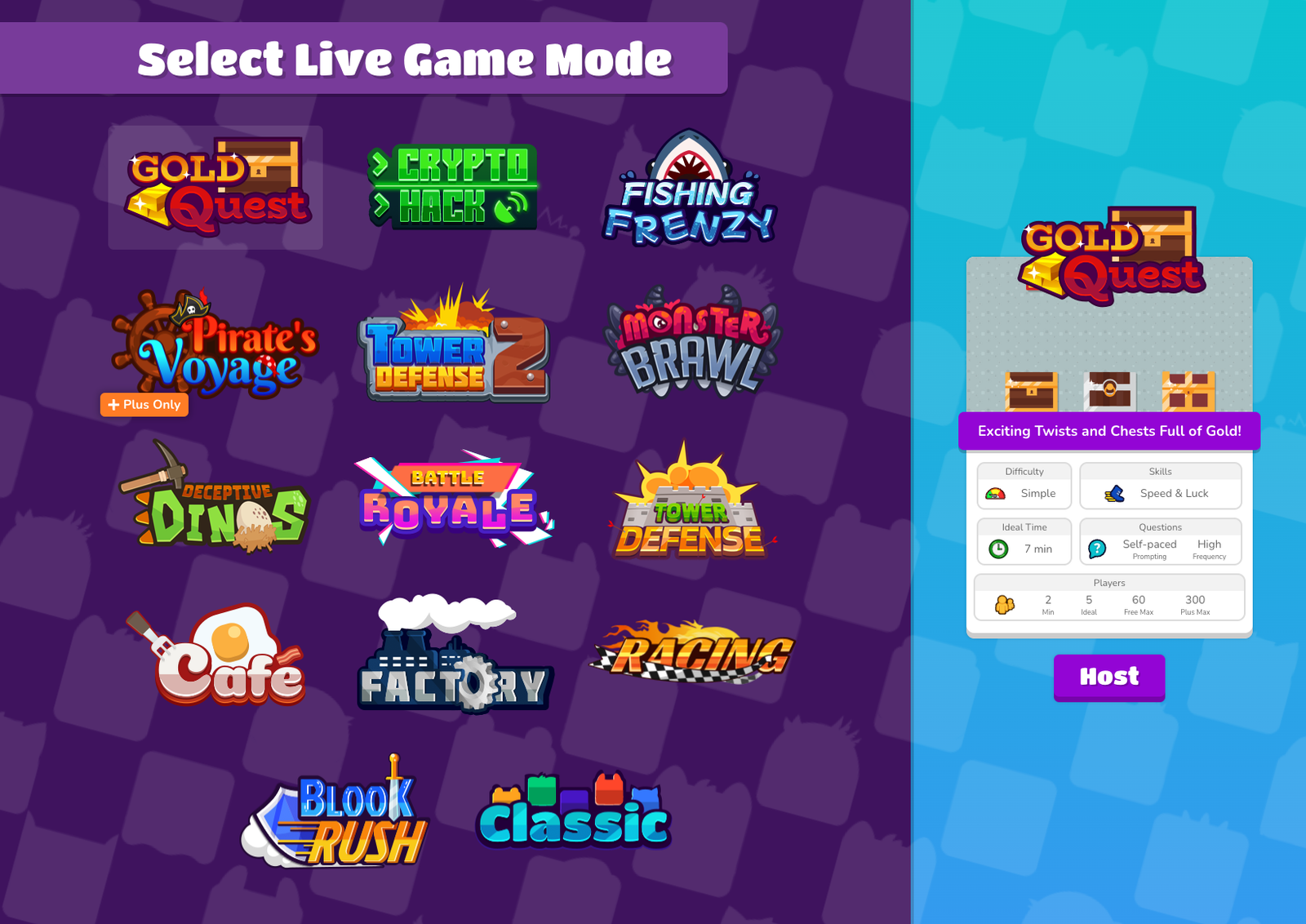
→ Step 3: Choose a game mode. Each mode uses the same question set but with different game techniques. For your first game, Classic (simple points race) or Gold Quest (treasure chest technique) are the easiest starting points.
All Game Modes Explained → Blooket Game Modes for Teachers
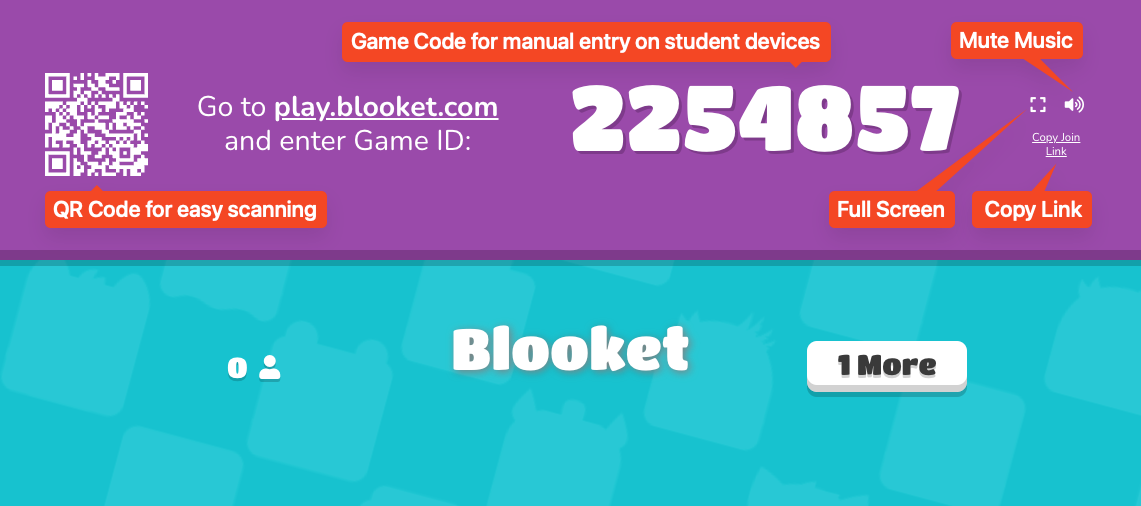
→ Step 4: Walk through the settings and click Host Now. Blooket generates:
- A Game ID: a 7-digit code students type at play.blooket.com.
- A QR Code: students scan it with their camera to join instantly.
- A Join Link: copy and paste into Google Classroom, email, or any digital platform.
Share any of these with your students. When they’re in the lobby, click Start.
Choosing the Right Mode → How to Pick the Right Blooket Game Mode
Three Ways to Share the Game Code
| Method | Best For | How Students Use It |
| Game ID (7-digit code) | In-person, code on projector | Go to play.blooket.com, type the code |
| QR Code | Students with phones | Scan with the camera app |
| Join Link | Virtual or hybrid classes | Click the link from wherever you shared it |
Getting Students in → How to Share a Blooket Game Code
Before You Host: Do You Have a Question Set?
If you don’t have a question set yet, you have two quick options:
→ Option A: Use a public set from Discover: Search by your topic and grade level. Preview the questions before using. Takes 2 to 3 minutes to find a quality set.
→ Option B: Create one from scratch: Go to the Create tab and build questions one at a time. A 10-question set takes about 5 to 10 minutes.
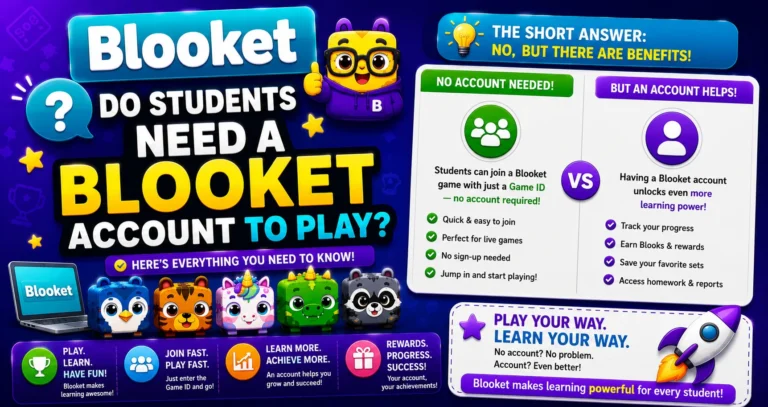
Learn More About → Do Students Need a Blooket Account to Play?
Source: verified from Blooket’s official Documentation on How do I Host.
Where to Go Next
- Want to know more about the platform? See our Blooket guide
- Curious about what your teacher sees? Visit the Blooket For Teachers
- Want the full student guides overview? See the Blooket For Students
Have another question? Please check the Frequently Asked Questions or Blooket Help Center.
FAQs About Hosting
How many students can join?
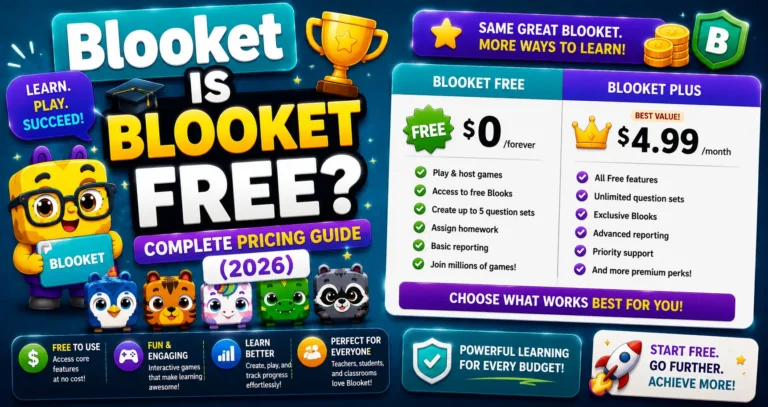
Free accounts: 60 players per game, maximum. Blooket Plus accounts: 300 players maximum (except Racing and team modes).
Do students need to log in to join?
No. Students join as guests using just the Game ID, QR code, or link. No account needed.
What if a student joins late?
The Game ID and Join Link stay active throughout the session. Late joiners can enter at any time during the game.
Can I see which students got which questions wrong?
Basic leaderboard and accuracy data are available to all teachers after every game. Detailed question-by-question per-student breakdowns require Blooket Plus.
Do I need a specific number of questions to host a game?
No minimum is required. Even a short set works, though 10 to 25 questions is typical for a full class session.
Can I preview a public question set before hosting it?
Yes. Every set’s preview page shows all questions before you commit, so you can confirm accuracy and difficulty before clicking Host.
What’s the fastest game mode to start with as a new host?
Classic or Gold Quest. Both use straightforward mechanics that let you focus on managing the class rather than learning a complex game format on your first try.