How to Share a Blooket Question Set with Another Teacher? Complete Guide
Last verified: August 23, 2026
Quick Answer: Share a question set by copying its Link from the Gear icon in My Sets. Your set must be Public first; the whole process takes about 30 seconds once it is.
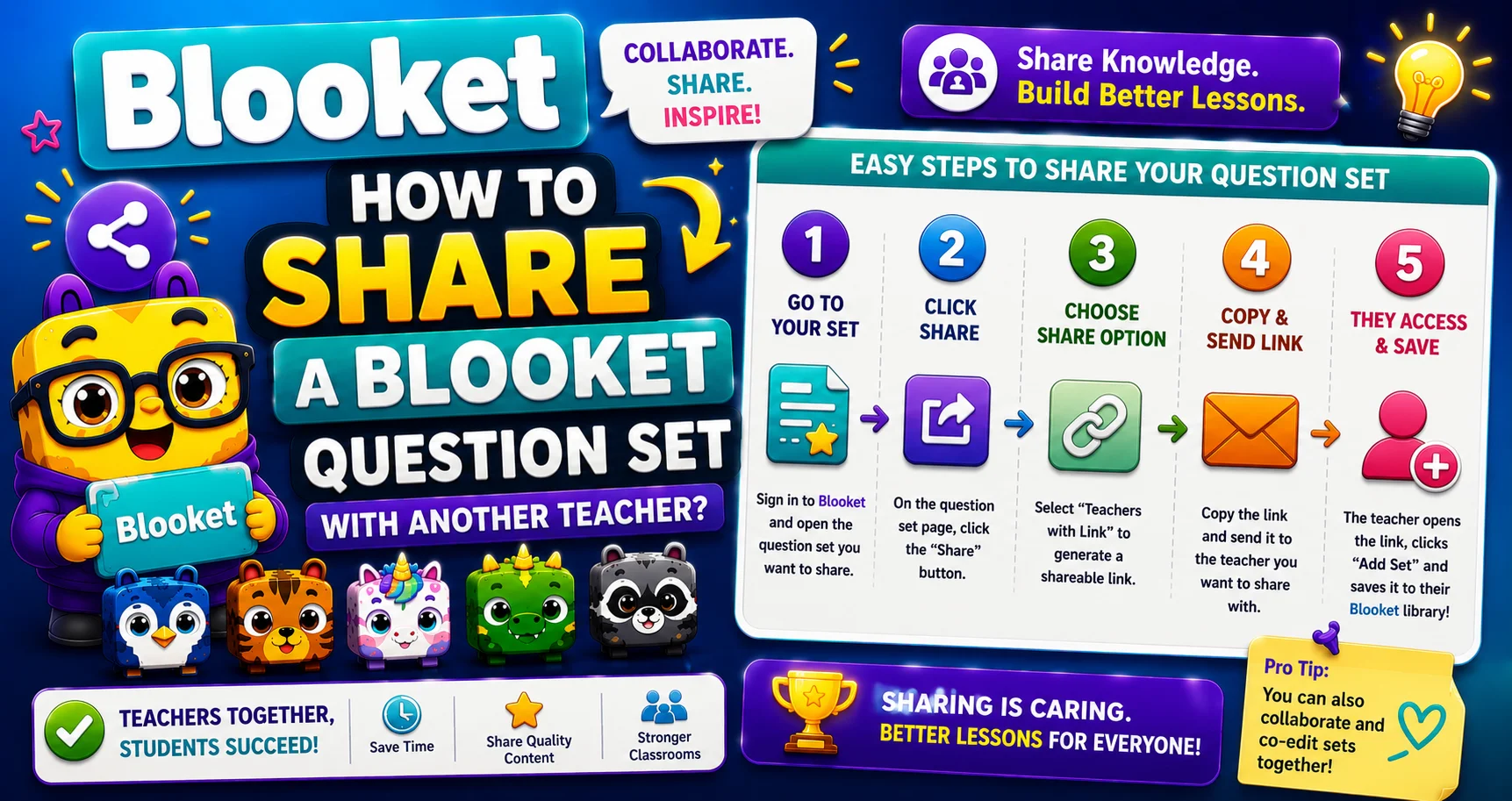
How to Share Blooket Question Set
If you’ve built a great question set and want to share it with a colleague, the process takes about 30 seconds, as long as your set is Public. Here’s exactly how it works.
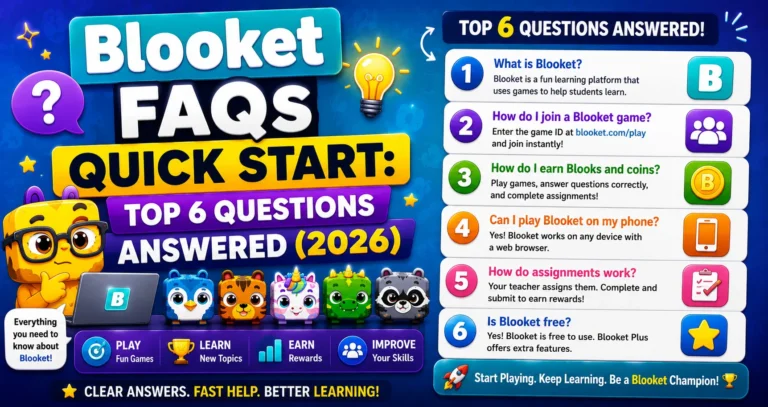
Complete Overview → Blooket FAQs: Quick Start
Step-by-Step: Sharing a Question Set
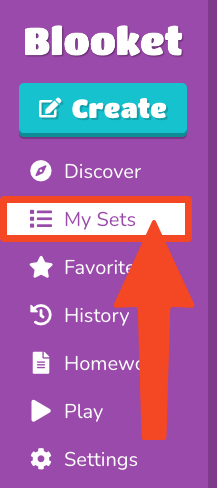
→ Step 1: Navigate to your My Sets dashboard.
Log in at blooket.com and click My Sets in the left navigation sidebar. This shows all the question sets you have created and saved.
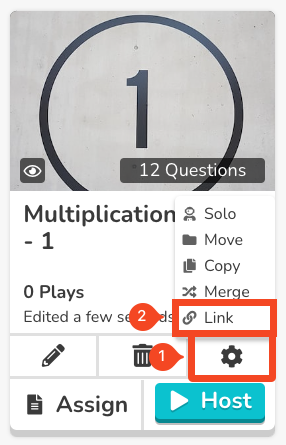
→ Step 2: Locate the set you want to share and hover over the Gear/Cog icon to the right of the trash can icon on that set card.
A small menu opens above the gear icon with action options.
→ Step 3: Look for the “Link” option in the menu. If it appears, click it.
Clicking the link automatically copies the set’s shareable URL to your clipboard. Paste it anywhere: an email, Slack, Google Classroom, or a Teams message.
Full Question Set Guide → Blooket Question Sets for Students
What If the Link Button Doesn’t Appear?
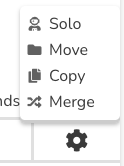
If the Link button does not appear in the gear menu, your set is Private. Private sets cannot generate shareable links; they are only accessible by you.
To make your set Public (so you can share it):
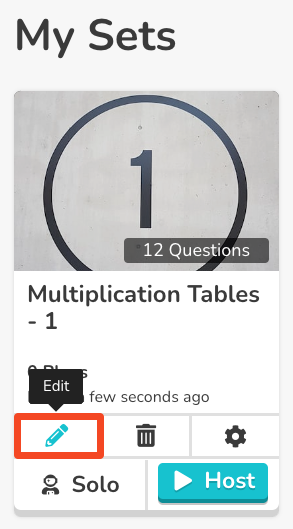
- Click the pencil icon on the set card to open the edit view.
- Select “Edit Info.”
- Find the Privacy Setting dropdown and change it to Public.
- Click Save.
Return to My Sets. Now hover over the Gear icon again; the Link button will appear. Click it to copy the link.
Manage Privacy Settings → How to Make a Question Set Public or Private
What Sharing Does and Doesn’t Do
When you share a Public set link:
- The recipient can view all questions on the set’s preview page.
- They can use the set to host their own games or assign it as homework.
- Blooket Plus users can copy the set to make their own editable version.
What sharing does NOT do:
- The recipient cannot edit your original set (only a Plus-generated copy is editable).
- Changing your set after sharing updates what anyone who opens the link sees; your original set is still the source.
Assign Blooket Question Set → How Do I Assign Blooket Question Set as Homework
Alternative: Share Through Discover
If you make your set Public, it will also be discoverable on the Blooket Discover search page. Other teachers searching for your topic or grade level may find it organically; you don’t have to actively share the link for your set to reach other educators.
Source: verified from Blooket’s official documentation on sharing a Blooket question set.
Where to Go Next
- Want to know more about the platform? See our Blooket overview
- Curious about what your teacher sees? Visit the Blooket For Teachers
- Want the full student guides overview? See the Blooket For Students
Have another question? Please check the Frequently Asked Questions or Blooket Help Center.
Frequently Asked Questions
Can I share a Private set directly with someone specific?
Not via link; private sets don’t generate links. Your only options are to make it Public temporarily (then switch back to Private after sharing) or make it Public permanently.
Can students use the shared link, too?
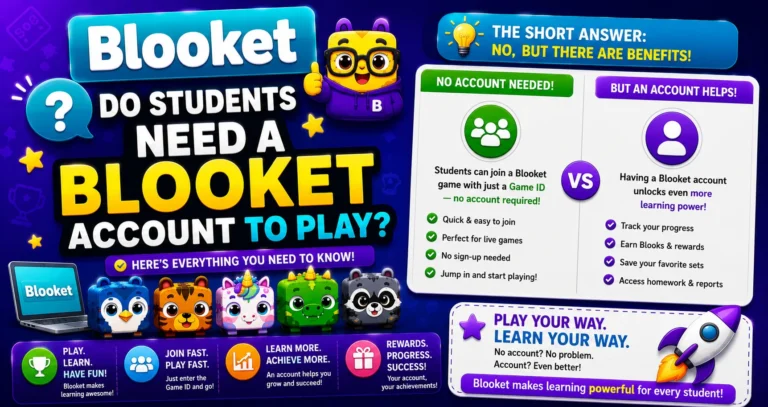
Yes. Anyone with the link can preview and use the set for Solo play. The link works for both teachers and students.
What if I update the set after sharing? Does the link still work?
Yes. The link always points to the current version of your set. Updates are reflected immediately for anyone opening the link.
Does sharing my set cost anything?
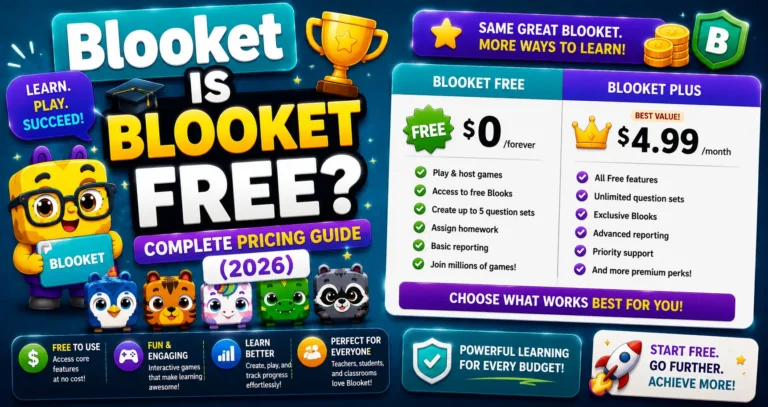
No. Sharing a Public set link is completely free and doesn’t require Blooket Plus. Only copying a set into your own editable version requires Plus.
Will I know if someone used my shared set?
No specific notification is generated for individual link opens. Your set’s overall stats reflect usage, but you won’t see who specifically accessed the link.
Can I share a set with multiple colleagues at once?
Yes. The same shareable link can be sent to as many people as you want; there’s no limit on how many people can use a Public set’s link.
What happens if I switch my set back to Private after sharing the link?
The link stops working for anyone who hasn’t already opened it. People who already accessed the preview page while it was Public may retain that access, but new visitors using the link will not.