How Do i Assign a Blooket Question Set as Homework for Students to Do on their Own?
Last verified: August 23, 2026
Quick Answer: To assign Blooket as homework, choose a question set, set a due date (up to 14 days on free accounts, 365 on Plus), configure the Correct Goal, click Assign Now, copy the link, and share it with students via any channel.
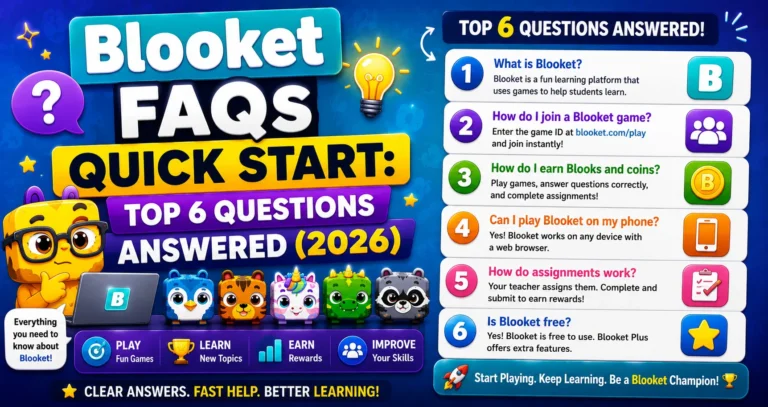
Complete Guide About → Quick Start FAQs: 6 Important Questions Answered
How do I assign Blooket as Homework
Blooket’s homework mode lets students practice asynchronously, on their own time, at their own pace, before a deadline you set. Unlike in a live game, where everyone plays at the same time, homework assignments are completed individually via a shareable link. Learn more in this guide on how do I assign Blooket as homework for students.
Homework Assignment Guide → How to Assign Homework in Blooket
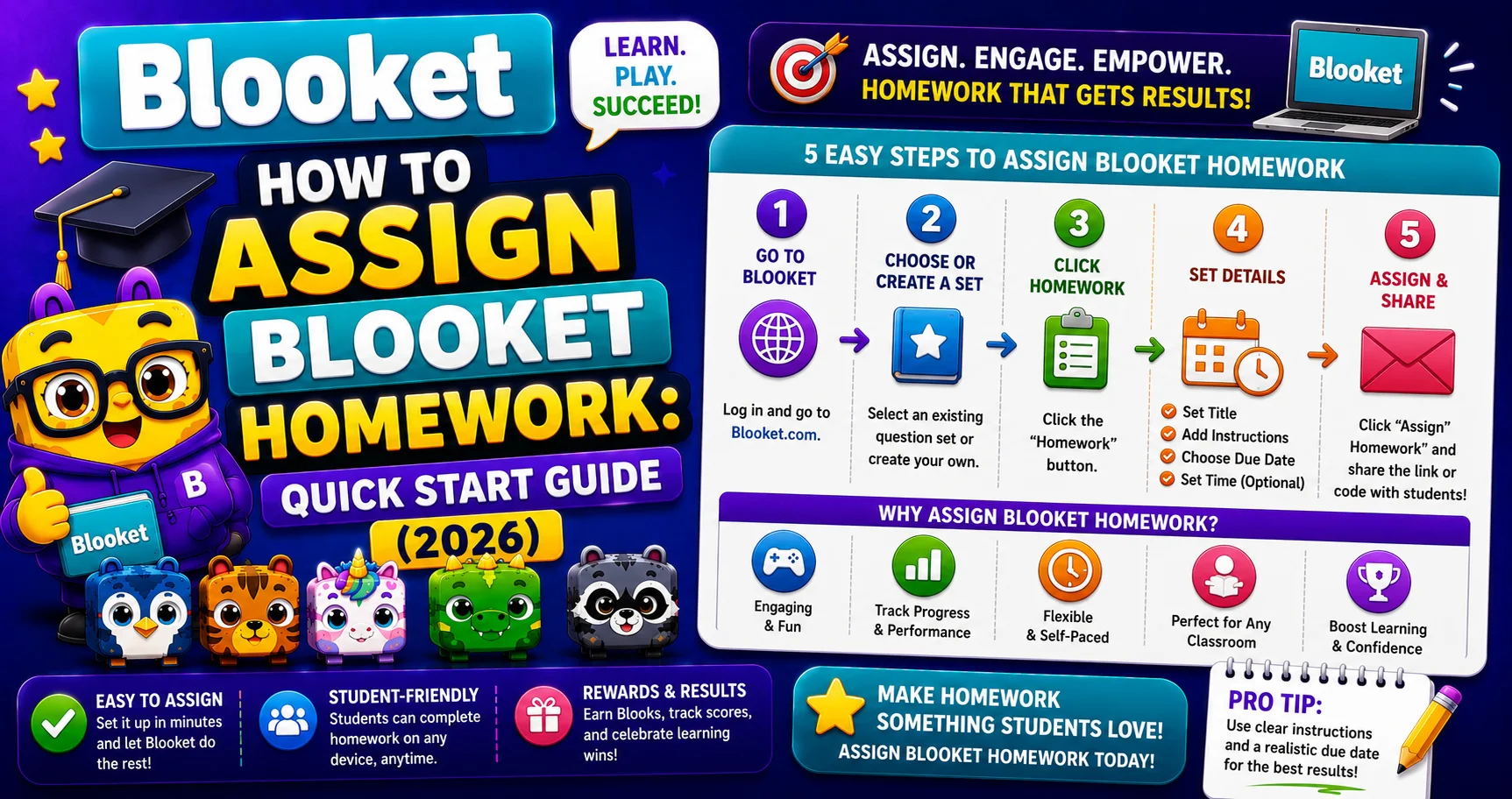
The Quick Version (6 Steps)
→ Step 1: Choose a question set and open it to view more options.
- Create a set using the Create tab.
- Use one of your own sets in the My Sets tab.
- Find a public set in the Discover tab.
→ Step 2: Select a Due Date for the homework.
- Type or select a date from the dropdown.
- Set a specific time (default is 12:00 AM).
- Select OK.
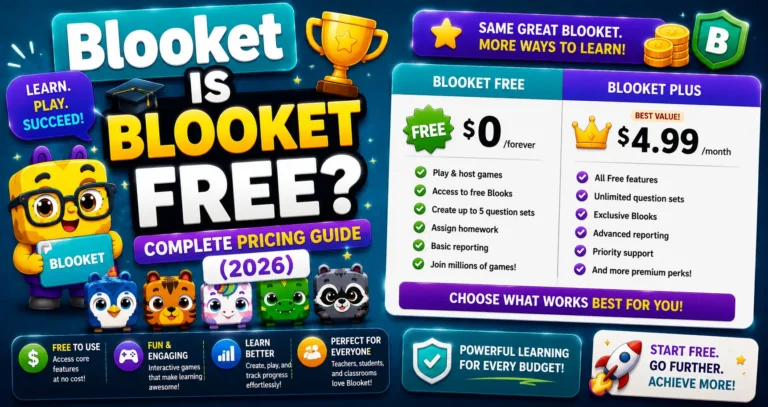
Deadline limits → Starter (free): up to 14 days in the future.
Blooket Plus → up to 365 days in the future. Once the homework closes, students will no longer be able to access the game.
→ Step 3: Configure Additional Settings, including the Correct Goal (the minimum number of correct answers a student needs to complete the assignment).
Student Side Guide → How to Complete Homework in Blooket
→ Step 4: When ready, click “Assign Now.”
→ Step 5: Click the homework link to copy it to your clipboard.
→ Step 6: Share the homework link with your students via Google Classroom, email, LMS, or any digital channel.
Students will now be able to select whatever game mode they would like to play to meet the Correct Goal.
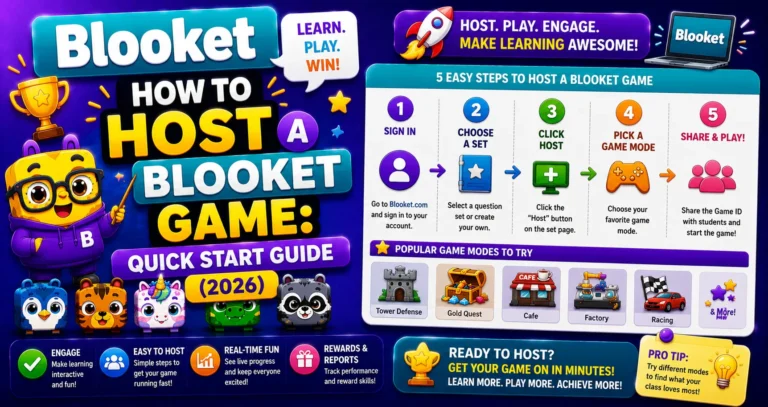
Step-by-Step → How Do I Host a Blooket Game
Understanding the Correct Goal
The Correct Goal is a number you set; it’s the minimum number of correct answers a student must achieve before their homework counts as complete. Students see a progress meter showing how many more correct answers they need to complete.
There’s no time limit on individual sessions; students can play in multiple short sessions before the deadline, and their progress accumulates. Wrong answers just mean they need more correct answers to hit the goal; they’re not penalized beyond needing to keep playing.
Setting the Correct Goal:
- 5 to 10: Quick check-in or low-stakes warm-up.
- 15 to 25: Standard review practice assignment.
- 30 or more: Intensive test prep.
Check Student Results → How to View Blooket Homework Results
Homework vs Live Game: Key Differences
| Feature | Live Game | Homework |
| Students online simultaneously? | Yes | No |
| Is the teacher active during the session? | Yes | No |
| Students choose a game mode | No (teacher chooses) | Yes (from available modes) |
| Has a deadline | No | Yes |
| Progress requirement | Time-based | Correct Goal |
| Access method | Game ID / QR / Link | Homework Link only |
Source: verified from Blooket’s official documentation on How Do I Assign Blooket Sets.
Where to Go Next
- Want to know more about the platform? See our Blooket overview
- Curious about what your teacher sees? Visit the Blooket For Teachers
- Want the full student guides overview? See the Blooket For Students
Have another question? Please check the Frequently Asked Questions or Blooket Help Center.
FAQ About Homework
Can I extend the deadline after assigning?
Yes. From the Homework tab on your dashboard, you can update the due date for any active assignment.
Can I see who has completed the homework?
Yes. Go to the Homework tab for active assignments or the History tab for closed ones. Both show each student’s completion status and accuracy.
What if a student can’t access the link?
The homework link can be re-shared at any time before the deadline. Share it via multiple channels (for example, Classroom plus email) to ensure all students have access.
What happens to a student’s progress if they don’t finish before the deadline?
Once the homework closes, students can no longer access the game or add to their progress, so any incomplete Correct Goal simply stays unfinished.
Can students retry questions they got wrong?
Yes. Wrong answers don’t penalize students beyond needing more correct answers to reach the Correct Goal; they can keep playing within the same assignment until they hit it.
Do all students see the same game mode for homework?
No. Unlike a live game where the teacher picks the mode, homework lets each student choose their own game mode from the available options.
What’s a reasonable Correct Goal for a quick warm-up assignment?
5 to 10 correct answers work well for a low-stakes check-in, while 15 to 25 suits standard review, and 30 or more fits intensive test prep.