How to Change Your Blooket Profile Blook: Complete Students Guide
Last verified: August 20, 2026
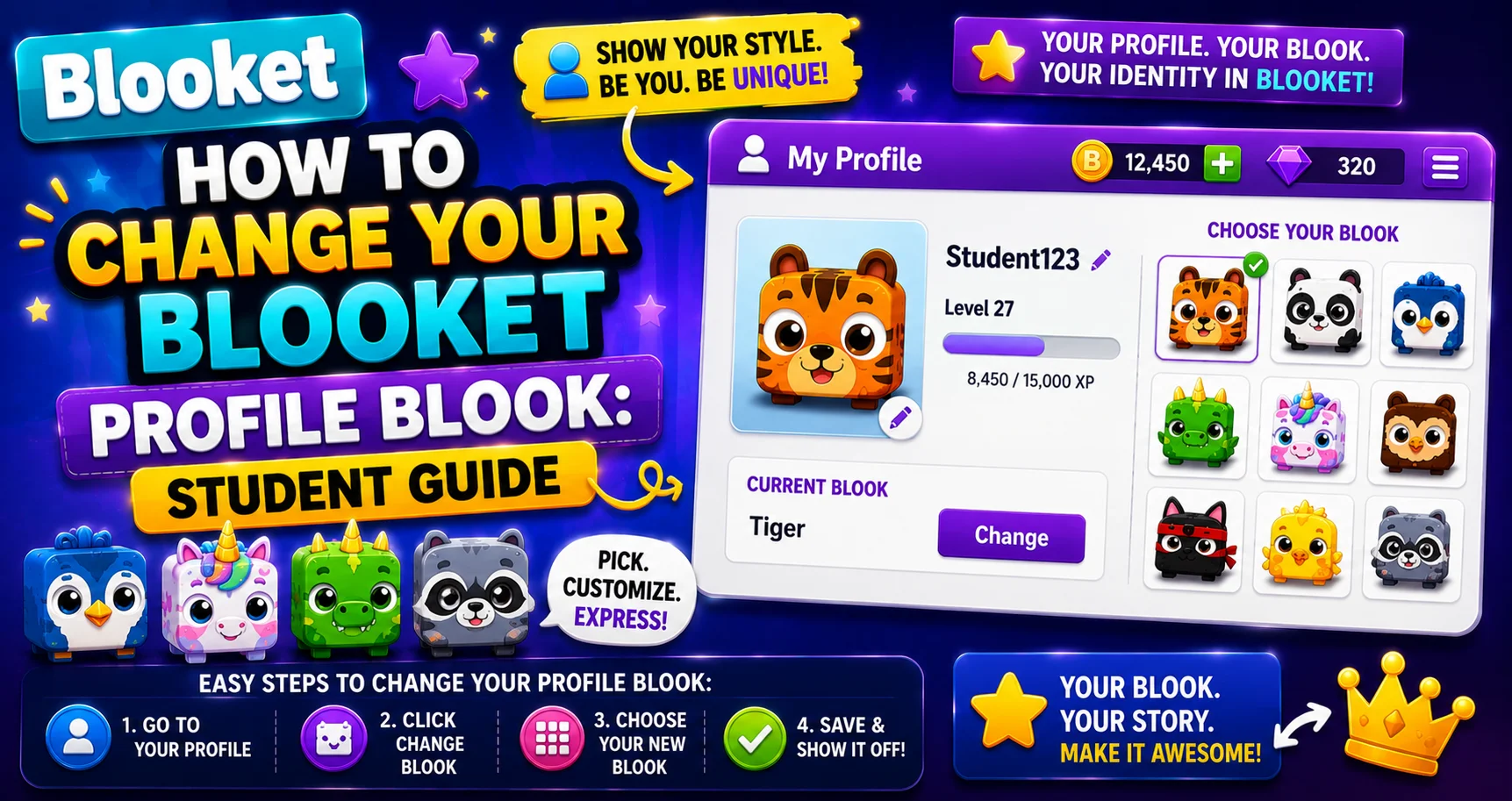
Quick Answer: To change your Blooket profile Blook, go to the Stats page (not Settings), click your current Blook in the top-left corner, and select a new one from the picker. The change takes effect immediately and is purely cosmetic; it does not affect gameplay.
How to Change Blooket Profile Blook: Step-by-Step
Your profile Blook is the avatar character that appears next to your name on the leaderboard during every Blooket game, live class sessions, solo play, and homework assignments. Changing it is a three-step process that can be done entirely from the Stats page. Learn how to change your Blooket profile Blook in this student guide.
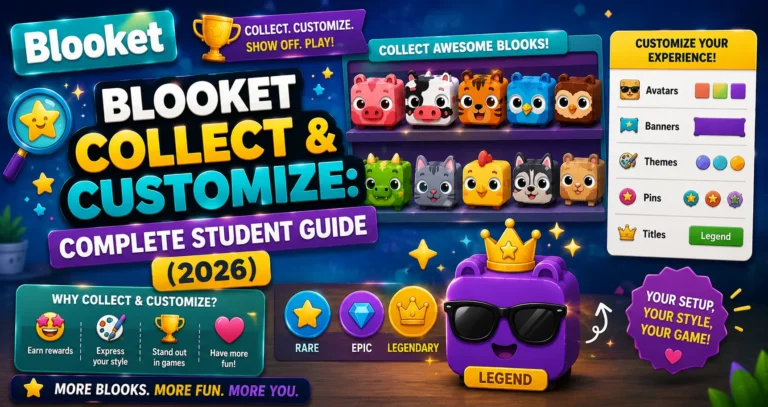
Learn More About → Blooket Blooks Collection & Customization
Critical First Step: Stats Page, Not Settings Page
The most common mistake when trying to change your profile Blook is going to the Settings page. Settings controls your account information, username, email, and password. It has no Blook options. Your profile Blook is changed from the Stats page.
Remember → Stats for style and Settings for security.
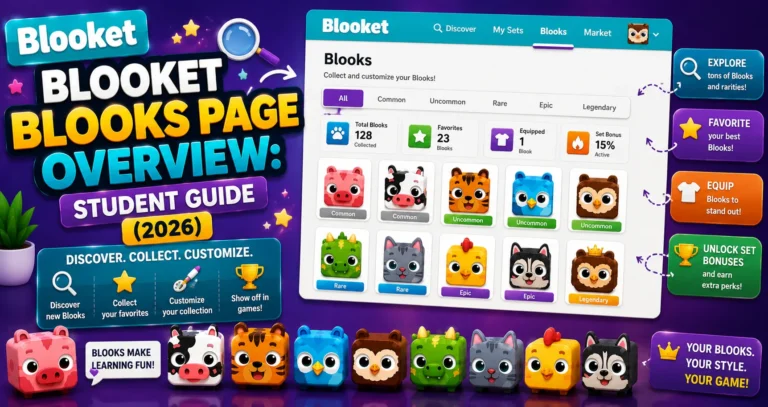
Complete Guide About → Blooks Page Overview
Step-by-Step: Changing Your Profile Blook
→ Step 1: Navigate to the “Stats” tab.
Access the Stats page from your Blooket dashboard by clicking Stats in the navigation bar. This is the same page where you create and save Custom Blooks.
→ Step 2: Click the Blook in the top-left corner.
On the Stats page, your currently active profile Blook appears in the top-left corner. Click it directly to open the Blook picker.
→ Step 3: Click on the Blook you wish to use.
The Blook picker shows your complete collection, every pack Blook you’ve collected, and every Custom Blook you’ve saved. Browse through your options and click the one you want to use.
You can now play as your selected Blook in live games. The change takes effect immediately. The next game you join, your new Blook will appear next to your name.
Create a Custom Blook → How to Create Custom Blooks in Blooket
Which Blooks Can You Set as Your Profile Blook?
You can set any of the following as your active profile Blook:
- Any Blook you’ve collected from Market packs (including Common Blooks).
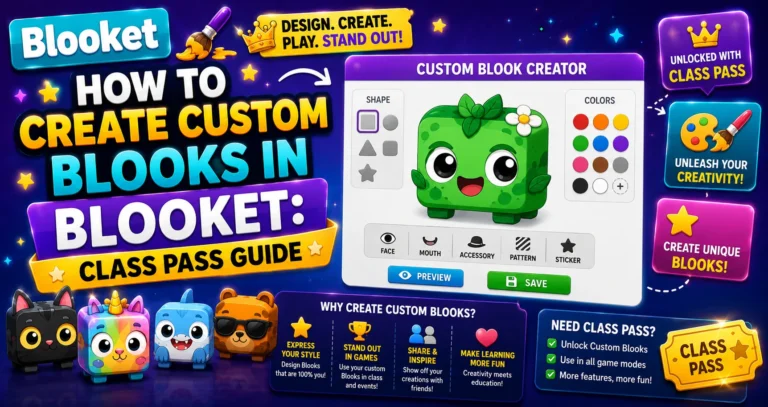
- Any Custom Blook you’ve built and saved through the Class Pass editor.
You cannot set a Blook you don’t own. Locked or unowned Blooks appear greyed out and are not selectable.
Source: verified from Blooket’s official documentation on changing your profile Blook.
What Does Your Profile Blook Affect?
Your chosen profile Blook appears:
- On the game lobby screen: When you join any live game.
- On the leaderboard: During and after every game session.
- On your public Stats page: Other students can see it when viewing your profile.
Your profile Blook choice has no gameplay effect; it does not change your point earning rate, token income, accuracy, or any other variable. It’s entirely cosmetic.
Step-by-Step Guide → How to Collect Blooks in Blooket
Changing Banners and Titles (Also on Stats Page)
While on the Stats page, you can also update:
- Your banner: The rectangular image at the top of your Stats page (earned from Weekly Shop, events, or Blook Score milestones).
- Your title: A decorative text label below your username (earned from events or Weekly Shop).
Both are managed from the same Stats page interface.
Joining Guide → How to Join a Blooket Game
Where to Go Next
- Want to know more about the platform? See our Blooket guide
- Curious about what your teacher sees? Visit the Blooket For Teachers
- Want the full student guides overview? See the Blooket For Students
Have another question? Please check the Frequently Asked Questions or Blooket Help Center.
Frequently Asked Questions
Can I use a Custom Blook as my profile Blook?
Yes. Custom Blooks appear in the same Blook picker alongside your collected pack Blooks. Any saved Custom Blook is available to set as your active profile.
Does my profile Blook change automatically between game sessions?
No. Your profile Blook stays as you set it until you change it manually on the Stats page.
I collected a new rare Blook, but it’s not showing in my picker. What happened?
Make sure you clicked Collect at the end of your pack-opening session. Blooks aren’t added to your collection until you click the Collect button on the summary screen. Go back to the Market and check if there’s a pending collection.
Does my profile Blook affect my Blook Score or gameplay in any way?
No. Choosing a profile Blook is entirely cosmetic. It doesn’t change your point earning rate, token income, accuracy, or Blook Score in any way.
Can I set a Blook I haven’t unlocked yet as my profile Blook?
No. Locked or unowned Blooks appear greyed out in the picker and cannot be selected until you actually collect or build them.
Where do banners and titles come from if I want to change those too?
They’re earned through the Weekly Shop, events, or Blook Score milestones, and are managed from the same Stats page where you change your profile Blook.
What’s the fastest way to check if my profile Blook changed correctly?
Join or start a new game right after changing it. The updated Blook should appear next to your name on the lobby screen and leaderboard immediately.