Blooket Game Settings Explained: Every Option Teachers Need to Know
Last verified: August 12, 2026
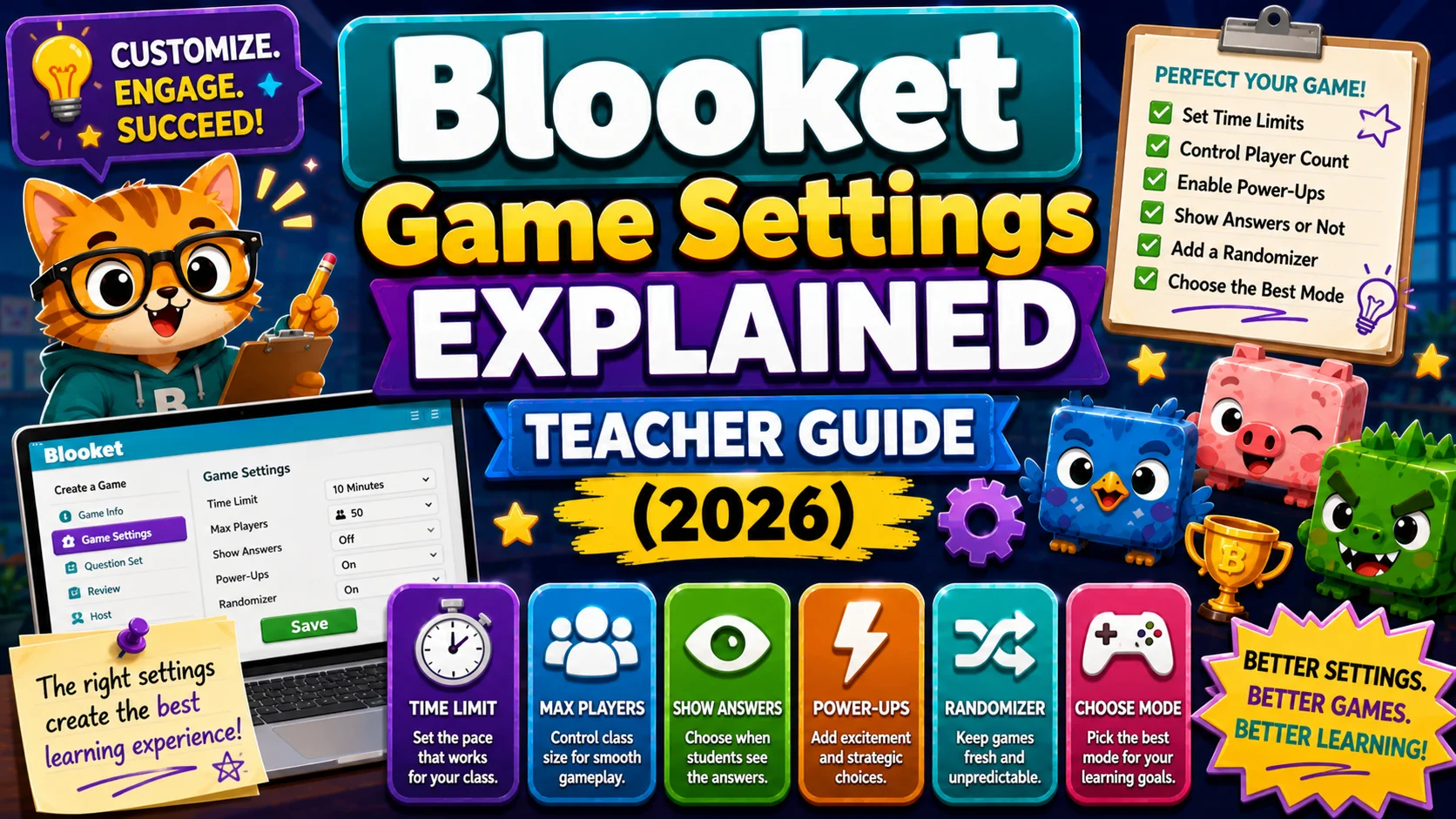
Quick Answer: Blooket game settings appear between selecting a game mode and clicking Host Now. The five universal settings, Shuffle Questions, Shuffle Answers, Question Time Limit, Random Names, and Hide Account Creation, plus two mode-specific settings (Team Mode and Correct Goal), all directly affect classroom management, report quality, and student experience.
Blooket Game Settings Explained: (Step-by-Step)
The Blooket Game Settings screen appears between selecting a game mode and clicking Host Now. It takes most teachers less than a minute to click through, but the choices made here directly affect classroom management, report quality, and student experience during the session.
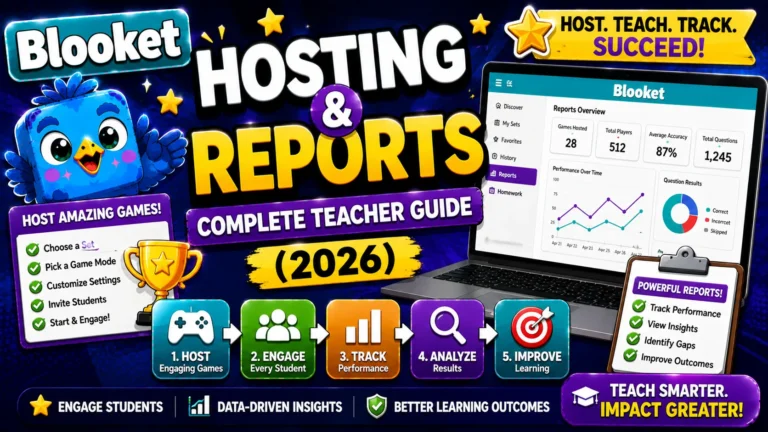
Complete Guide About → Blooket Hosting & Reports
This reference guide explains all the available Blooket game settings, the recommended settings for most classroom situations, and the reasoning behind each recommendation.
Note: Settings differ between game modes. Some options (like Team Mode) only appear in compatible modes.
Full Explanation About → All Blooket Game Modes
Universal Settings (Available in All Modes)
1. Shuffle Questions
What it does: When enabled, each student receives the questions in a different randomized order rather than the original sequence of the set.
→ Recommended state: ON
Why: In a live classroom, students sitting near each other may not be on the same question simultaneously. It reduces the effectiveness of “What did you get for number 4?” conversations and ensures that leaderboard positions reflect individual knowledge rather than proximity to a faster student.
When to turn it off: If you’re using a question set specifically designed to be answered in a prescribed order, such as a structured narrative or sequence-dependent content, disable shuffle. This is rare.
2. Shuffle Answers
What it does: Randomizes the display order of multiple-choice answer options for each student each time they see a question.
→ Recommended state: ON
Why: Students who play the same set multiple times over a unit can start memorizing answer positions (“the right answer was always the second option”). Shuffling answers prevents this, ensuring that each play-through tests actual recall rather than position memory.
Note: This setting does not affect Typing Answer questions, which have no selectable options.
3. Question Time Limit
What it does: Sets the maximum number of seconds a student has to answer each question before the question times out.
→ Recommended state: Mode default, modified for content complexity
Guidance by content type:
| Content Type | Recommended Time |
| Math fact fluency (single-step) | 10 to 15 seconds |
| Vocabulary definitions | 15 to 20 seconds |
| Concept recall, moderate complexity | 20 to 25 seconds |
| Reading-based questions | 30 to 45 seconds |
| Complex reasoning or multi-step problems | 30 to 45 seconds |
Important: In Synced-prompting modes (Classic, Battle Royale), the time limit determines when the class moves to the next question together. In Self-paced modes (Gold Quest, Tower Defense, and others), the time limit affects individual question timeout but doesn’t gate the whole class.
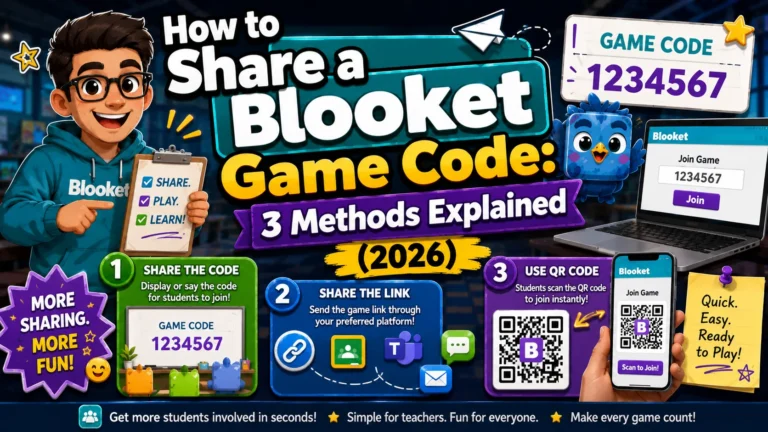
Complete Guide About → How to Share a Blooket Game Code
4. Random Names
What it does: When enabled, Blooket assigns each student a random auto-generated nickname instead of letting them enter their own.
→ Recommended state: Situation-dependent (detailed below)
Scenario 1, Random Names ON (recommended for younger students and large groups): Students join with assigned names like “Swift Narwhal” or “Brave Falcon.” This prevents inappropriate nicknames, eliminates delays caused by students typing complicated names, and adds a fun, anonymous layer.
Trade-off: Your post-game report shows these random names, not student names, so connecting report data to individual students requires manual cross-referencing or asking students which random name they received.
Scenario 2, Random Names OFF (recommended when you need named reports): Students type their own names when joining. Brief them before they join: “Type your first name and last initial, for example, Sarah K.” This produces reports where student names match your class roster.
Trade-off: Requires trust and classroom management to prevent inappropriate inputs.
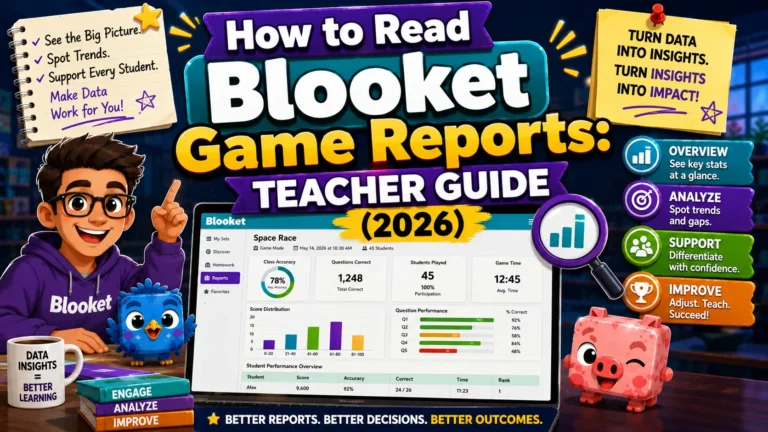
Scenario 3, best of both worlds (Plus users): Requires real names (Random Names OFF) and uses the downloadable report to match performance data to your gradebook.
Official guidance: Blooket’s own documentation recommends having students use real names specifically because it makes after-game reports easier to interpret and connect back to individual student performance.
Source: verified from Blooket’s official “How to Use Random Names in a Blooket Game” documentation.
5. Hide Account Creation
What it does: When enabled, it removes the “Create a Blooket Account” prompt that students normally see on the join screen.
→ Recommended state: ON for most classroom sessions
Why: When students see the account creation prompt, some will stop to create an account mid-join process, slowing the lobby fill and creating delays before you can start. Hiding this prompt streamlines joining for students who already have accounts (they can still log in) and removes a distraction for students who don’t.
When to disable: You’re explicitly encouraging students to create Blooket accounts for homework or long-term use. In this case, leaving the prompt visible lets students sign up during the natural join flow.
Step-By-Step About → How to Host a Blooket Game
Mode-Specific Game Settings
Team Mode (Available in select modes, including Battle Royale)
What it does: Divides students into randomly assigned teams that compete against each other collectively rather than as individuals.
→ Recommended state: Mode and context-dependent
Use Team Mode when:
- Your class has wide ability gaps; stronger students carry weaker teammates, reducing discouragement
- You want collaborative dynamics rather than pure individual competition
- Class size is large, since Team Mode manages the chaos of many individual competitors
Avoid Team Mode when:
- You need individual-level report data, since Team Mode aggregates performance
- You want to identify specific students who need additional support
Correct Goal (Homework Mode Only)
What it does: Sets the minimum number of correct answers a student must achieve before their homework assignment is counted as complete.
Guidance:
- 5 to 10 correct answers: Quick check-in or low-stakes practice
- 15 to 25 correct answers: Standard review assignment
- 30+ correct answers: Intensive test prep or comprehensive review
The Correct Goal drives more question answering than a simple time-based assignment. Students are motivated to keep playing until they hit the target, naturally generating more repetitions with the content.
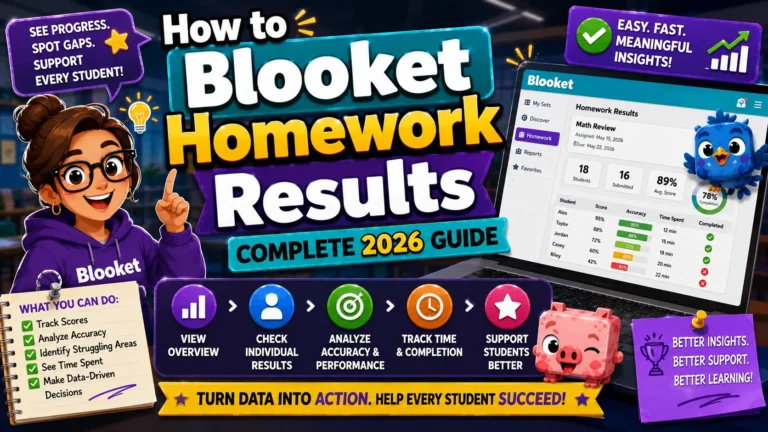
Complete Assignment Guide → How to Assign Homework in Blooket
Settings Quick-Reference Table
| Setting | Default State | Recommended | Changes for Reports |
| Shuffle Questions | ON | ON | No |
| Shuffle Answers | ON | ON | No |
| Question Time Limit | Mode default | Adjust for content | No |
| Random Names | OFF | ON (younger), OFF (named reports) | Yes, affects name data |
| Hide Account Creation | OFF | ON | No |
| Team Mode | OFF | Situational | Yes, affects individual data |
Where to Go Next
- Want to know more about the platform? See our full Blooket guide
- Want the full teacher toolkit overview? Visit the For Teachers hub
- Introducing this to students directly? See the For Students hub
Have a different question? Check our Frequently Asked Questions or Blooket Help Center
Frequently Asked Questions
Should I turn on Shuffle Questions and Shuffle Answers?
Yes, for almost every classroom session. Both settings default to ON and prevent students from sharing answers based on position or memorizing answer patterns across repeated plays.
Does Random Names affect my ability to see individual student data?
Yes, indirectly. With Random Names on, reports show the assigned nicknames rather than real names, so matching performance to specific students requires manual cross-referencing unless students are logged into their own accounts.
What is the official recommendation for naming in reports?
Blooket’s own documentation recommends real names specifically because it makes after-game reports easier to interpret and connect to individual student performance.
When should I use Team Mode instead of individual competition?
When your class has a wide ability gap, when you want a collaborative rather than purely competitive dynamic, or when the class size is large enough that Team Mode helps manage the chaos of many individual competitors.
Does Team Mode affect the report I get afterward?
Yes. Team Mode aggregates performance data at the team level, so if you need individual-level report data to identify specific students needing support, avoid Team Mode for that session.
What Correct Goal should I set for a quick homework check-in?
5 to 10 correct answers work well for a quick, low-stakes check-in. Standard review assignments typically use 15 to 25, and intensive test prep uses 30 or more.
Do game settings carry over between sessions?
Settings are configured fresh each time you host or assign homework, so you can adjust them per session based on your specific goal that day.