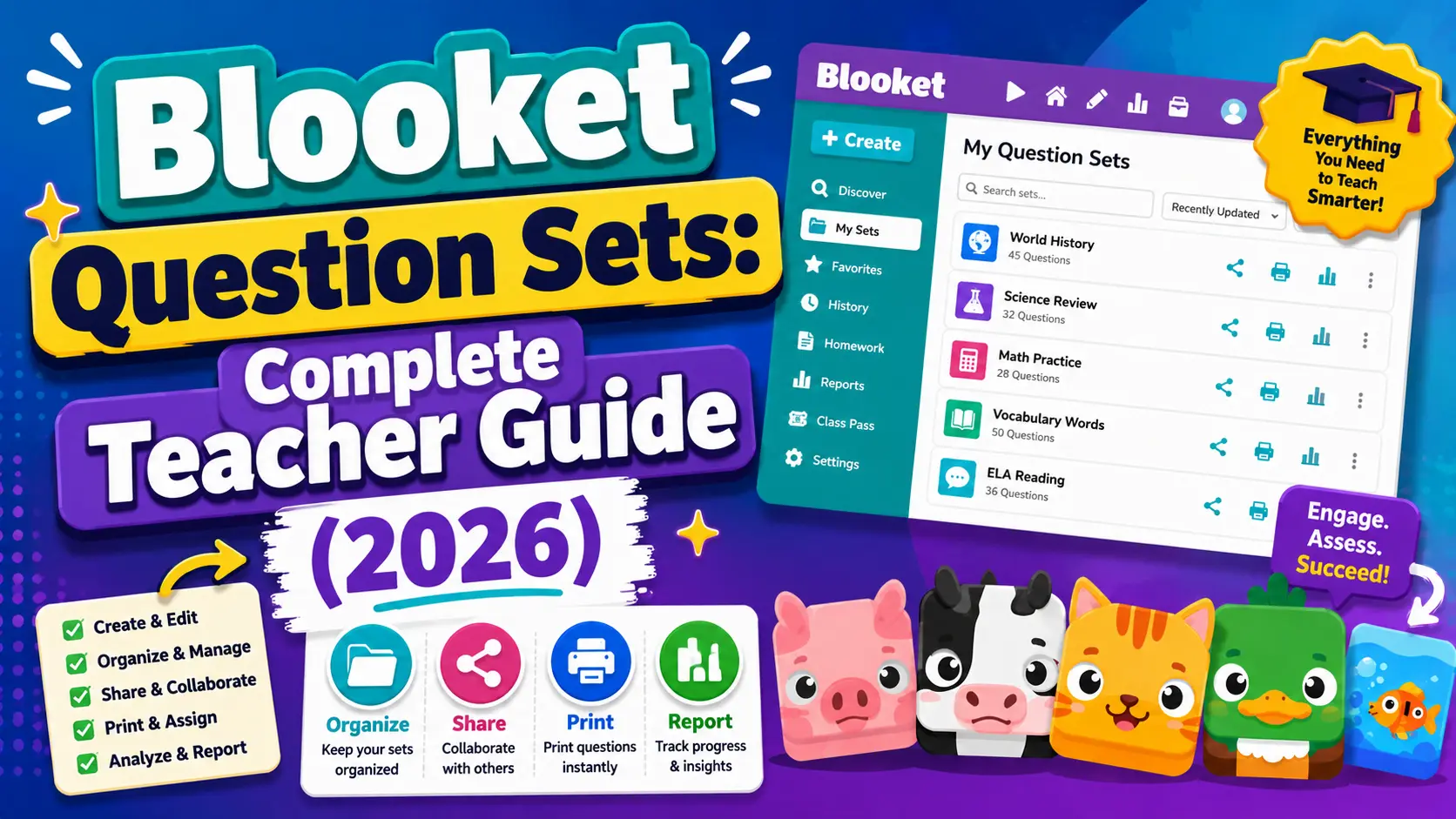
Blooket Question Sets: The Complete Guide for Teachers
Last verified: August 8, 2026
Quick Answer: A Blooket question set is the saved collection of questions and answers that powers every Blooket game. You can build one from scratch, find a public set on Discover, import from Quizlet or a spreadsheet, or generate one with AI via Khanmigo and then host it, assign it as homework, or play it solo across any of Blooket’s 25+ game modes.
Blooket Question Sets for Teachers
Every Blooket game is based on a question set. Whether you’re hosting a live classroom review, assigning homework for tonight, or letting students explore a topic solo, the question set is the foundation of the entire experience. Understanding how question sets work, how to build, find, and manage them is the single most important skill for getting value out of Blooket.
This guide explains everything about Blooket question sets for teachers: how they work, how to build one from scratch, and how to find, import, and manage them at scale. For deep dives on any individual topic, follow the links throughout to the dedicated articles in this guide.
All About → Blooket Quick Start Guide for Teachers
What is a Blooket Question Set?
A question set is a saved collection of questions and answer options that powers Blooket games. Think of it as the curriculum layer under the game. The game mode determines how students interact — racing for gold, defending towers, running a cafe — but the question set determines what they actually have to know to win.
Each question set can contain:
- Multiple choice questions (2–4 answer options, one or more correct)
- Typing answer questions (students type a short response rather than selecting)
- True/False questions (a special case of multiple choice with just two options)
- Images, equations, and audio attached to questions or answers to support visual learners, math, and language instruction
Once a question set is saved, it can be used across all 25+ Blooket game modes. The same set of vocabulary words works for a Gold Quest review one day, and a Tower Defense challenge the next.
How to Get a Question Set?
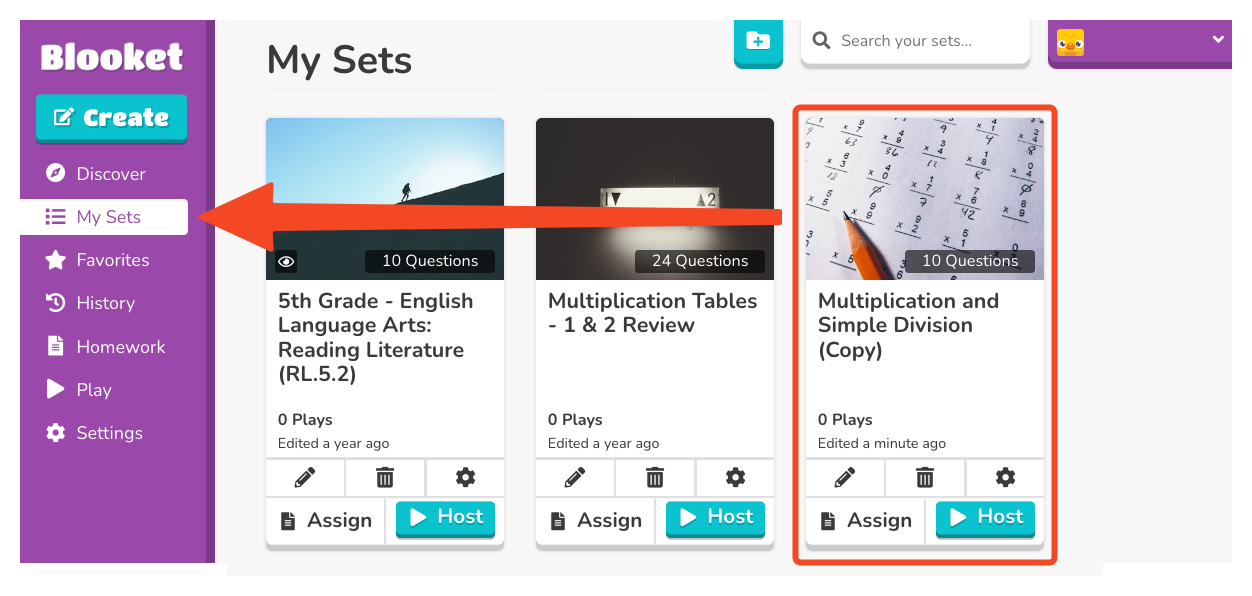 There are four ways to get a question set ready to use:
- Build from scratch — Create your own questions using the question editor. Best for proprietary content, standards-specific material, or class-specific assessments.
- Find a public set — Browse Blooket’s library of 20+ million user-created sets on the Discover page, including Blooket-verified Curriculum sets. Best for common topics where a quality set already exists.
- Import from Quizlet or a spreadsheet — Convert existing study content into a Blooket set in minutes. Best for teachers who already have content created elsewhere.
- Use AI generation via Khanmigo — Generate a complete question set from a topic prompt using the Khanmigo AI generator. Best for fast first drafts on standard curriculum topics.
Each method has its place depending on your time restrictions and content needs. You can select a question set before hosting a game or assigning it as homework.
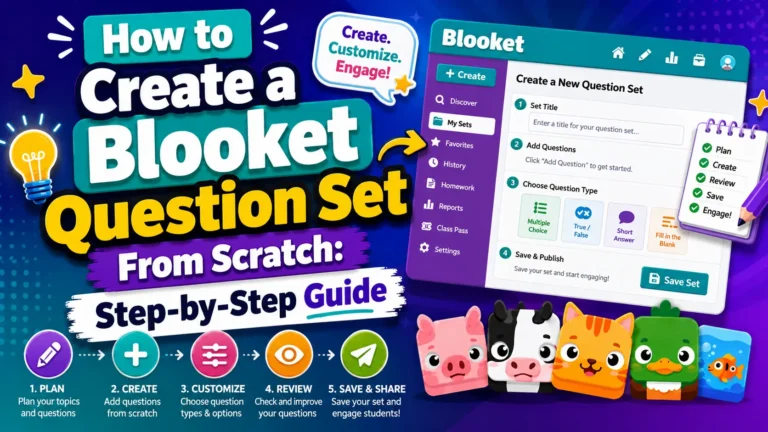
How to Create a Blooket Question Set From Scratch
In your teacher dashboard, click the Create button, then select your creation method. You’ll be prompted to give your set a title (required), a description (optional), and a cover image (optional). You’ll also set the privacy to Public (discoverable by other users) or Private (accessible only to you).
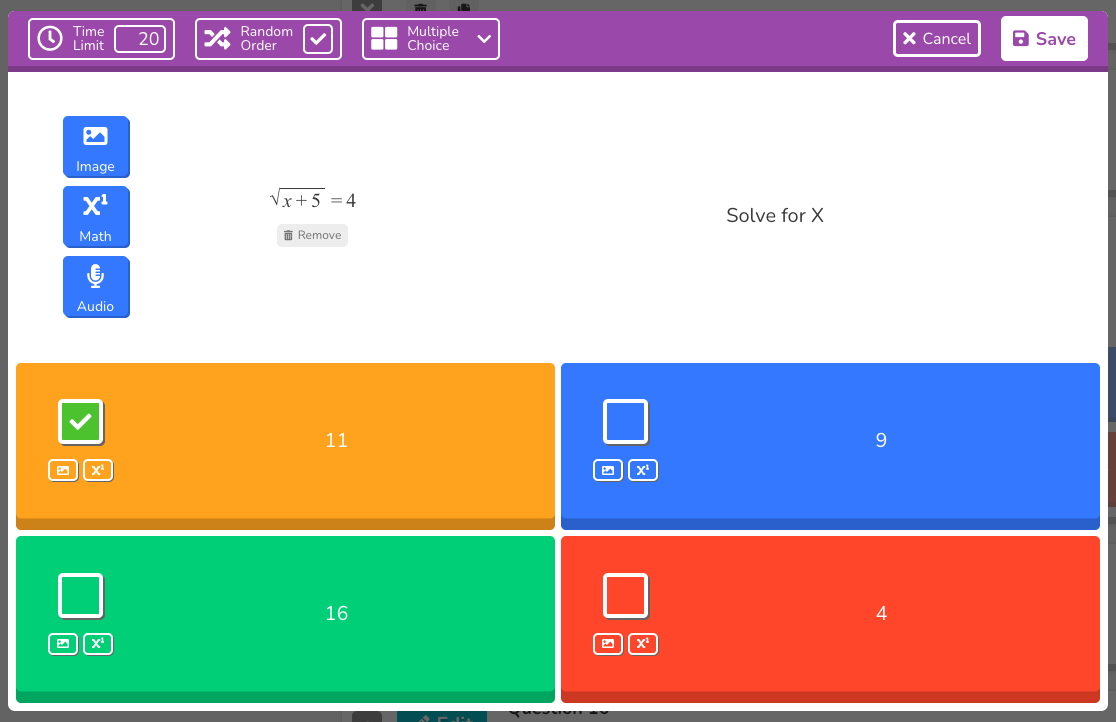
Inside the editor, you add questions one at a time using the question editor. For each question, you write the prompt, add 2–4 answer options, mark the correct answer(s), and set a time limit. You can also attach images from the Blooket gallery or your own files, add equations using the built-in LaTeX editor, and record or upload audio (Blooket Plus only).
Step-by-step instructions → How to Create a Blooket Question Set From Scratch
Understanding Question Types
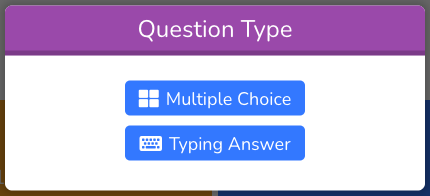
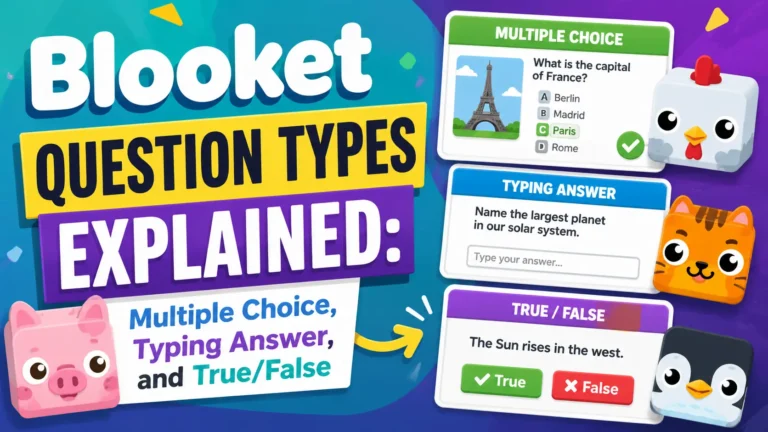
Blooket offers two primary question types that work fundamentally differently:
- Multiple Choice presents a question with 2–4 selectable answer options. Students tap or click the correct answer. You can mark more than one answer as correct. For True/False questions, you simply set Answer 1 as “True” and Answer 2 as “False” and uncheck the Random Order toggle.
- Typing Answer requires students to type their response rather than select it. This is stronger for spelling, short-answer recall, and vocabulary definitions where recognition-based guessing isn’t the learning goal. The answer matching can be set to “Contains” (partial matches are accepted) or “Is Exactly” (a precise match is required).
Full explanation with use cases → Blooket Question Types Explained
Adding Images, Audio, and Equations
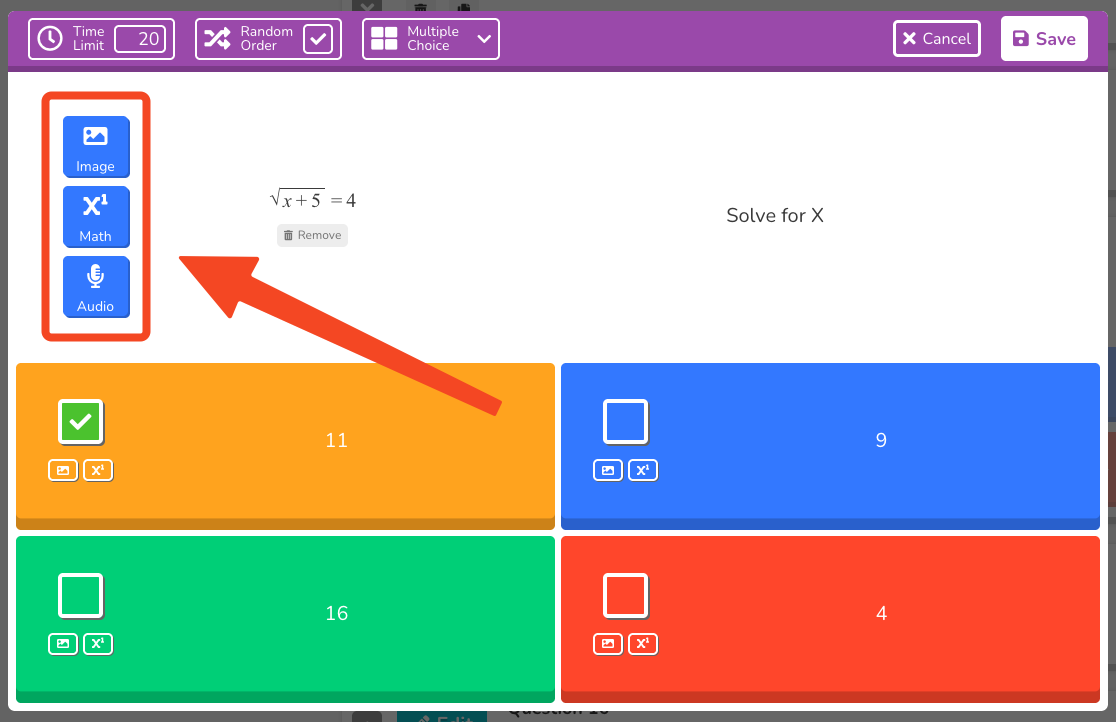
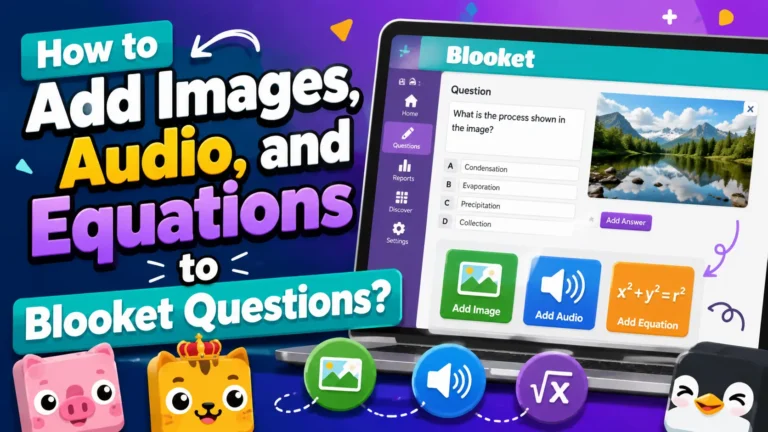
Every question and answer field in Blooket supports rich media. You can add images from the Blooket built-in gallery, upload your own files, or paste an image URL. Math questions benefit from the equation editor, which supports full LaTeX for complex expressions. Audio questions (Blooket Plus) allow you to record directly or upload an audio file — particularly useful for language classes, pronunciation work, and accessibility.
Full walkthrough → How to Add Images, Audio, and Equations to Blooket Questions
Finding Public Question Sets
The Discover page is your gateway to the 20+ million question sets created by other teachers worldwide. Use the search bar with targeted terms — subject name, grade level, skill name, or standard code — and filter results to narrow your options. The Blooket Curriculum section in Discover offers verified sets organized by subject and grade for more confident content selection.
Once you find a set you want to save for later, you can Favorite it to add it to your Favorites tab for fast access during lesson planning.
Search Techniques → How to Find Blooket Question Sets on the Discover Page
Save Sets → How to Favorite a Blooket Question Set
Importing from Quizlet or a Spreadsheet
If you already have content built in Quizlet, you can transfer it to Blooket in about five steps. Blooket’s Quizlet import reads the term/definition structure and auto-generates answer choices. You can flip the question/answer orientation if needed and edit any individual question after importing.
For bulk content creation, Blooket’s spreadsheet (CSV) import lets you build an entire question set in Google Sheets or Excel using a provided template, then upload it as a single file. This is one of the fastest paths to creating larger sets of 30–50+ questions.
Complete Process → How to Import Questions from Quizlet into Blooket
Full Guide → How to Import Questions from a Spreadsheet (CSV) into Blooket
AI-Generated Sets with Khanmigo
Khanmigo (Khan Academy’s free AI tool) has a Blooket Generator feature that creates a set of multiple-choice questions from a topic prompt in seconds. You review and edit the generated questions individually, approve the ones you want, and export the finished set directly to your Blooket account.
AI generation works best for standard curriculum topics and first drafts. The generated questions should always be reviewed before classroom use.
Complete Tutorial → AI-Generated Question Sets: Blooket + Khanmigo Guide
Source: verified from Blooket’s official “AI-Generated Question Sets with Khanmigo” documentation.
Managing Your Question Library (Blooket Plus Features)
As your library grows, Blooket Plus unlocks three tools for managing it at scale:
- Merging sets — Combine questions from two or more sets into one, useful for creating comprehensive review sets before major assessments.
- Question Bank — Pull individual questions from any of your sets or from public sets into a current set, building compound sets from existing content without rebuilding from scratch.
- Folders — Organize your sets into labeled folders by subject, class period, unit, or any other structure that suits your workflow.
Full Guide → How to Merge Blooket Question Sets (Plus)
Complete Guide → How to Use the Blooket Question Bank (Plus)
Full Guide → How to Organize Blooket Question Sets with Folders (Plus)
Source: verified from Blooket’s official documentation on merging, Question Bank, and Plus features.
Sharing and Collaboration
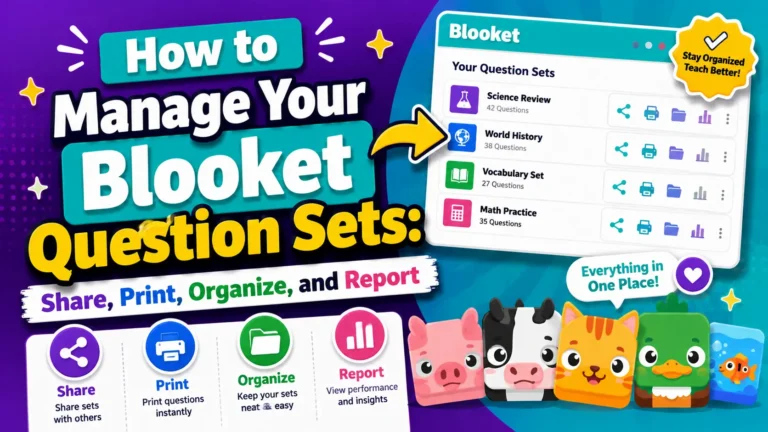
Public sets can be shared via a direct link — this works on the free (Starter) plan, no Plus subscription required. Copy the link from the settings wheel for any public set, then share it via Google Classroom, email, or any messaging platform. Anyone with the link can view and use the set, but they need Blooket Plus to click Copy and create their own editable version.
Only Public sets can be shared via link or discovered in the Discover page. Private sets can still be used in your own games — they just aren’t searchable or linkable.
Full sharing and copying guide → How to Share, Copy, and Manage Blooket Question Sets
Printing Question Sets as Worksheets
Every question set can be exported as a printable worksheet directly from the Discover page or your My Sets library. The print preview lets you toggle whether to include images, descriptions, and correct answers — making it possible to print student copies and a separate answer key from the same set.
Full Tutorial→ How to Print Blooket Question Sets as Worksheets
Reporting Problems
If you come across a public question set in the Discover library that contains inaccurate information, inappropriate content, or other problems, you can report it directly from the set’s menu. Click the three-dot menu on the set, select Report, then provide a reason. Blooket reviews reports and takes action on content that violates community guidelines.
Full Process → How to Report Inappropriate Question Sets in Blooket
Where to Go Next
- Want the full teacher toolkit overview? Visit the For Teachers hub
- Building sets for students to use directly? See the For Students hub
- Have a different question? Check our Frequently Asked Questions
or visit the full Blooket Help Center for details
Frequently Asked Questions
What is a Blooket question set?
A saved collection of questions and answer options that powers a Blooket game. The game mode (Tower Defense, Gold Quest, etc.) determines how students interact with it, but the question set determines what content they’re actually being tested on.
What are the four ways to get a question set?
Build one from scratch using the question editor, find a public set on the Discover page, import from Quizlet or a spreadsheet, or generate one with AI using the Khanmigo integration.
Do I need Blooket Plus to create question sets?
No. Building sets from scratch, importing from Quizlet or a spreadsheet, and using the Khanmigo AI generator are all available on the free (Starter) plan. Plus is required for copying someone else’s set, merging sets, using the Question Bank, and organizing sets into folders.
Can I import questions from Quizlet or a spreadsheet?
Yes. Quizlet import converts an existing flashcard set into a Blooket set in about five steps. Spreadsheet (CSV) import uses a provided template in Google Sheets or Excel and is one of the fastest ways to build a larger set of 30+ questions.
Is the AI question generator free to use?
Yes. The Khanmigo Blooket Generator is a free Khan Academy tool. You generate questions on Khanmigo.ai and export the finished set to your Blooket account at no extra cost.
What’s the difference between Multiple Choice and Typing Answer questions?
Multiple Choice gives students 2–4 selectable options; Typing Answer requires them to type their response, which is stronger for spelling, recall, and vocabulary practice where guessing shouldn’t be possible.
Can I share my question set with other teachers?
Yes, for free. Any Public set can be shared via a direct link, no Blooket Plus required. The person you share it with needs Plus only if they want to copy it into their own editable version.
Do I need Blooket Plus to copy someone else’s question set?
Yes. Copying a public set (or one of your own) to create an editable duplicate is a Blooket Plus feature.