Blooket FAQs Quick Start: 6 Important Questions Answered
Last verified: August 23, 2026
Quick Answer: Blooket is free for essential features; students don’t need accounts to play, hosting takes three steps (choose a set, click Host, share the Game ID), homework takes six steps, question sets are shared via a Public link, and profile customization happens on the Stats tab, not Settings.
Source: verified from Blooket’s official Quick Start FAQs documentation
Blooket FAQs for Quick Start
If you’re new to Blooket or helping someone else get started, these are the six questions that come up most often in Blooket FAQs. Every answer here is a direct response to the most commonly searched Blooket questions, with links to detailed guides for anyone who wants to go deeper. Also, learn more about how to log in to Blooket as a student.
Complete Explanation → Complete Blooket FAQs
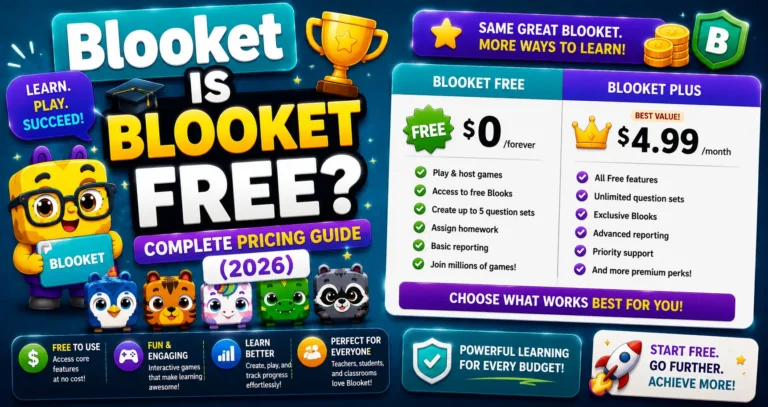
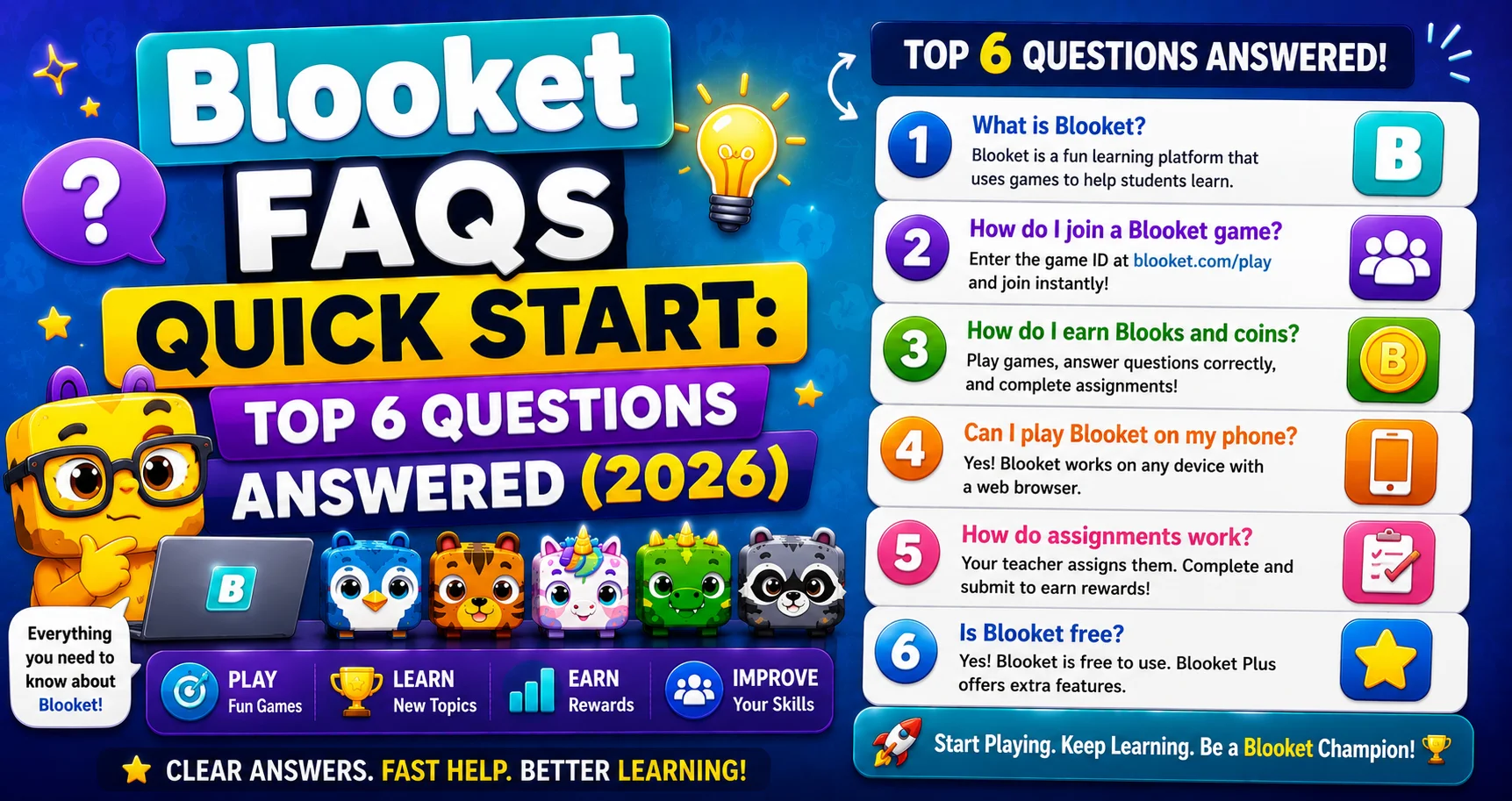
Q1: Is Blooket Free?
Yes. All of Blooket’s essential features are free.
You can create an unlimited number of question sets and host a game with up to 60 players, no credit card, no trial period, no hidden fees. The free plan is genuinely complete for classroom use.
Blooket also offers an optional Plus upgrade for teachers who want additional features: hosting up to 300 players (except Racing and team modes), enhanced student reports, audio questions, longer homework deadlines, and exclusive game modes.
Upgrading is optional. The platform works fully without it.
Full Pricing Analysis → Is Blooket Free?
Plus Features List → Blooket Plus Features for Students
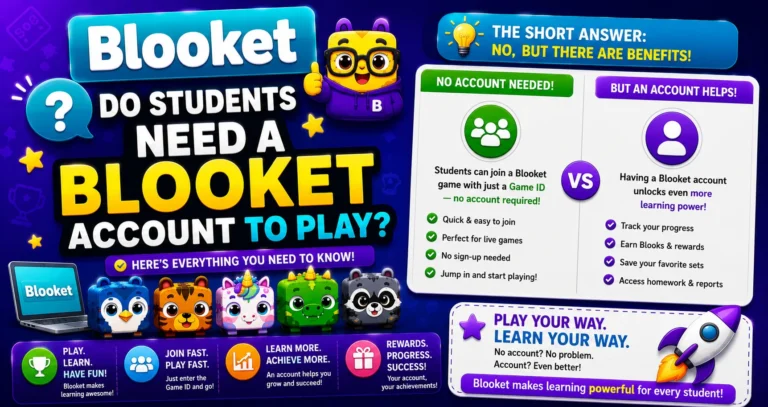
Q2: Do Students Need a Blooket Account to Play?
No. Only the teacher needs an account.
Students can join any live game using just the Game ID, QR code, or Join Link their teacher shares; no login, no signup, no account required. They type a nickname, pick a Blook, and they’re in.
Find Game Codes → Blooket Game Codes for Students
However, students who do create accounts get access to additional features: collecting and keeping Blooks between sessions, tracking their stats, earning tokens and XP, and playing Solo games on their own anytime.
Complete Answer → Do Students Need a Blooket Account to Play?
Creating a student account is free and optional, but meaningful if a student wants to engage with Blooket beyond single-class sessions.
Student Sign Up → How to Sign Up for Blooket
Student Join Guide → How to Join a Blooket Game
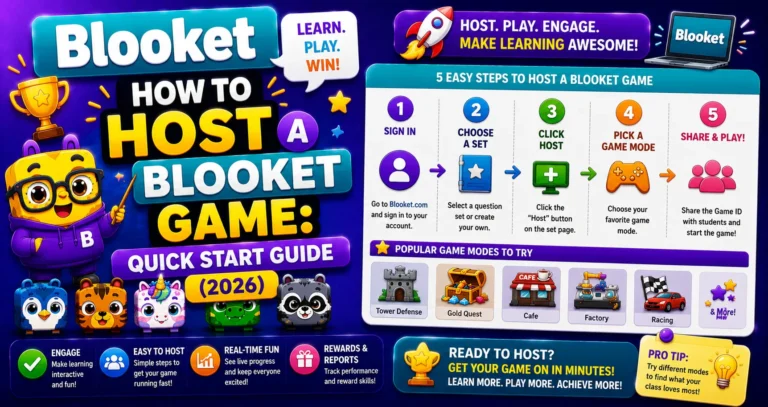
Q3: How Do I Host a Blooket Game?
Three steps: choose a question set, click Host, share the Game ID.
- Find a question set from My Sets, Discover, or create a new one.
- Click Host on the question set’s preview page and choose a game mode.
- Blooket generates a Game ID, QR Code, and Join Link; share any of these with students to start.
The game begins when you click Start from the lobby screen.
Full Step-by-Step Guide → How Do I Host a Blooket Game
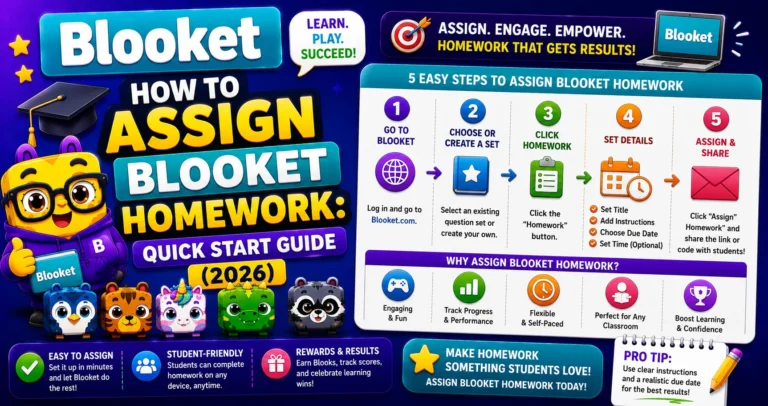
Q4: How Do I Assign Blooket as Homework?
Six steps: choose a set → set due date → configure settings → Assign Now → copy link → share.
- Choose a question set (create your own sets, or public sets from Discover).
- Click Assign HW and select a due date (free accounts: up to 14 days; Plus accounts: up to 365 days).
- Configure additional settings, including the Correct Goal (minimum correct answers required).
- Click “Assign Now.”
- Copy the generated homework link.
- Share the link with students via Google Classroom, email, or any other channel.
Students pick their own game mode and play until they hit the Correct Goal.
Full Homework Guide → How Do I Assign Blooket Homework
Student Homework Completion → How to Complete Homework in Blooket
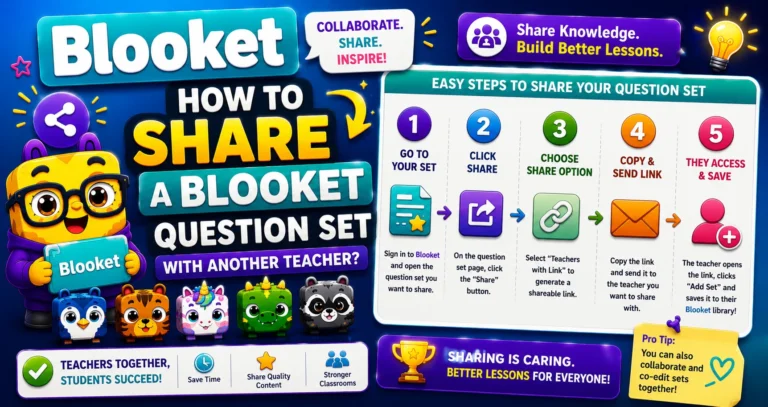
Q5: How Do I Share a Question Set with Another Teacher?
Make it Public, then copy the Link from the Gear icon in My Sets.
- Go to My Sets and find the question set you want to share.
- Hover over the Gear/Cog icon on the set card and look for the Link option.
- Click Link; the URL copies to your clipboard automatically.
If the Link option doesn’t appear, your set is set to Private. Change it to Public by clicking the pencil icon → Edit Info → Privacy Setting → Public → then Save. The Link button becomes available.
Full Sharing Guide → How to Share a Blooket Question Set with Another Teacher
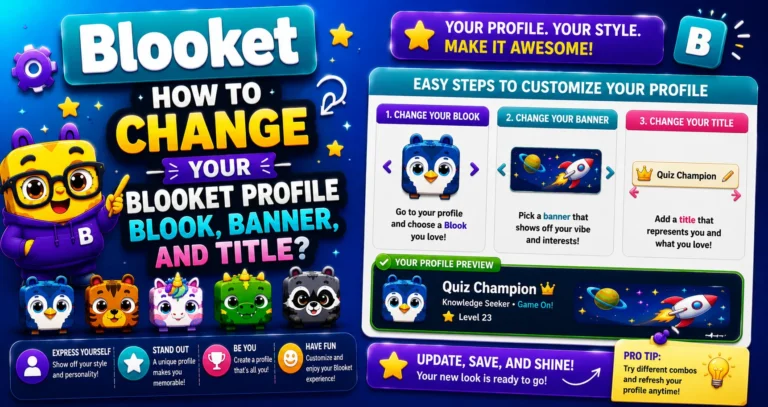
Q6: How Do I Change My Profile Blook, Banner, or Title?
Go to your Stats tab and click on the element you want to change.
- Navigate to the Stats tab on your dashboard (dashboard.blooket.com/stats).
- Click on your current Blook (top left), banner (top image), or title (below your name).
- A pop-up opens where you can choose a new option from everything you own.
To unlock new Blooks, banners, and titles, visit the Market.
Important: Profile customization is on the Stats page, not the Settings page. Settings controls your account information (username, email, password). Stats controls your visual identity.
Full Profile Guide → How to Change Your Profile Blook, Banner, and Title
Unlock New Blooks → How to Collect Blooks in Blooket
Where to Go Next?
For Teachers: Start with the complete teacher onboarding guide for a step-by-step walkthrough of everything from account setup to reading your first report.
Teacher Starting Guide → Getting Started For Teachers
For Students: Start with the student quick start guide for everything from joining your first game to collecting your first Blooks.
Student Starting Guide → Getting Started For Students
Have a question not answered here?
Complete Help Center → Blooket Help Center
Frequently Asked Questions
Is there a limit to how many question sets I can create for free?
No. Free accounts can create an unlimited number of question sets with no credit card or hidden fees required.
Can students play without downloading anything?
Yes. Students join directly in a web browser using the Game ID, QR code, or Join Link; no app download or account creation is needed to participate.
What’s the maximum number of players in a free hosted game?
Up to 60 players. Blooket Plus raises this to up to 300 players for most game modes, with some exceptions like Racing and team modes.
How long can a free homework assignment stay open?
Up to 14 days. Blooket Plus extends this to up to 365 days, giving teachers much more flexibility for long-term or self-paced assignments.
Do I need to make a question set Public to share it with a colleague?
Yes. The Link option only appears on Public sets. If your set is Private, you’ll need to switch it to Public in Edit Info before the shareable link becomes available.
Where do I go to change my Blook, banner, or title all in one place?
The Stats tab, not Settings. All three visual identity elements are managed from the same page, each changed by clicking on the current version and choosing a new one.
What’s the difference between the Settings page and the Stats page?
Settings controls account information like your username, email, and password. Stats controls your visual identity: your profile Blook, banner, and title.